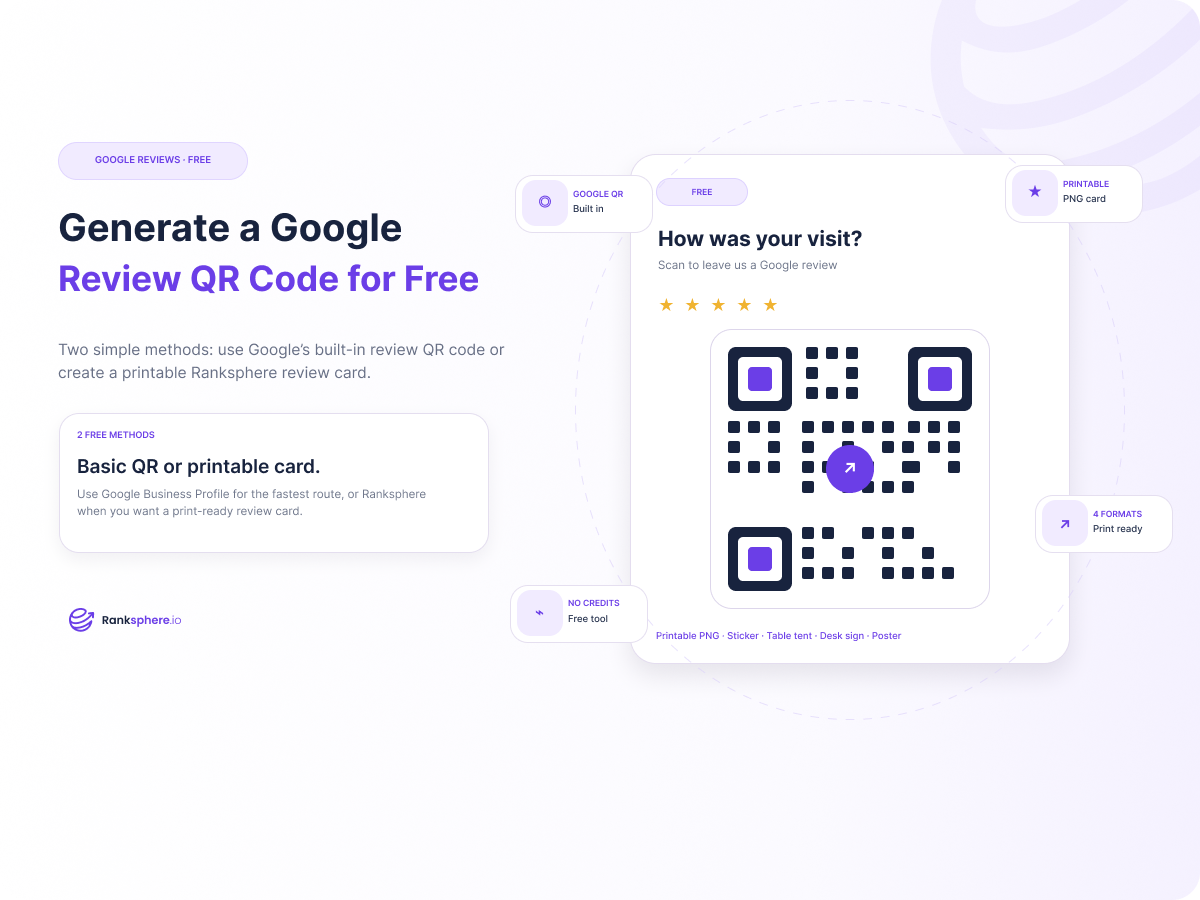
You can create a Google review QR code for free in two ways:
- Generate it directly from your Google Business Profile.
- Use Ranksphere to create and download a printable review QR card.
Both methods send customers to your Google review page. The difference is mainly in presentation. Google's option gives you the QR code itself, while Ranksphere lets you prepare it as a printable review card with options for the size, color, and headline.
If you also want to manage reviews, replies, and review activity in one place, Ranksphere includes a Google review management tool alongside its other local SEO features.
Option 1: Get a Free Review QR Code From Google Business Profile
Google now has a built-in QR code for requesting reviews, so you do not need a separate QR generator if you only need the code.
Step 1: Open your Google Business Profile
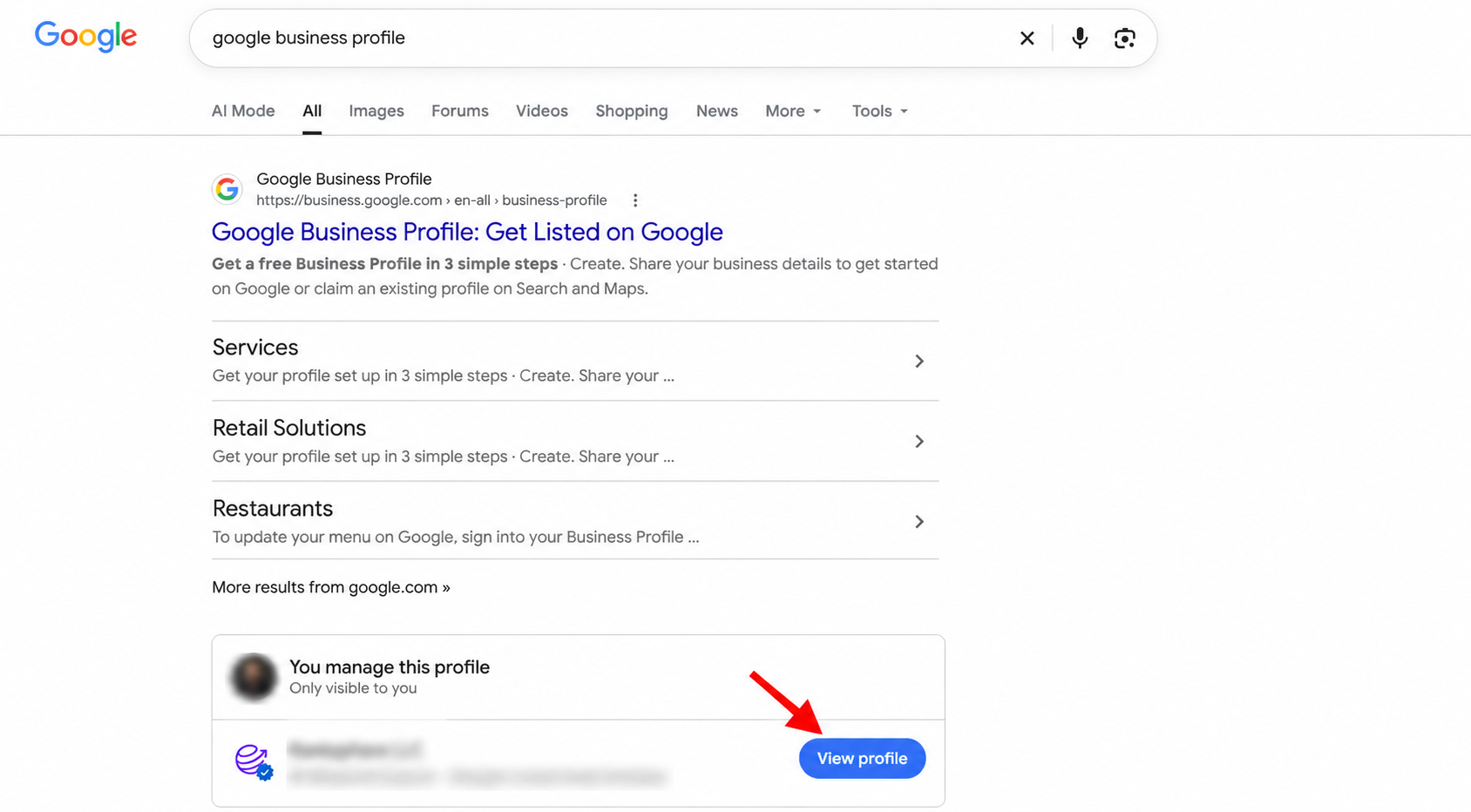
Sign in to the Google account that manages your Business Profile and open the profile.
Google's current instructions start from your Business Profile rather than from an old standalone Google Business Profile dashboard.
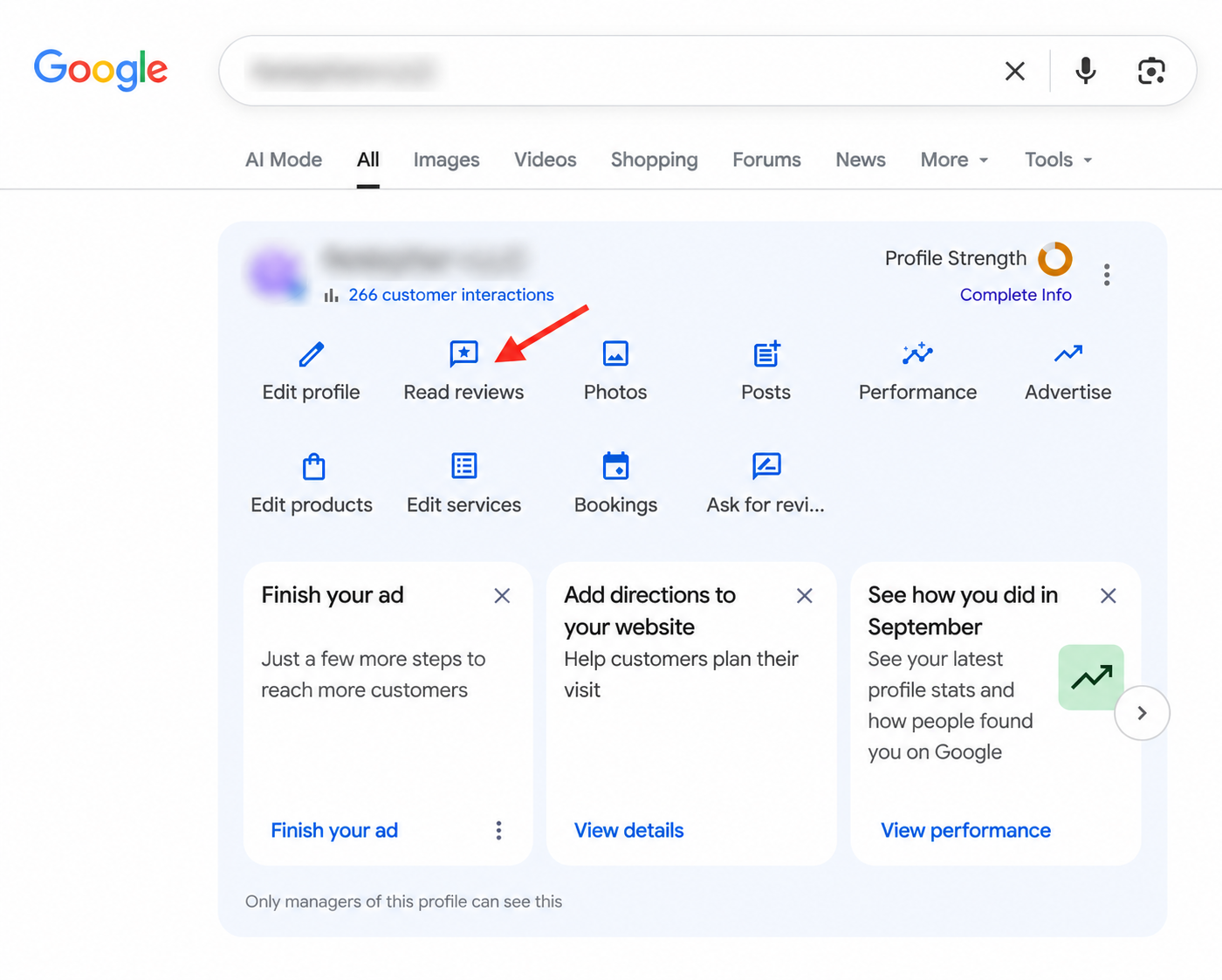
Step 2: Open your review tools
Select Read reviews, then choose Get more reviews.
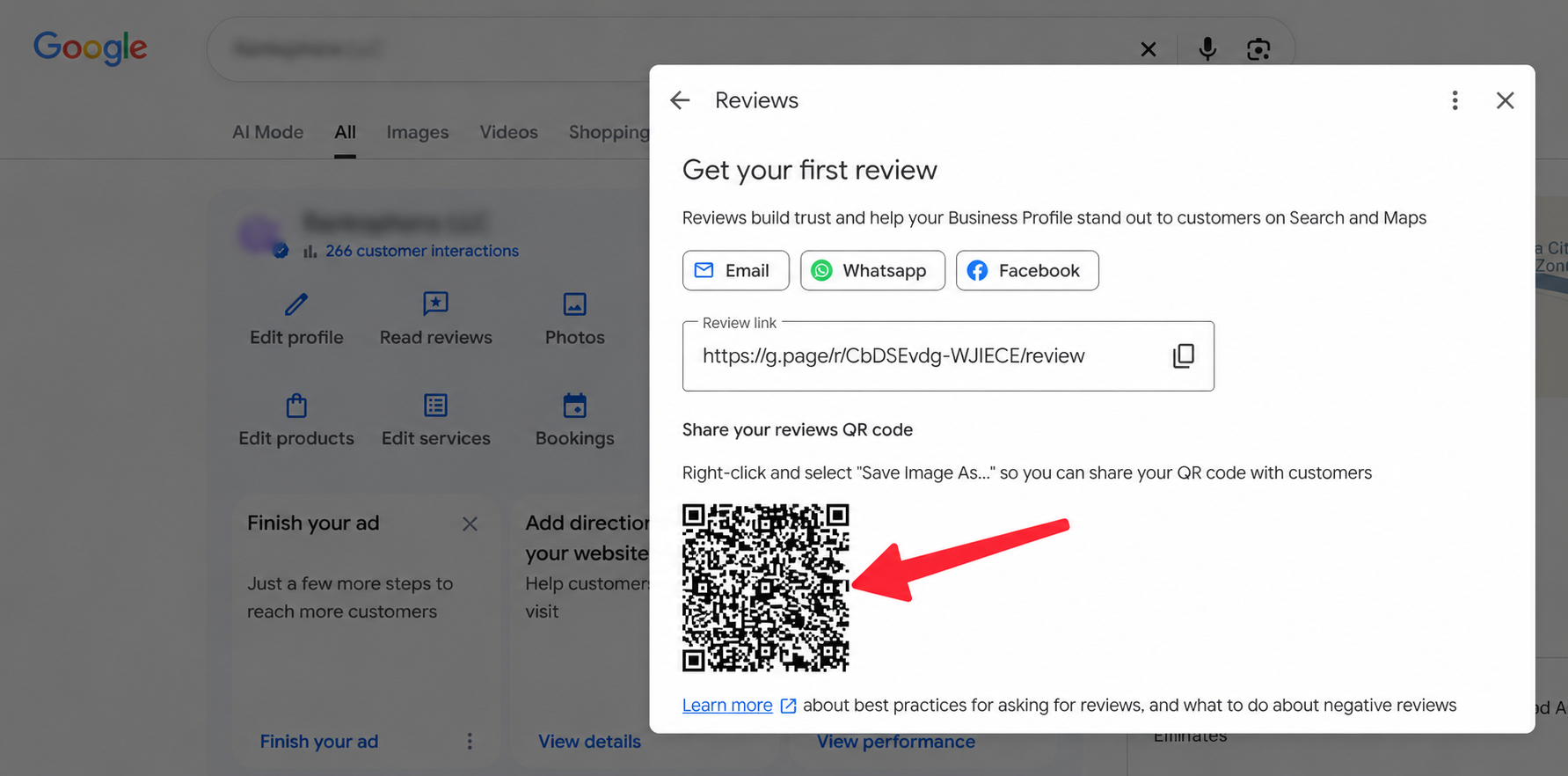
Google will display your direct review link along with a QR code that points customers to the review page.
Step 3: Save the QR code
To download it:
- Right-click the QR code.
- Choose Save image as.
- Save the image to your computer.
You can then place it on printed materials such as receipts, signs, cards, or other customer-facing materials.
One limitation is worth knowing: Google currently says its review QR code can only be generated from a computer browser. It is not available for generation on mobile devices.
Option 2: Create a Free Printable Google Review QR Code With Ranksphere
If you want something you can print and put on a counter, table, reception desk, or wall, Ranksphere has a free Get reviews QR card designer.
The QR code points directly to the location's Google review page. Creating and downloading the card does not use Ranksphere credits.
Step 1: Create a Ranksphere account
Ranksphere currently offers a 14-day free trial and does not require a credit card to start. Sign-up here.
Step 2: Open your location
Inside Ranksphere, open the location you want customers to review.
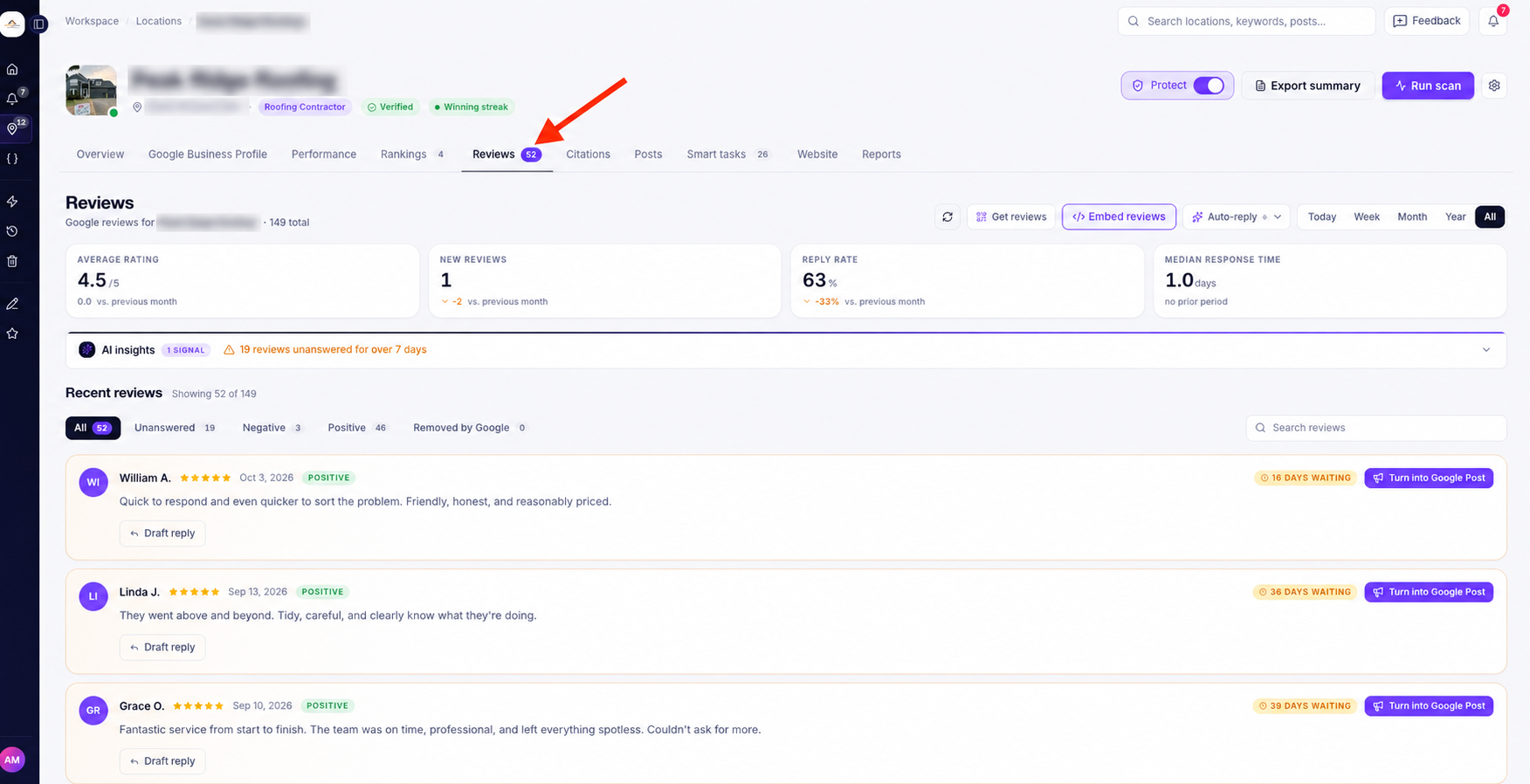
Go to Reviews and select Get reviews.
Step 3: Set up the QR card
The QR code designer lets you choose a format based on where you plan to use it:
| Format | Typical use |
|---|---|
| Sticker | Counter, packaging, small printed areas |
| Table tent | Restaurants, cafés, tables |
| Desk sign | Reception desk or checkout counter |
| Poster | Wall or larger customer-facing display |
Ranksphere also lets you change the card's color and headline before downloading it.
You can also add branding, but the full logo and branded-design process should be covered in a separate article about creating a Google review QR code with a logo so the two pages do not compete for the same search intent.
Step 4: Download the QR code
Download the finished card as a PNG.
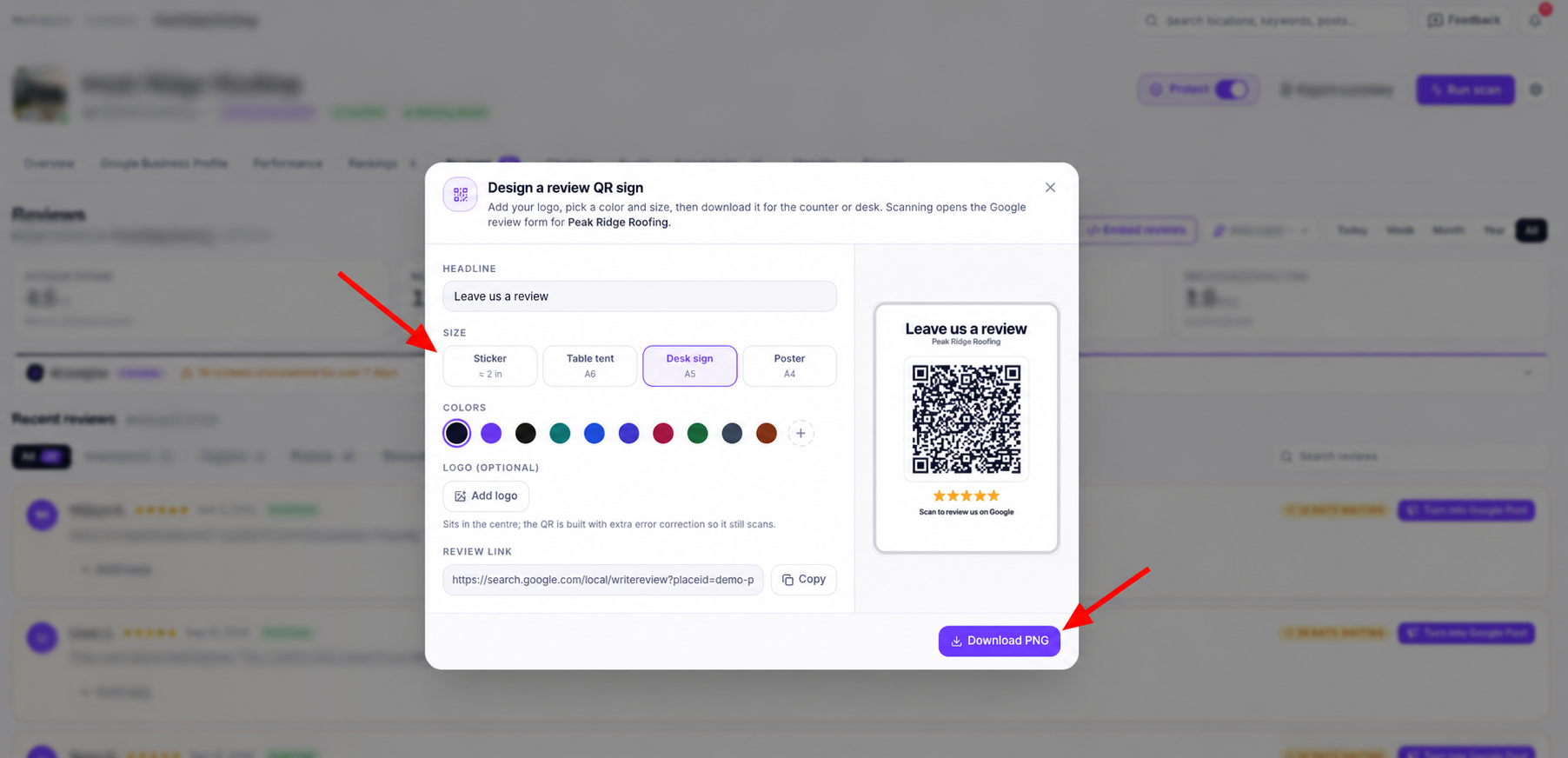
Ranksphere generates the image at a resolution appropriate for the selected print format, so you can send it to a printer or place it inside another design.
Google vs. Ranksphere.io - Which Method Should You Use?
Use Google Business Profile if you only need a basic QR code and want the shortest possible process.
Use Ranksphere if you want the QR code already prepared as something customers can see and understand when printed.
| Feature | Google Business Profile | Ranksphere |
|---|---|---|
| Free to create | Yes | Yes |
| Opens Google review page | Yes | Yes |
| Downloadable | Yes | Yes |
| Printable design | Basic QR image | Yes |
| Sticker format | No built-in design | Yes |
| Table tent format | No built-in design | Yes |
| Desk sign format | No built-in design | Yes |
| Poster format | No built-in design | Yes |
| Change headline | No | Yes |
| Change design color | No built-in designer | Yes |
Google's built-in option is enough for many businesses. Ranksphere mainly saves the extra work of taking a raw QR code into another design program before printing it.
Where Should You Put a Google Review QR Code?
Put it somewhere customers encounter after they have actually used your product or service.
Google itself suggests placing the review request on receipts, in thank-you emails, after chat interactions, or as a printed QR code displayed in the business.
Depending on the business, that could mean:
- A reception or checkout counter
- A restaurant table
- A printed receipt
- A thank-you card
- Product packaging
- An invoice
- A service-completion card
- A poster near the exit
The important part is timing. Someone who has just completed a purchase, appointment, meal, or service has an actual experience to review.
Don't Offer Rewards for Scanning the QR Code
You can ask customers to leave a review, but you should not offer a discount, free item, gift, or other incentive in exchange for one.
Google says reviews must reflect genuine experiences, and incentives offered in exchange for posting, changing, or removing reviews are prohibited as fake engagement.
That means a sign saying:
Scan to leave us a Google reviewis fine.
A promotion such as:
Leave us a 5-star review and get 10% offis not.
You should also avoid asking only customers you expect to leave positive feedback. A review request should be about collecting genuine feedback, not filtering customers according to the rating you expect.
Test the QR Code Before You Print It
Before ordering 500 cards or putting a poster on the wall, scan the finished QR code with a phone that is not already being used to edit the design.
Check that:
- The QR code scans quickly.
- It opens the correct business.
- It reaches the Google review flow.
- The printed design has enough contrast.
- The code is large enough to scan from the intended distance.
This takes a minute and can prevent a batch of printed materials from pointing to the wrong location or being difficult to scan.
Frequently Asked Questions
Is it free to create a Google review QR code?
Yes. Google Business Profile lets businesses create and download a review QR code without paying for a separate generator. Ranksphere's QR card tool is also free to use and does not consume Ranksphere credits.
How do I get a Google review QR code for my business?
Open your Google Business Profile on a computer, select Read reviews, then Get more reviews. Google displays both a review link and QR code. Right-click the QR code and choose Save image as to download it.
Can I generate the Google review QR code on my phone?
Not through Google's built-in QR generator at the moment. Google's current documentation says review QR codes can be generated only from a computer browser.
Does a customer need a Google account to leave a review?
Yes. Google says customers need to be signed in to a Google Account before they can leave a review. The account does not have to use a Gmail address.
Can I print my Google review QR code?
Yes. Google specifically recommends printing and displaying review QR codes in a business. With the basic Google option, you save the QR image and create the printed layout yourself. Ranksphere can generate a printable card in sticker, table-tent, desk-sign, or poster formats.
See where you rank on Google Maps
Track your rankings, Google Business Profile, reviews, and citations in one place. 14-day free trial, no credit card.