Local Rank Tracking
Local Rank Tracking shows where a business appears in Google Maps across different parts of its service area. This guide covers how to run a scan, understand the heatmap, compare results, and schedule future scans.
What is Local Rank Tracking?
Local Rank Tracking lets you see where your business ranks on Google Maps across different parts of your selected area.
Instead of checking your ranking from just one location, Ranksphere checks it from multiple points on a map. These points are called pins.
Each pin represents a search made from that location.
Once the scan finishes, Ranksphere displays the results on a heatmap, showing where your business ranks well and where its visibility is weaker.
For example, your business might rank in the top three results near its address but appear much lower in other parts of the area.
The heatmap helps you see these differences.
How does local rank tracking work?
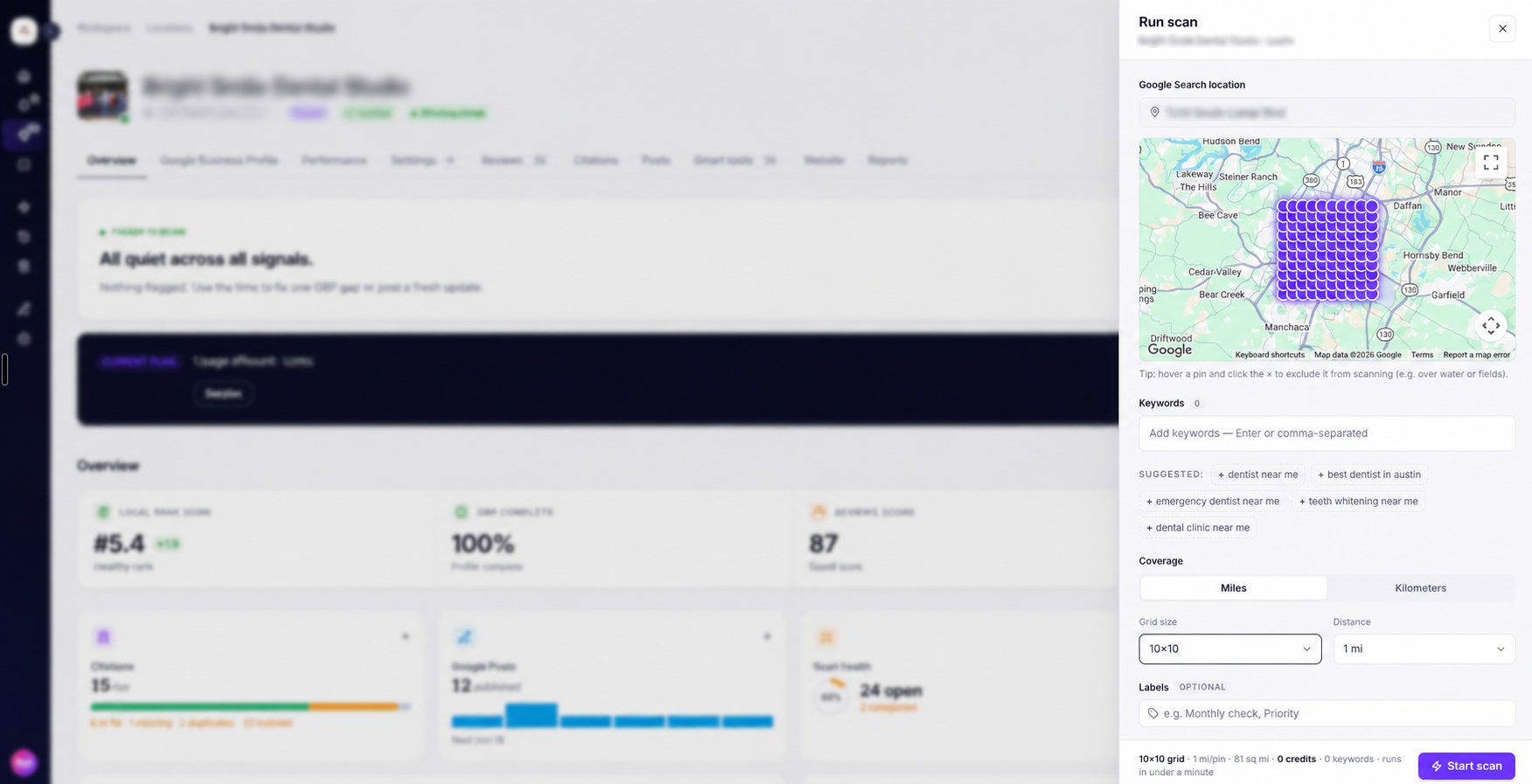
When you run a ranking scan, you choose the keywords you want to check and the area you want to cover.
Ranksphere then checks where your business appears in the local results from each pin on the map.
Choose your grid size
The grid size determines how many pins are included in your scan.
| Grid size | Number of pins |
| 5 × 5 | 25 |
| 7 × 7 | 49 |
| 9 × 9 | 81 |
| 10 × 10 | 100 |
| 12 × 12 | 144 |
| 13 × 13 | 169 |
| 15 × 15 | 225 |
| 17 × 17 | 289 |
| 19 × 19 | 361 |
| 21 × 21 | 441 |
Larger grids let you check rankings from more search locations, giving you a more detailed view of the selected area.
You can also change the distance between pins to adjust how much of the area your scan covers.
How many scan credits will I use?
Each keyword checked from each pin uses one scan credit.
The cost depends on the number of pins and keywords included in the scan.
Number of pins × Number of keywords = Scan credits
For example:
| Grid size | Keywords | Credits required |
| 5 × 5 (25 pins) | 1 | 25 |
| 5 × 5 (25 pins) | 2 | 50 |
| 7 × 7 (49 pins) | 1 | 49 |
| 9 × 9 (81 pins) | 2 | 162 |
You can remove individual pins you don't need before running the scan.
Ranksphere shows the exact number of credits required before you start.
For more information, see Scan Credits.
How to run a local ranking scan
You can run a ranking scan from the Rankings section of any location you're allowed to manage.
Step 1: Open your location
- Go to Locations.
- Select the business you want to track.
- Open the Rankings tab.
- Click Run scan.
Step 2: Add your keywords
Enter the keywords you want to check.
For example, a roofing business might track searches such as "roof repair" or "roofing contractor."
As you add keywords, Ranksphere may show additional information to help you choose suitable terms.
This can include:
- Search volume: The estimated number of searches a keyword receives.
- Keyword difficulty: How competitive the keyword is.
- Search intent: What someone is likely looking for when they search for that keyword.
Choose keywords that reflect the services people are likely to search for in your business's area.
Step 3: Choose your scan area
Select your grid size and set the distance between pins.
Ranksphere automatically places your business location at the center of the scan area.
You can adjust the area by changing the grid size and pin distance.
You can also remove individual pins if there are search locations you don't want to include.
Step 4: Review your scan credits
Before starting, check the number of scan credits required.
The total depends on how many pins and keywords are included.
Step 5: Start your scan
Click Start scan.
Once the scan is complete, you can review your ranking heatmap and other ranking results.
How to read your ranking heatmap
The ranking heatmap shows how your business performs across the area you scanned.
Each pin displays a ranking position and a color that helps you identify stronger and weaker areas.
What do the pin colors mean?
| Pin color | What it means |
| Green | Your business ranks near the top of the local results. |
| Yellow or amber | Your business appears around the middle of the results. |
| Orange or red | Your business ranks lower or doesn't appear within the first 20 results. |
These colors make it easier to see where your business has stronger visibility and where it may need attention.
What does 20+ mean?
If a pin shows 20+, your business either ranks below position 20 or doesn't appear in the local results from that search location.
For example, you might see several green pins near your business and orange or red pins farther away.
This tells you that your business is performing better in some parts of the scanned area than others.
How to see who's ranking at each pin
Hover over a pin to see the businesses appearing in the local results from that location.
You can also see their Google ratings and review counts.
Your own business is marked as You, making it easier to identify your position compared with other businesses.
For more information about how Ranksphere identifies competing businesses, see Identifying Competitors.
Understanding your ranking metrics
Your scan results include several metrics that help you understand how your business performs across the entire scanned area.
The main metrics are:
| Metric | What it tells you |
| Average map rank | Your business's average ranking position across all pins. |
| In top three | The percentage and number of pins where your business ranks in the first three local results. |
| Share of voice | How much visibility your business has across the selected area. |
Average map rank
Average map rank shows your business's average ranking position across all pins included in a scan.
A lower average map rank means better overall rankings.
For example, an average rank of 3 indicates stronger rankings than an average rank of 10.
When your business doesn't appear within the first 20 results at a pin, Ranksphere counts that pin as position 20 when calculating the average.
This gives you an average based on the full scanned area, rather than relying on the ranking from just one location.
In top three
The In top three metric shows the percentage of pins where your business appears among the first three local results.
It also shows the exact number of pins where your business reached the top three.
For example, if your business ranks in the top three at 18 out of 25 pins, Ranksphere displays:
72% — 18 of 25 pins
This helps you understand how often your business appears near the top across the selected area.
Share of voice
Share of voice measures how visible your business is across the area included in the scan.
A higher percentage means your business appears prominently across more of the selected pins.
You can use this metric alongside your average map rank and top-three results to get a better understanding of your visibility.
How to add and manage tracked keywords
You can add keywords when creating a ranking scan.
Once added, your tracked keywords appear in the Local rankings table under the location's Rankings section.
This is where you can review and manage the keywords you're tracking.
What information is available for keywords?
When adding a keyword, Ranksphere may show:
- Monthly search volume
- Keyword difficulty
- Search intent
In the Local rankings table, each tracked keyword shows its monthly search volume and search intent.
These details can help you choose keywords that match the services people search for in your business's area.
For example, a dental clinic might track keywords related to its main treatments and services.
Choose keywords that are relevant to the business rather than simply adding as many as possible.
How to compare ranking results over time
Once you've scanned the same keyword more than once, you can compare the results to see how your rankings have changed.
This is useful when you want to check whether your rankings have improved or declined between two dates.
How to compare two ranking scans
- Open your location.
- Go to Rankings.
- Open the keyword you want to review.
- Select Compare two dates.
- Choose the two completed scans you want to compare.
Ranksphere displays the earlier scan on the left and the later scan on the right.
What can I compare?
The comparison shows changes in your heatmap and key ranking metrics.
| What you can compare | What it helps you see |
| Ranking heatmap | Which parts of the area improved or declined. |
| Average map rank | Whether your overall average ranking became better or worse. |
| In top three | Whether your business appears in the top three at more or fewer pins. |
For example, you might notice that your business moved into the top three at several pins where it previously ranked lower.
You can also identify areas where rankings have declined.
How to make a useful comparison
For a more consistent comparison, use scans with the same:
- Keywords
- Grid size
- Distance between pins
- Scan area
Keeping these settings the same makes it easier to see how rankings changed between the two dates.
How to view your Scan History
Ranksphere saves every completed ranking scan so you can review previous results.
To find them, open Scan History from the sidebar.
What information is shown in Scan History?
Each row represents a tracked keyword and includes:
| Information | What it shows |
| Business | The business included in the scan. |
| Keyword | The search term being tracked. |
| Label | A label you've added, if any. |
| Scan size | The grid size used for the scan. |
| Last scan | When the scan last ran. |
| Next scan | When the next scheduled scan will run. |
| Frequency | How often the scan is scheduled to run. |
You can search and filter Scan History to find previous results.
Can I restore a deleted scan?
Yes.
When you delete a scan, it moves to Deleted Scans.
You can restore it from there if you need it again.
Deleted scans are kept for 30 days before they're removed.
How to schedule recurring ranking scans
If you want to track your rankings regularly, you can schedule scans to run automatically.
This means you don't need to start each scan manually.
Available scan frequencies
When scheduling a scan, you can choose how often it should run.
| Frequency | How often the scan runs |
| Daily | Every day |
| Weekly | Once a week |
| Bi-weekly | Every two weeks |
| Monthly | Once a month |
You can also choose:
- The date of the first scan
- The time the scan should run
- Whether it should continue indefinitely
- Whether it should stop after a set number of runs
Do recurring scans use credits?
Yes. Scheduled scans use the same number of credits as manually started scans.
For example, if you schedule one keyword on a 5 × 5 grid to run every week, each completed weekly scan will use 25 credits.
The cost is based on the number of pins and keywords included.
What happens if there aren't enough credits?
If the location doesn't have enough allocated scan credits when a scheduled scan is due, Ranksphere skips that scan.
The schedule remains active and will try again on the next scheduled date.
You can check or update credit allocations under Settings → Credit Usage → Scan Credits → Manage Allocation.
For more information, see Scan Credits.
How to set or change a keyword's scan schedule
You can manage the scan schedule for each tracked keyword separately.
For example, you might want to scan one keyword every week and another once a month.
Steps to update a keyword's schedule
- Open your location and go to Rankings.
- Find the keyword under Local rankings.
- Click the ••• menu on the right.
- Open the scheduling option.
- Choose or update the scan frequency and other available schedule settings.
- Save your changes.
Once saved, the Next scan and Frequency columns will show the updated schedule.
Changing the schedule for one keyword does not affect the schedules of your other tracked keywords.
How to pause, resume, or delete a scheduled scan
You can manage existing scan schedules from the Rankings section of your location.
Open your location, go to Rankings, and find your scheduled scans below the ranking results.
From here, you can:
| Action | What it does |
| Review schedule | Check the current scan schedule. |
| Pause | Temporarily stop future scans. |
| Resume | Restart a paused scan schedule. |
| Delete | Remove the schedule so it no longer runs. |
What happens to previous scans if I pause or delete a schedule?
Your completed scan results are kept.
Pausing or deleting a schedule only affects future scheduled scans. It does not remove scans that have already been completed.
Note: Pausing an entire business location also stops its scheduled ranking scans. This is different from pausing an individual scan schedule.
To learn more, see Locations in Ranksphere.
Who can run scans and view ranking results?
Your workspace role determines whether you can run scans and which location's ranking results you can access.
| Workspace role | Run ranking scans | View ranking results |
| Owner | Yes, for all locations | All locations |
| Admin | Yes, for all locations | All locations |
| Member | Yes, for shared locations | Shared locations |
| Guest | No | Only when given access to the location and its Rankings section |
Guests cannot run scans, but they can view ranking results when the required access has been granted.
Running a scan also requires enough allocated scan credits.
If the location doesn't have enough credits, the scan won't start.
For more information about roles and access, see Users, Roles & Permissions.
Quick guide to local rank tracking
If you already know what you want to do, use this table to find it.
| What you want to do | Where to go |
| Run a new ranking scan | Locations → Select location → Rankings → Run scan |
| View tracked keywords | Locations → Select location → Rankings → Local rankings |
| Compare ranking results | Rankings → Open keyword → Compare two dates |
| View previous scans | Sidebar → Scan History |
| Find deleted scans | Scan History → Deleted Scans |
| Change a keyword's schedule | Rankings → Local rankings → Keyword menu → Scheduling option |
| Pause or resume a scheduled scan | Rankings → Scheduled scans |
| Check scan credits | Settings → Credit Usage → Scan Credits |
| Allocate scan credits | Settings → Credit Usage → Scan Credits → Manage Allocation |
Frequently asked questions
How many pins should I use?
A 5 × 5 grid with 25 pins is a good starting point for most single-location businesses.
If you need to cover a wider area or check rankings in more detail, you can choose a larger grid.
Keep in mind that larger grids use more scan credits.
Why does a pin show 20+?
A pin showing 20+ means your business ranks below position 20 or doesn't appear in the local results from that location.
These pins help you identify areas where your business has weaker visibility.
What does average map rank mean?
Average map rank is your business's average ranking across all pins included in the scan.
A lower number means better overall rankings.
Pins where your business doesn't appear within the first 20 results are counted as position 20 in the calculation.
What does In top three mean?
It shows the percentage and number of pins where your business ranks in the first three local results.
For example, if your business reaches the top three at 18 of 25 pins, the result will show about 72%, along with the count of 18 out of 25.
Can I compare two ranking scans?
Yes. Once a keyword has at least two completed scans, open its results and select Compare two dates.
You can then choose which scans to compare.
Why won't my ranking scan start?
Check the following:
- Scan credits: Make sure the location has enough allocated credits.
- Credit allocation: Confirm that credits have been assigned to the location.
- Location status: Check that the location is active and hasn't been paused.
- Permissions: Make sure your workspace role allows you to run scans.
- Scan settings: Confirm that you've completed the required scan settings.
Workspace Owners and Admins can review credit allocations under Settings → Credit Usage → Scan Credits.
See Scan Credits for more information.
What happens if a scheduled scan doesn't have enough credits?
Ranksphere skips the scan if the location doesn't have enough allocated credits.
The schedule remains active and will try again on the next scheduled date.
How do I stop a recurring scan?
Open the location, go to Rankings, and find the scan in the scheduled scans list.
Select Pause to stop it temporarily or Delete to remove the schedule.
Your previously completed scan results will remain saved.
Can I change how often one keyword is scanned?
Yes. Each tracked keyword can have its own scan schedule.
Open the keyword's menu under Local rankings, select the scheduling option, and update its frequency.
Changing one keyword's schedule doesn't affect the others.
Can Guests view ranking results?
Yes, but only if they've been given access to the location and its Rankings section.
Guests cannot run ranking scans.
Can I check a business's rankings without adding it as a location?
Yes. You can use New Scan from the sidebar to check a business's rankings without adding it as a managed location.
For more information about the difference between New Scan and tracked locations, see Locations in Ranksphere.
Still stuck?
Start free and set this up in your own workspace, or reach out and we'll help.