Locations
This guide explains what a location is, how to add one, the tools on each location, and how to pause, edit, or remove locations.
What is a location?
A location is a business you add to Ranksphere to track its rankings and manage its information.
It can be a local shop, clinic, branch of a larger company, or a client's business that you're managing.
Each location has its own business details, such as its name, address, phone number, and website. You can also track its rankings, check reviews, manage posts, and create reports.
How many locations can I add?
The number of locations you can add depends on your Ranksphere plan.
| Plan | Included locations |
|---|---|
| Free (14-day trial) | 1 |
| Single Business | 1 |
| Starter | 3 |
| Growth | 10 |
| Agency | 25 |
If you're on the Starter, Growth, or Agency plan, you can purchase extra locations through the extra-location add-on.
The Single Business plan is limited to one location. To manage more than one business, you'll need to upgrade to Starter or a higher plan.
For more details, see Billing, Plans & Add-ons.
How to add a location
You can add a location by connecting your Google Business Profile or finding a business on Google.
Step 1: Add a new location
Go to Locations and click Add location.
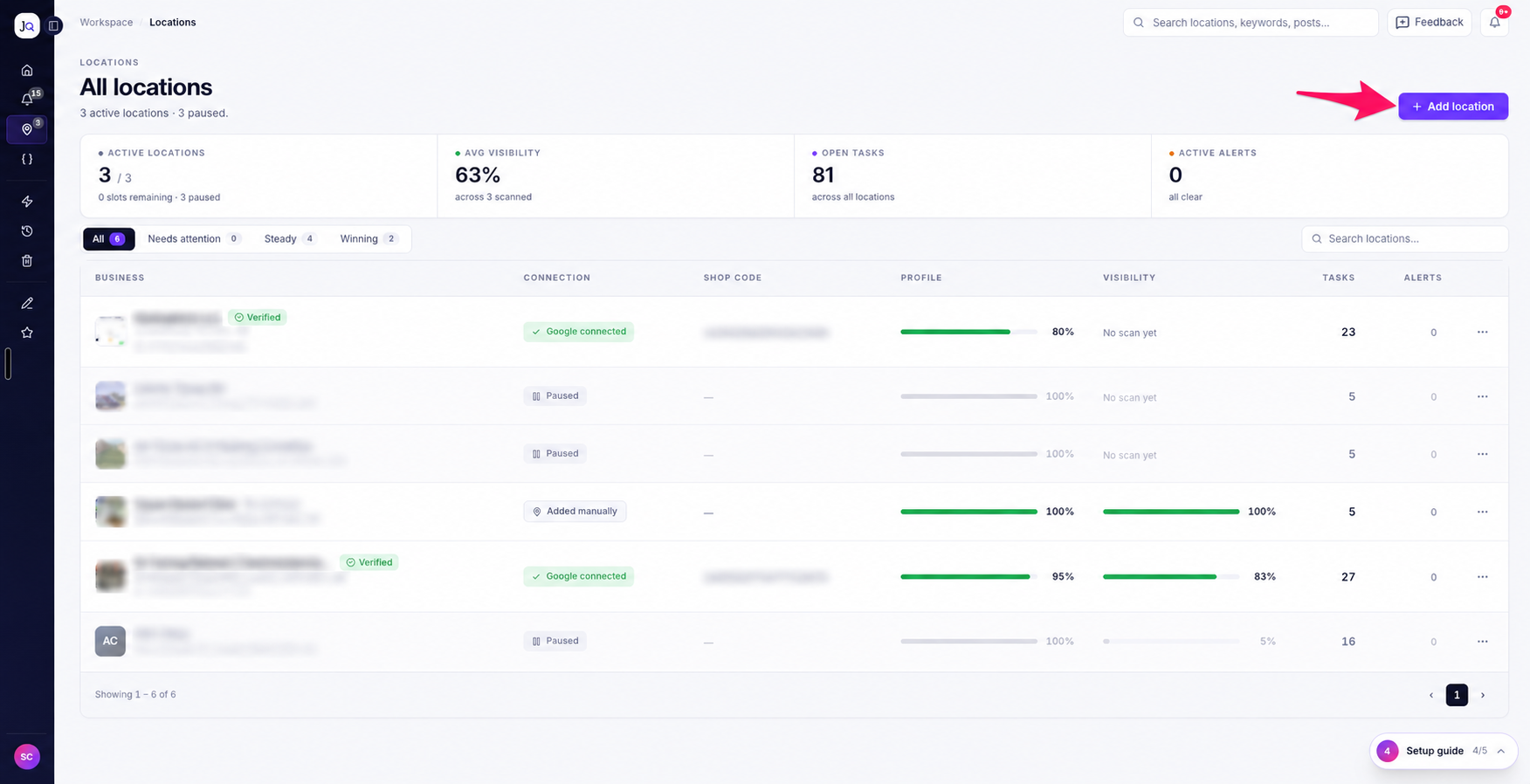
If you haven't added a business before, click Add your first location.
Step 2: Choose how to add your business
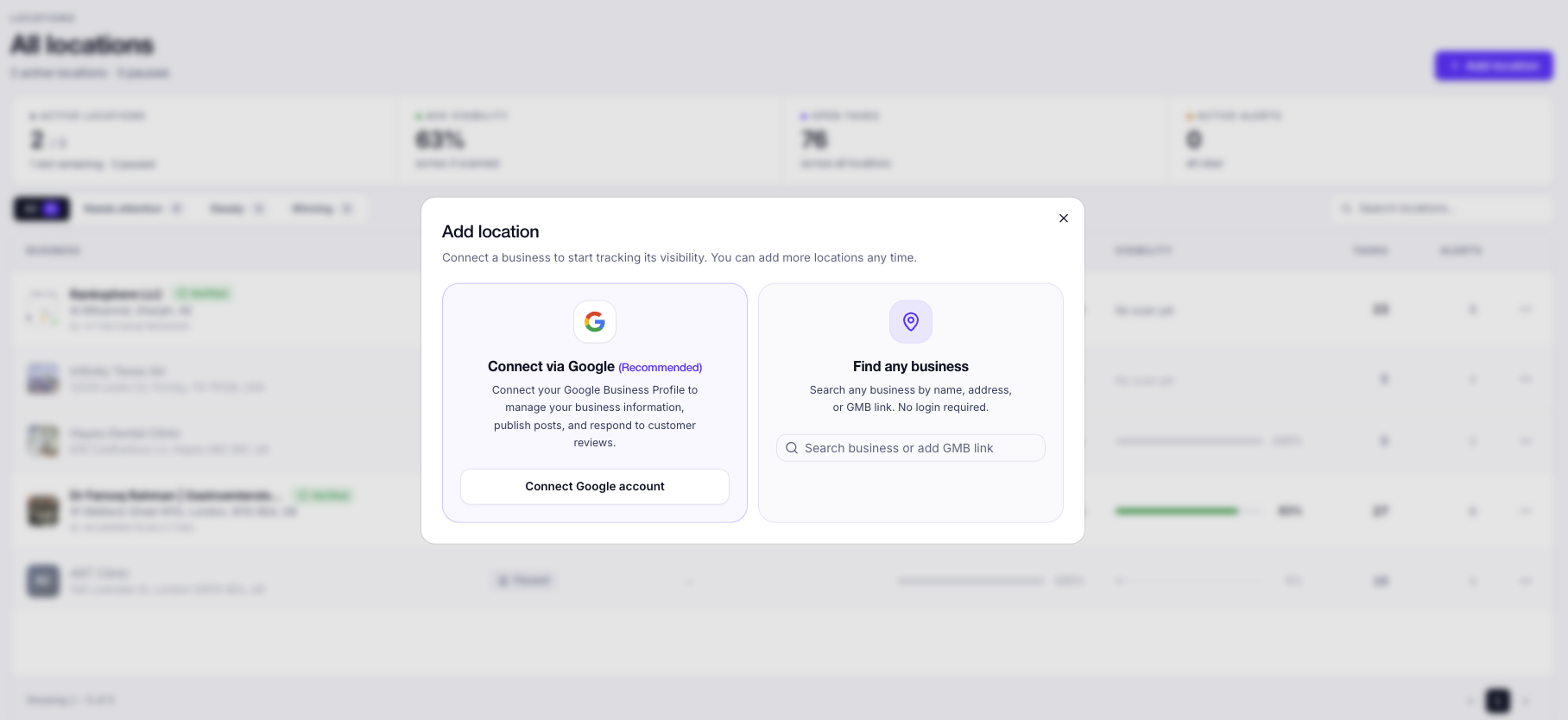
You'll see two options:
| Option | How it works |
|---|---|
| Connect via Google (recommended) | Connect your Google Business Profile to manage business details, categories, opening hours, posts, reviews, and photos directly from Ranksphere. |
| Find any business | Search for a business by name, address, or Google Business Profile (GMB) link. You don't need to sign in to Google. Just select the business from the results. |
If you want to manage and update your Google Business Profile through Ranksphere, we recommend connecting via Google.
To learn more about managing your profile, see Google Business Profile Management.
Step 3: Set up your location
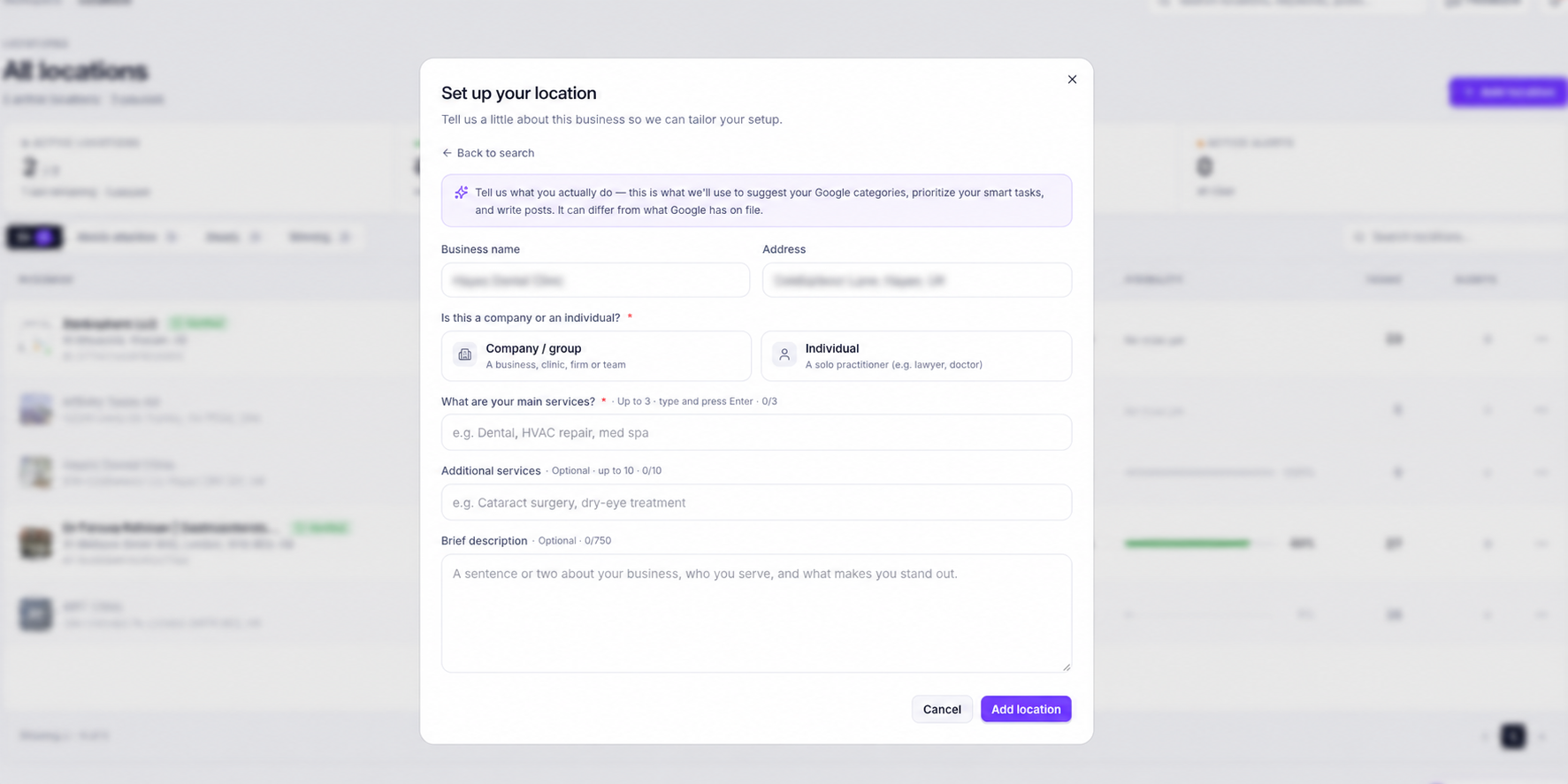
Once you've selected your business, you'll be asked to review a few details.
| Field | What you need to enter |
|---|---|
| Business name | Check that the name is correct. You can edit it if needed. |
| Business address | Review the address and make any necessary changes. |
| Business type | Select Company / Group or Individual. This is required. |
| Main services | Add at least one main service, up to a maximum of three. |
| Additional services | Add up to ten additional services. |
| Description | Add a short description of your business, up to 750 characters. This is optional. |
Step 4: Save your location
Click Add location to finish.
Ranksphere will automatically pull the remaining business information from its Google listing in the background.
Your location will then be ready for rank tracking.
Can I add a business without connecting Google?
Yes. You can use Find any business to add and track a business without connecting its Google Business Profile.
However, you'll need to connect Google if you want to edit your listing information or publish changes directly to Google.
You can connect it later by:
- Opening the location's Google Business Profile tab.
- Selecting Connect to Google from the location's menu in the Locations list.
You can learn more about connecting and managing business information in Google Business Profile Management.
What tools are available inside a location?
Each location has its own set of tools to help you track rankings, review business performance, and manage your Google Business Profile.
When you open a location, you'll see the following tabs:
| Tab | What it's used for |
|---|---|
| Overview | See how your location is performing, including visibility, important metrics, competitors, and recent activity. |
| Google Business Profile | View your business description, categories, contact details, opening hours, services, and attributes. If connected to Google, you can make changes and publish them. Profile Protection is also available here. |
| Performance | Review your Google Business Profile and website performance, including Google Search Console data, PageSpeed results, website audits, content gaps, and analytics. |
| Rankings | Track your Google Maps rankings using a geo-grid heatmap and manage your tracked keywords. |
| Reviews | View Google reviews, manage replies, get AI-assisted reply suggestions, generate a "Get reviews" QR code, and access the embeddable reviews widget. |
| Citations | Check where your business is listed across other directories and whether your name, address, and phone number (NAP) match. |
| Posts | Create, schedule, and publish Google Business Profile posts. |
| Smart tasks | See suggested tasks, organized by priority, to help improve your local rankings. |
| Reports | Create, export, and share reports for your location. |
You can find detailed instructions for these tools in the following guides:
Why are some tabs missing or locked?
The tabs you can access depend on your role, permissions, and subscription plan.
For example, Guests can access the following tabs by default:
- Google Business Profile
- Reviews
- Citations
- Posts
The workspace owner can also give Guests access to Overview, Rankings, Performance, and Reports.
Some tools may be locked because they aren't included in your plan. For example, the Citations and Reports tabs display a lock icon if your subscription doesn't include them.
To learn more, see Users, Roles & Permissions.
How to assign scan credits to a location
Your scan credits are shared across your Ranksphere workspace. You can decide how many credits each location receives.
| Location | Scan credit allocation |
|---|---|
| First location | Automatically receives all available scan credits. |
| Additional locations | Start with zero scan credits. You'll need to assign credits before running scans. |
How to allocate scan credits
- Go to Settings.
- Select Credit Usage.
- Open Scan Credits and click Manage Allocation.
- Assign scan credits to the location you want to track.
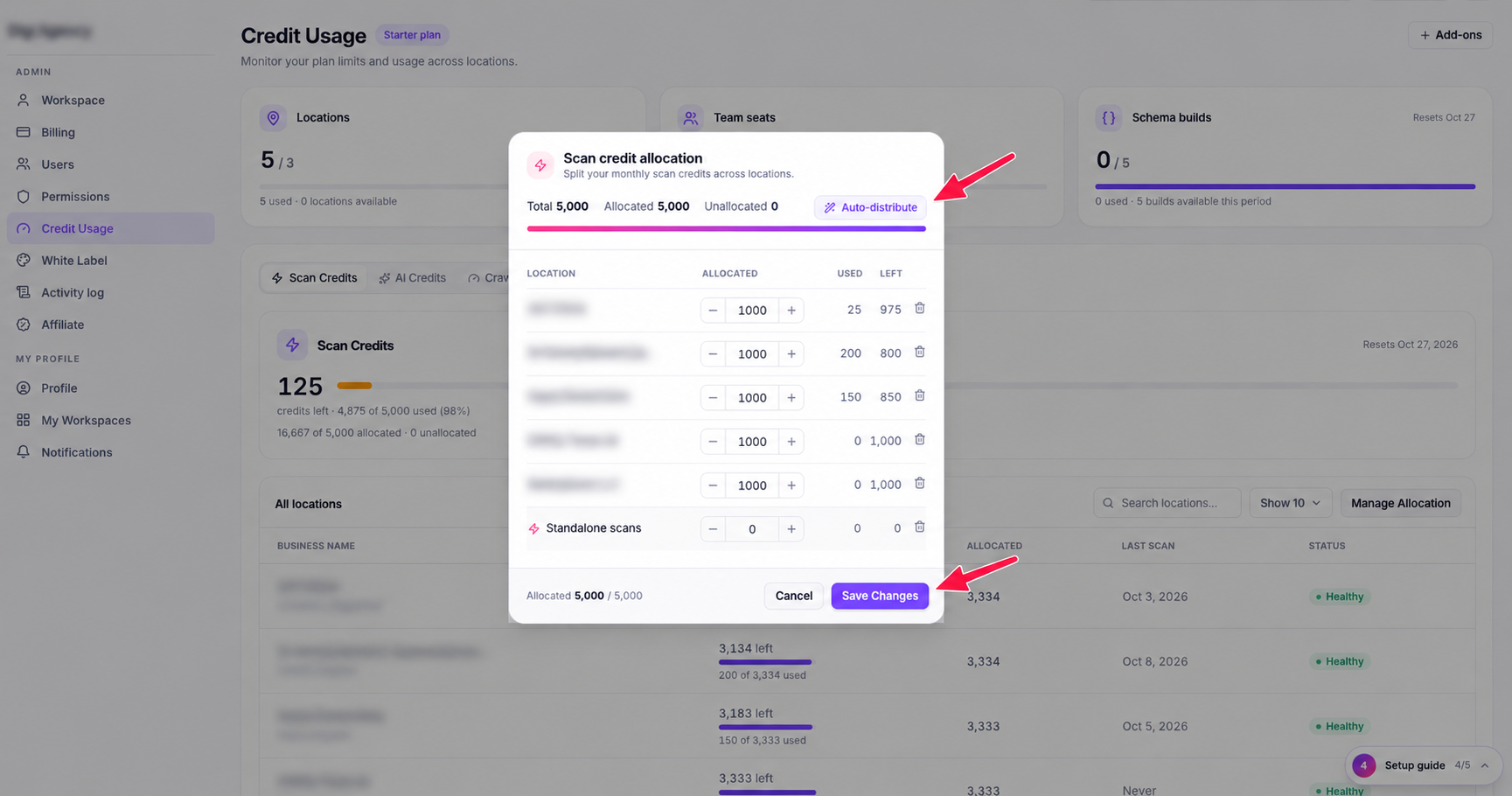
If you've added a new location but can't run a scan, check whether it has scan credits allocated.
This is the most common reason new locations can't start scanning.
For more information about how credits work and how they're calculated, see Scan Credits.
How to update a location's business information
You can update different types of business information within Ranksphere. Where you make the changes depends on what you want to update.
Business name and address
When adding a location, you can review and edit the business name and address before saving it.
Refresh business information from Google
If you want Ranksphere to pull the latest information from your Google Business Profile:
- Open the location.
- Go to the Google Business Profile tab.
- Click the Refresh button (circular-arrow icon).
Ranksphere will fetch your business details and reviews from Google again.
For more information, see Google Business Profile Management.
Update business information used for citations
Go to the Citations tab to update the business name, address, phone number, and other information used in your citation audits.
Ranksphere uses these details as your source of truth. This means it compares the business information you've entered in Ranksphere with the information found across other online directories.
This helps you identify listings that have missing, outdated, or inconsistent business information.
Important: Updating this information in Ranksphere does not update your actual business listings on other directories. It only changes the information Ranksphere uses to check your citations.
To learn more about checking and managing citation information, see Citations.
Edit your Google Business Profile
If you've connected your Google Business Profile, you can make changes to your listing from Ranksphere.
For example, you can update your:
- Business description
- Primary and secondary categories
- Opening hours
- Photos
- Other supported business details
You can then publish those changes to Google from the Google Business Profile tab.
See Google Business Profile Management for more information.
How to pause or remove a location
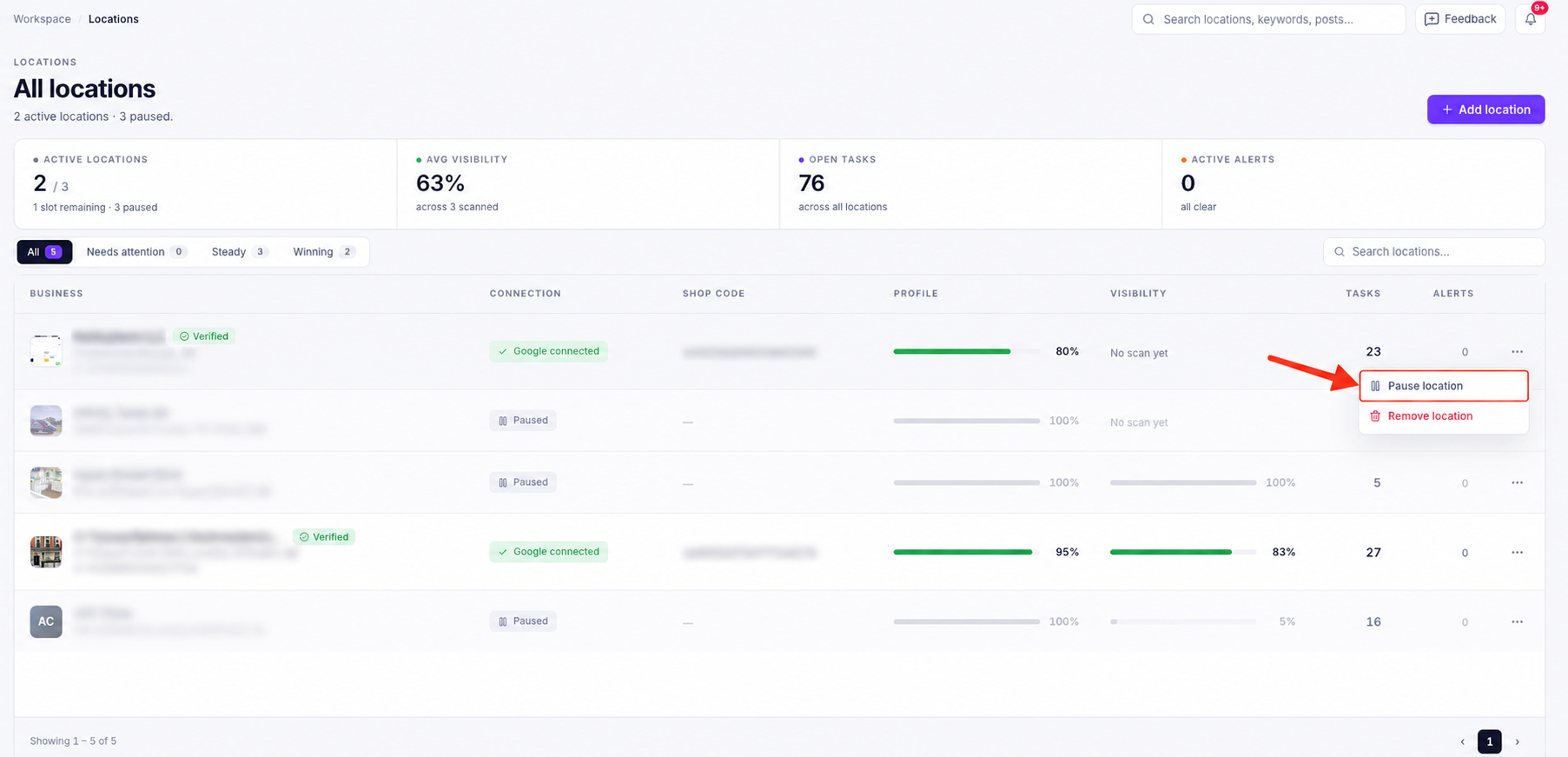
If you're no longer managing a business, you can either pause or remove its location.
These options have different effects on your data and scheduled activities.
| Pause location | Remove location | |
|---|---|---|
| Keeps existing data | Yes | No |
| Counts toward location limit | No | No |
| Scheduled activities continue | No | No |
| Can be reactivated | Yes | No |
| Permanently deletes location data | No | Yes |
| Changes the actual Google Business Profile | No | No |
How to pause a location
Pausing a location temporarily stops its activity while keeping its existing information in Ranksphere.
To pause a location:
- Go to Locations.
- Find the location you want to pause.
- Open the menu next to it.
- Click Pause location.
Once paused:
- Your location's existing data is saved.
- It no longer counts toward your plan's location limit.
- You won't be able to open the location until you reactivate it.
- Its scheduled scans, posts, reports, and background syncing stop.
What happens to scheduled activities when a location is paused?
Pausing a location also stops its scheduled background activities.
Here's what happens to each one:
| Activity | What happens while paused |
|---|---|
| Scheduled ranking scans | Scans stop running. No scan credits are used. |
| Scheduled Google posts | Posts scheduled during the pause won't be published. |
| Scheduled reports | Reports stop running. No report quota is used. |
| Citation checks | Background citation checks are paused. |
| Google Business Profile updates | Background syncing and updates are paused. |
| Profile Protection | Background Profile Protection activity is paused. |
Your existing data is kept, so you won't lose your previous scans, reports, or other saved information simply by pausing the location.
To learn more about scheduled ranking scans, see Local Rank Tracking.
How to reactivate a location
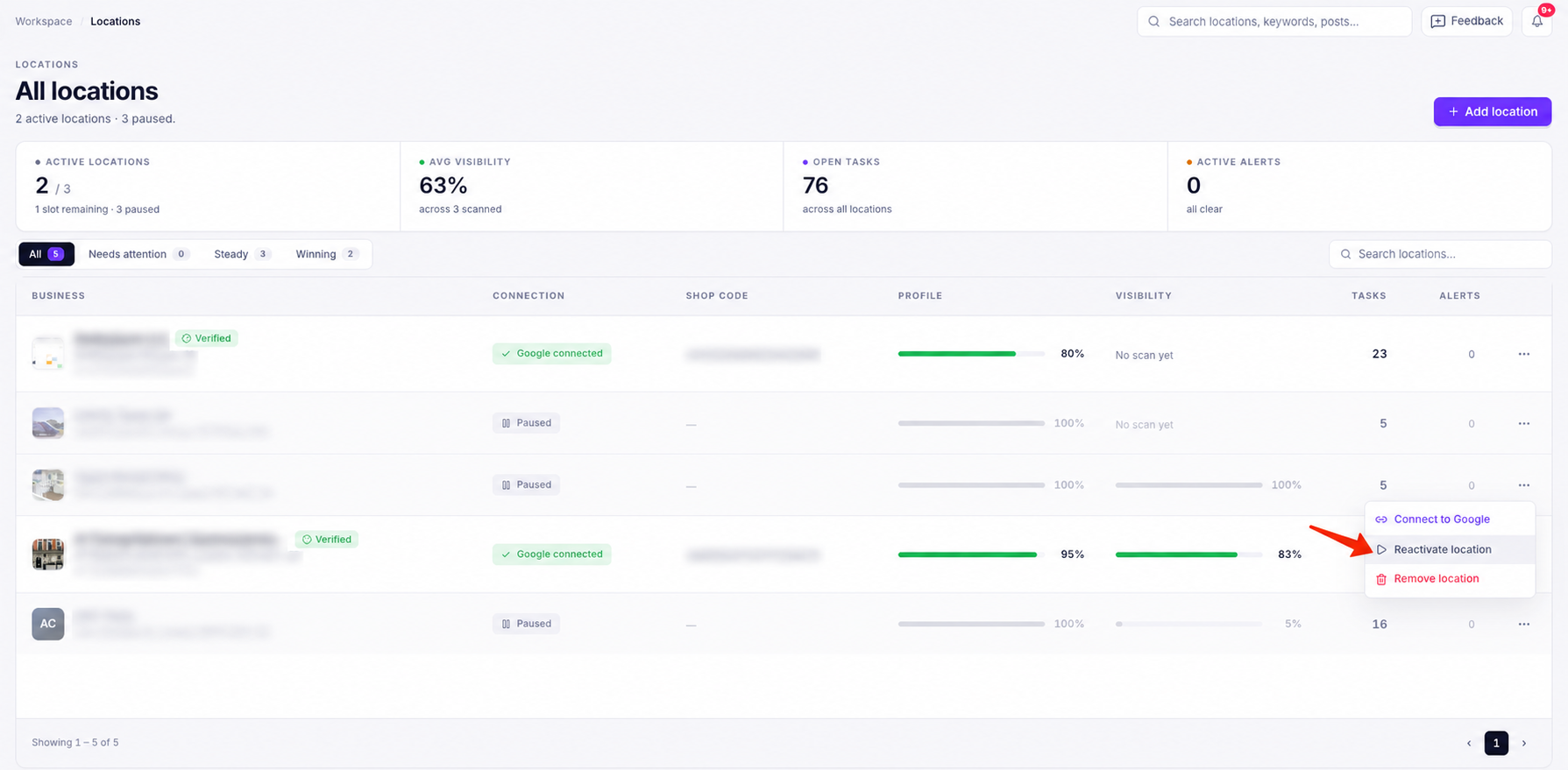
When you're ready to use the location again:
- Go to Locations.
- Find your paused location.
- Open the menu next to it.
- Select the option to reactivate the location.
Once reactivated, Ranksphere resumes the location's activity from that point onward.
However, it won't automatically run the activities that were missed while the location was paused.
| Activity | What happens after reactivation |
|---|---|
| Scheduled ranking scans | Scans resume on their normal schedule. Missed scans are skipped. |
| Scheduled reports | Reports resume on their normal schedule. Missed reports are not generated automatically. |
| Scheduled Google posts | Posts that were due during the pause are moved back to Draft. You can review and reschedule them. |
For example, if a ranking scan was scheduled to run every Monday and your location was paused for two weeks, those two missed scans won't run when you reactivate the location. The next scan will run according to its normal schedule.
Likewise, Google posts that were supposed to publish while the location was paused won't be published late. They'll be saved as drafts so you can decide when to publish them.
Note: If you've already reached your plan's active location limit, you'll need to pause another location or upgrade your plan before you can reactivate the paused one.
For more information about changing your plan, see Billing, Plans & Add-ons.
How to remove a location
If you no longer need a location or its data, you can remove it permanently.
To remove a location:
- Go to Locations.
- Find the location you want to remove.
- Open the menu next to it.
- Click Remove location.
Important: Removing a location permanently deletes its information from Ranksphere, including ranking scans, posts, reviews, reports, and other saved data. This action cannot be undone.
Removing a location does not delete or change your actual Google Business Profile.
It only removes the location and its saved information from Ranksphere.
Once removed, it no longer counts toward your plan's location limit.
Can I check rankings without adding a location?
Yes. If you only want to check how a business ranks on Google Maps, you can use New Scan without adding it as a location.
You can find New Scan in the sidebar.
With New Scan, you can:
- Check a business's Google Maps rankings using a heatmap.
- See how competitors rank in the same area.
- Access previous scan results in Scan History.
- Schedule scans to run again automatically.
What's the difference between a location and a New Scan?
| Feature | Location | New Scan |
|---|---|---|
| Google Maps ranking heatmap | Yes | Yes |
| Competitor snapshot | Yes | Yes |
| Saved scan history | Yes | Yes |
| Scheduled scans | Yes | Yes |
| Full location management tools | Yes | No |
| Individual location tabs | Yes | No |
| Uses a location slot | Yes | No |
A New Scan is useful when you want to check a business's rankings without setting up a managed location.
If you plan to manage a business regularly, track its performance, and use other Ranksphere tools, you'll need to add it as a location.
To learn how to run scans, compare ranking results, and schedule future scans, see Local Rank Tracking.
Who can add, edit, or remove locations?
Your ability to manage locations depends on your workspace role.
| Role | Can add, edit, or remove locations? | Which locations can they access? |
|---|---|---|
| Owner | Yes | All locations |
| Admin | Yes | All locations |
| Member | Yes, by default | Only locations shared with them |
| Guest | No | Only locations shared with them (view-only) |
Members can add, edit, and remove locations by default.
However, the workspace owner can turn off this permission under Settings → Permissions.
Guests cannot add, edit, or remove locations. They can only view the locations shared with them, based on their access permissions.
For more information about workspace roles and managing access, see Users, Roles & Permissions.
Frequently asked questions
Why can't I add another location?
You may have reached the location limit included in your plan.
You can pause or remove a location you're no longer using, upgrade to a higher plan, or purchase an extra-location add-on if you're on Starter, Growth, or Agency.
See Billing, Plans & Add-ons for more information.
Why can't my new location run a ranking scan?
Additional locations start with zero scan credits.
Go to Settings → Credit Usage → Scan Credits → Manage Allocation and assign credits to your new location.
See Scan Credits for more information.
Will removing a location delete my Google Business Profile?
No. Removing a location only deletes its information from Ranksphere. It doesn't delete or change your actual Google Business Profile.
What's the difference between pausing and removing a location?
Pausing a location keeps its data but temporarily stops scheduled activities. You can reactivate it later.
Removing a location permanently deletes its information from Ranksphere. You cannot undo this action.
Both options free up a location slot on your plan.
What happens to scheduled scans, posts, and reports when I pause a location?
They stop running while the location is paused.
Scheduled scans and reports resume on their normal schedules after reactivation. Any runs missed during the pause are skipped.
Google posts that were scheduled to publish during the pause are moved to Draft so you can review and reschedule them.
You can learn more about scan scheduling in Local Rank Tracking.
Can I check rankings without using a location slot?
Yes. Use New Scan to check rankings and competitors without adding a managed location.
Your results are saved in Scan History, and you can schedule future scans.
Can I change a location's business categories?
Yes. If you've connected your Google Business Profile, you can update your primary and secondary categories from the Google Business Profile tab.
See Google Business Profile Management for more details.
Can I update my directory listings through the Citations tab?
No. The Citations tab lets you update the business information Ranksphere uses to check your listings across directories.
Changing this information in Ranksphere does not automatically update your listings on those directories.
Learn more in Citations.
Related: Local Rank Tracking, Scan Credits, Billing, Plans & Add-ons, Users, Roles & Permissions
Still stuck?
Start free and set this up in your own workspace, or reach out and we'll help.