Identifying Competitors
Ranksphere identifies the businesses appearing alongside yours in local search results. This guide explains how competitors are found, where to view them, and how to understand the information shown.
How does Ranksphere identify competitors?
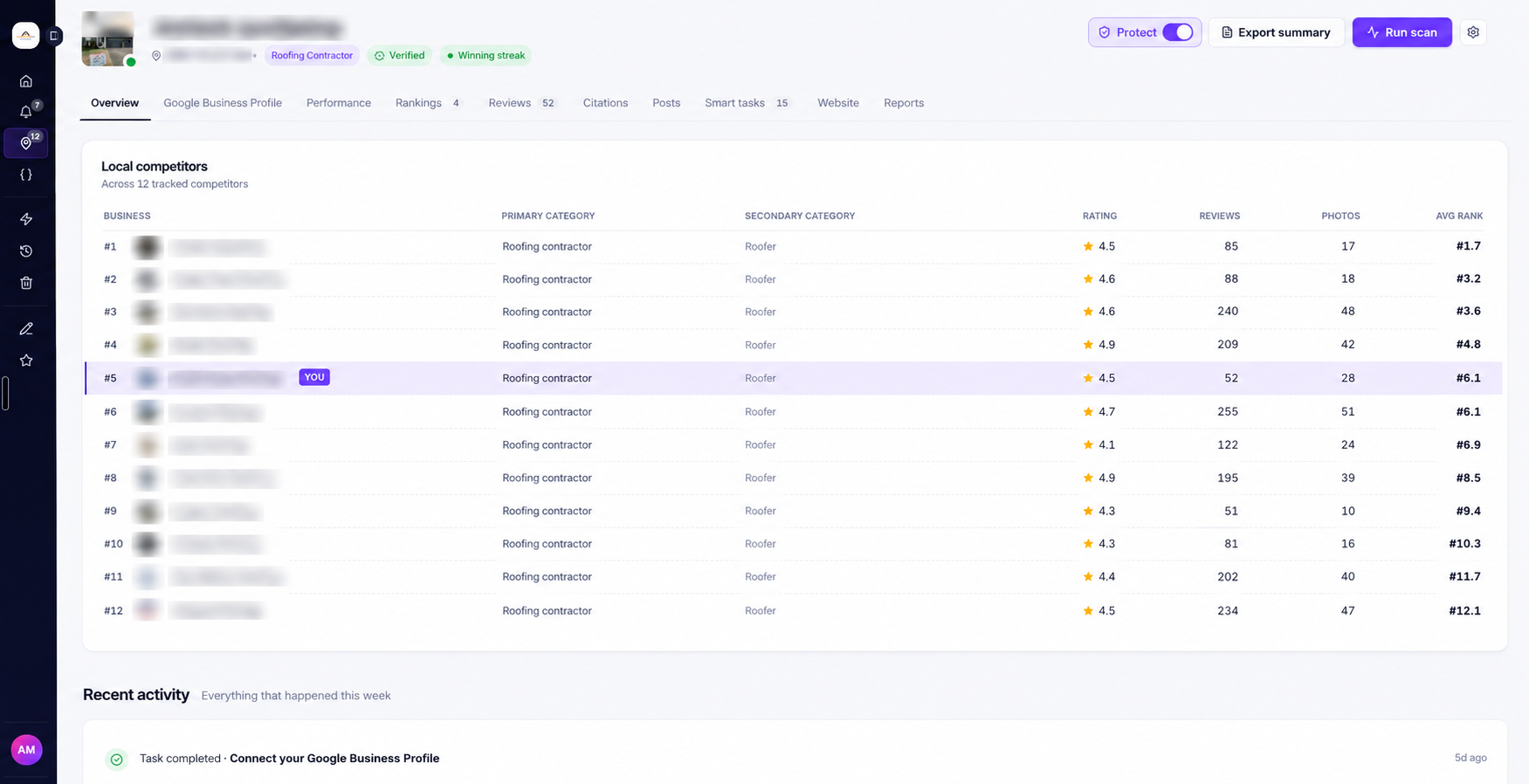
Ranksphere automatically identifies your competitors whenever you run a local ranking scan.
You don't need to add competitors manually.
When you run a scan, Ranksphere checks which businesses appear in the Google Maps results at each pin in your selected area.
It then shows the businesses competing for the same keyword, so you can see who's ranking alongside your business.
For example, if you track the keyword "roof repair," Ranksphere will identify other businesses appearing in the local results for that search across your scanned area.
Competitors are identified separately for each keyword. This means the businesses appearing for one keyword may be different from those appearing for another.
Your competitor results are updated whenever you run a new scan.
To learn more about ranking scans and how map pins work, see
Where can I see my competitors?
You can view competitor information in two places within a location:
| Section | What you'll find |
| Overview | A list of local competitors, including their Google ratings, reviews, photos, categories, and average map rankings. |
| Rankings | More detailed competitor results from a completed scan, including rankings at individual pins, competitor locations, and share of voice. |
View competitors from Overview
- Go to Locations.
- Open the business you want to review.
- Select Overview.
- Find the Local competitors card.
This card shows businesses ranking around your location, with the strongest average map rank listed first.
What information is shown?
| Information | What it tells you |
| Business name | The name of the competing business. |
| Primary category | The business's main Google Business Profile category. |
| Secondary categories | Additional categories listed on its Google Business Profile. |
| Google rating | The business's average Google review rating. |
| Reviews | The total number of Google reviews the business has. |
| Photos | The number of photos associated with the business. |
| Average map rank | The business's average ranking position across the scanned area. |
Your own business is included in the list and marked as You.
This makes it easier to see which businesses are ranking above or below yours.
View competitors from Rankings
You can also explore competitors directly from a completed ranking scan.
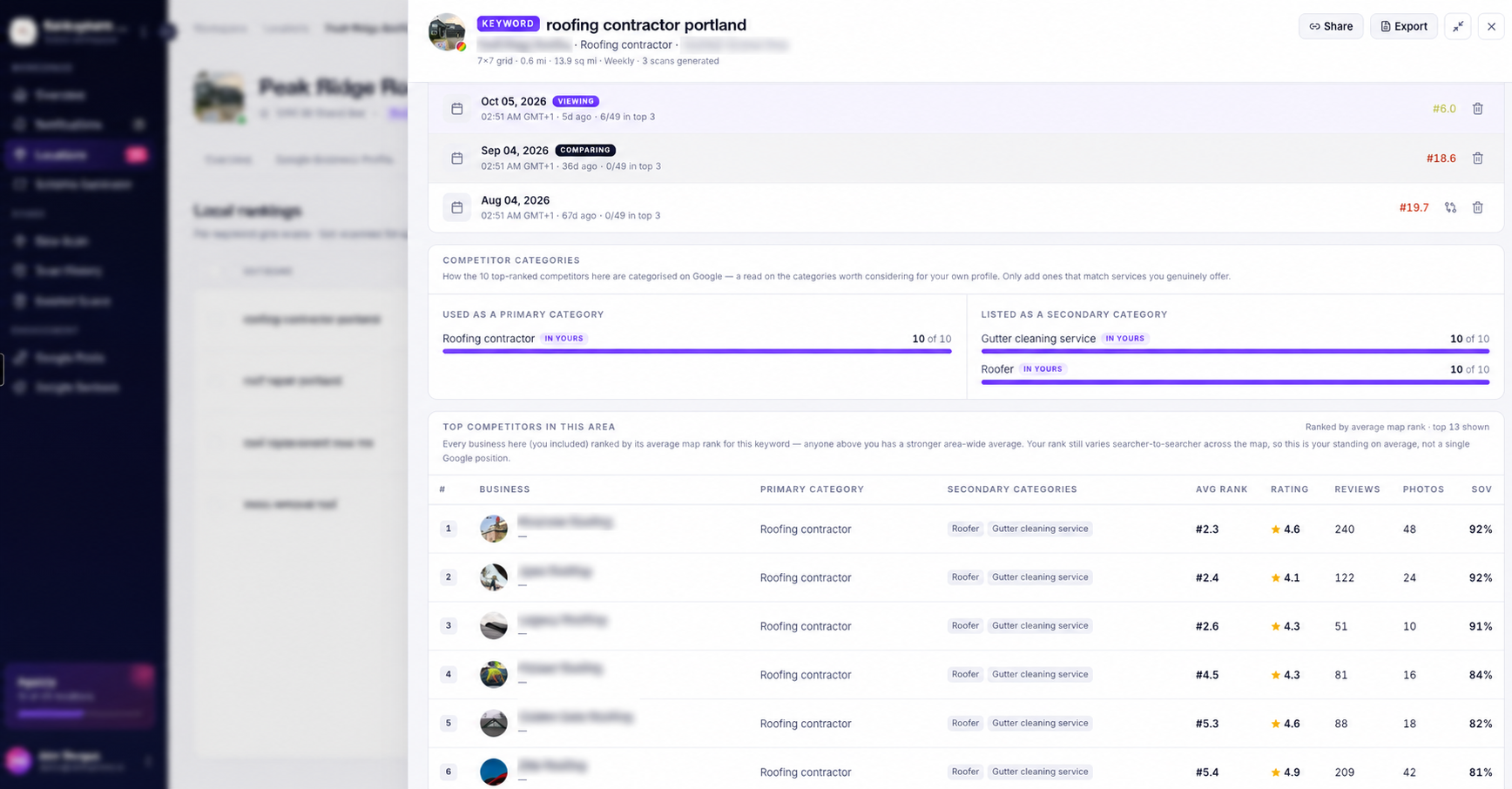
- Open your location.
- Go to Rankings.
- Open a completed scan.
- Review the ranking heatmap and competitor results.
The Rankings section provides more detail about where competitors appear across your scanned area.
What can I see on the heatmap?
When you hover over a pin, Ranksphere shows the businesses ranking from that search location.
You can see details such as:
- Business name
- Ranking position
- Google star rating
- Number of reviews
- Business address
You can also hover over a competitor to see its actual business location plotted on the map.
This helps you see both where a competitor's business is located and where it appears in local search results.
Top competitors in this area
The Top competitors in this area leaderboard shows the businesses performing across your scanned area.
Competitors are ordered by their average map ranking, with stronger average positions appearing first.
| Information | What it shows |
| Business name | The competing business. |
| Category | The business's Google category. |
| Average map rank | Its average position across the scan. |
| Google rating | Its average customer rating. |
| Reviews | Its total number of Google reviews. |
| Photos | The number of photos associated with the business. |
| Share of voice | How visible the business is across the scanned area. |
| Photo or logo | The business's photo or logo, when available. |
You can use this leaderboard to compare your business against others appearing for the same keyword.
Understanding competitor ranking metrics
Ranksphere uses several measurements to help you compare competitors across your scanned area.
The main metrics are:
| Metric | What it tells you |
| Average map rank | How well a business ranks on average across all the pins in your scan. |
| Google rating | The business's average customer rating on Google. |
| Review count | How many Google reviews the business has received. |
| Share of voice | How prominently the business appears across the scanned area. |
Average map rank
Average map rank is a business's average ranking position across all the pins included in a scan.
A lower average map rank means a stronger average ranking.
For example:
| Business | Average map rank |
| Competitor A | 3 |
| Your business | 5 |
| Competitor B | 8 |
These numbers are examples.
In this example, Competitor A has a stronger average map ranking than your business, while your business ranks better on average than Competitor B.
A business may rank in different positions across the map. It might rank first at one pin and tenth at another.
Average map rank combines these positions to give you a view of performance across the entire scanned area.
If a business doesn't appear in the local results at a pin, Ranksphere counts that pin as position 20 when calculating the average.
For more information about ranking calculations, see Local Rank Tracking.
Google ratings and reviews
Ranksphere shows each competitor's Google rating and total review count.
You can use this information to compare your own review profile with other businesses appearing in the same local results.
For example, you might notice that a competitor has:
- A higher average Google rating
- More customer reviews
- A different overall review profile
These comparisons can help you decide whether your reviews are an area worth checking.
For more information, see Reviews.
Share of voice
Share of voice shows how visible a business is across the scanned area.
A higher percentage means the business appears prominently across more pins and has a larger share of visibility for the keyword being tracked.
For example, if a competitor has a higher share of voice than your business, it means that competitor has stronger overall visibility across the scanned area according to this metric.
You can find share of voice in the Top competitors in this area leaderboard under Rankings.
How to find content gaps between your website and a competitor
Aside from comparing Google Maps rankings, Ranksphere can also help you identify website content that your competitors have but you don't.
You can do this using the Content gaps vs competitor feature.
This is available in the Performance tab of a location.
What is a content gap?
A content gap is a page or topic covered on a competitor's website that is missing from yours.
For example, a competitor might have a dedicated page for a service you offer, but your website doesn't have its own page for that service.
Ranksphere compares the two websites and identifies these missing pages.
It organizes the results into two types:
| Content type | What it means |
| Money pages | Service pages or other important business pages that your competitor has but your website is missing. |
| Blog posts | Articles or informational content available on your competitor's website but missing from yours. |
Ranksphere shows money-page gaps first, followed by blog post gaps.
How to run a content gap analysis
- Open your business location.
- Go to Performance.
- Find the Content gaps vs competitor card.
- Enter the website address of the competitor you want to compare.
- Run the analysis.
You only need to enter your competitor's website.
Ranksphere uses your connected Google Search Console site, your saved website, or your crawled domain to identify your own website.
It then reads the sitemaps of both websites and runs an AI comparison.
The analysis usually takes about 30 seconds.
What will I see in the results?
Once the analysis is complete, Ranksphere shows the content gaps it identified between the two websites.
You'll see:
- Missing money pages: The number of service or other important business pages your competitor has that your website doesn't.
- Missing blog posts: The number of blog posts your competitor has that your website doesn't.
- Page recommendations: A short suggestion for each missing page you could create.
- Competitor page links: Links to the competitor pages that the recommendations are based on.
For example, if a competitor has a dedicated service page that your website doesn't have, Ranksphere may suggest creating a similar type of page for your own business.
You can review the competitor's page using the link provided.
How many credits does a content gap analysis use?
Each content gap analysis uses 15 AI credits.
It does not use website crawl pages from your allowance.
| Usage type | Amount |
| AI credits | 15 per analysis |
| Website crawl pages | None |
For more information about how AI credits work, see AI Credits.
Do content gaps create Smart Tasks?
Yes. Money-page gaps identified during the content gap analysis also appear as Smart Tasks.
These tasks link back to the Performance tab, where you can review the content gap information.
This helps you keep track of important missing pages that may need attention.
To learn more, see Smart Tasks.
Who can run a content gap analysis?
Running a content gap analysis requires Performance access.
Workspace Owners and Admins have this access by default.
Guests may be given permission to view the Performance tab, but they cannot run content gap analyses.
For more information about website performance and permissions, see Website Performance and Users, Roles & Permissions.
How to use competitor insights
Competitor information can help you understand how your business compares with others appearing in local search results.
For example, you may discover that a competitor:
- Ranks above your business at more pins.
- Appears more consistently across your selected area.
- Has a higher Google rating or more reviews.
- Uses a different primary business category.
- Has a larger share of voice.
- Has service pages or other website content that your site is missing.
These comparisons can help you decide what to review next.
What should I check when a competitor ranks above me?
Depending on what you find, you may want to review the following:
| Area to review | What to check |
| Google Business Profile | Check whether your business information is complete and accurate. |
| Business categories | Compare your primary and secondary Google categories with those of your competitors. |
| Customer reviews | Review your Google rating, review count, and unanswered reviews. |
| Local citations | Check whether your business information is consistent across online directories. |
| Website content | Look for missing service pages, content gaps, or areas where competitors have more relevant pages. |
| Local landing pages | Review the pages you have for your services and locations. |
| Location relevance | Check how your business relates to the area and keyword being searched. |
You can use the information from your ranking scans and competitor results to decide which areas deserve attention.
For more information, see Google Business Profile Management, Citations, and Website Performance.
Can Smart Tasks recommend actions based on competitors?
Yes. Ranksphere can create Smart Tasks using competitor and ranking information.
For example, you may see a recommendation when a competitor is outranking your business or appearing more prominently across your service area.
Your highest-priority task appears on your location's Overview page.
You can see the full list of recommendations by opening the Smart Tasks tab.
Smart Tasks are recommendations only. They don't automatically change your business information.
See Smart Tasks for more information.
Who can view competitor information?
Access to competitor information depends on your workspace role and which locations you're allowed to view.
| Workspace role | View competitors in Overview | View competitors in Rankings |
| Owner | Yes, for all locations | Yes, for all locations |
| Admin | Yes, for all locations | Yes, for all locations |
| Member | Yes, for shared locations | Yes, for shared locations |
| Guest | No | Yes, if given access to the location and Rankings section |
Guests cannot access the Local competitors card in Overview.
However, an Owner can give a Guest access to the Rankings section of a shared location, allowing them to view competitor results there.
For more information, see Users, Roles & Permissions.
Quick guide to competitor analysis
Use this table to find the competitor information you need.
| What you want to do | Where to go |
| See local competitors | Locations → Select location → Overview → Local competitors |
| View competitors from a scan | Locations → Select location → Rankings → Open completed scan |
| Check competitors at a specific pin | Rankings → Open scan → Hover over a pin |
| View a competitor's business location | Rankings → Open scan → Hover over a competitor |
| Compare competitors across the scanned area | Rankings → Open scan → Top competitors in this area |
| Run a website content gap analysis | Locations → Select location → Performance → Content gaps vs competitor |
| View competitor-related Smart Tasks | Locations → Select location → Smart Tasks |
Frequently asked questions
Do I need to add competitors manually?
No. Ranksphere automatically identifies competitors whenever you run a local ranking scan.
How does Ranksphere decide which businesses are competitors?
Ranksphere checks which businesses appear in the local search results at the pins included in your scan.
If a business appears at one or more pins for the keyword you're tracking, it can be included in your competitor results.
The list is based on the businesses ranking for that keyword across your selected area.
Why can't I see any competitors?
Competitor information becomes available after a local ranking scan has been completed.
Run a scan for the business and keyword you want to check, then open the completed results.
Why do I see different competitors for different keywords?
Not every business ranks for the same searches.
A business appearing for one keyword may not appear for another.
Ranksphere identifies competitors separately for each keyword and scan, so your competitor list may change depending on what you're tracking.
Why is a competitor's ranking shown as an average?
A competitor may rank differently from one pin to another.
Average map rank combines its positions across the full scan to give you a clearer view of how it performs throughout the selected area.
What does it mean when a competitor has a higher share of voice?
It means the competitor appears more prominently across the scanned area according to the share of voice metric.
This helps you compare overall local search visibility rather than looking at just one ranking position.
Can I see where a competitor's business is located?
Yes. Open a completed ranking scan and hover over the competitor.
Ranksphere will plot its actual business location on the map.
How can I see which website pages my competitors have that I don't?
Open your location's Performance tab and use Content gaps vs competitor.
Enter the competitor's website and run the analysis.
Ranksphere will identify missing money pages and blog posts, along with recommendations and links to the competitor pages.
Each analysis uses 15 AI credits.
Does a content gap analysis use website crawl pages?
No. It uses 15 AI credits per run and does not use your website crawl-page allowance.
Can Guests run a content gap analysis?
No. Guests may be given permission to view the Performance tab, but they cannot run content gap analyses.
What should I do if a competitor ranks above my business?
Start by reviewing the competitor's rankings, categories, Google rating, review count, and share of voice.
You can also check your Google Business Profile, citations, website content, and local landing pages to identify areas that may need attention.
Check Smart Tasks for recommendations based on your latest ranking and competitor information.
Still stuck?
Start free and set this up in your own workspace, or reach out and we'll help.