Google Review QR Code Generator
Make a printable Google review QR code that customers scan to leave a review, and learn how to size, color, and download it.
What is the Google Review QR Code Generator?
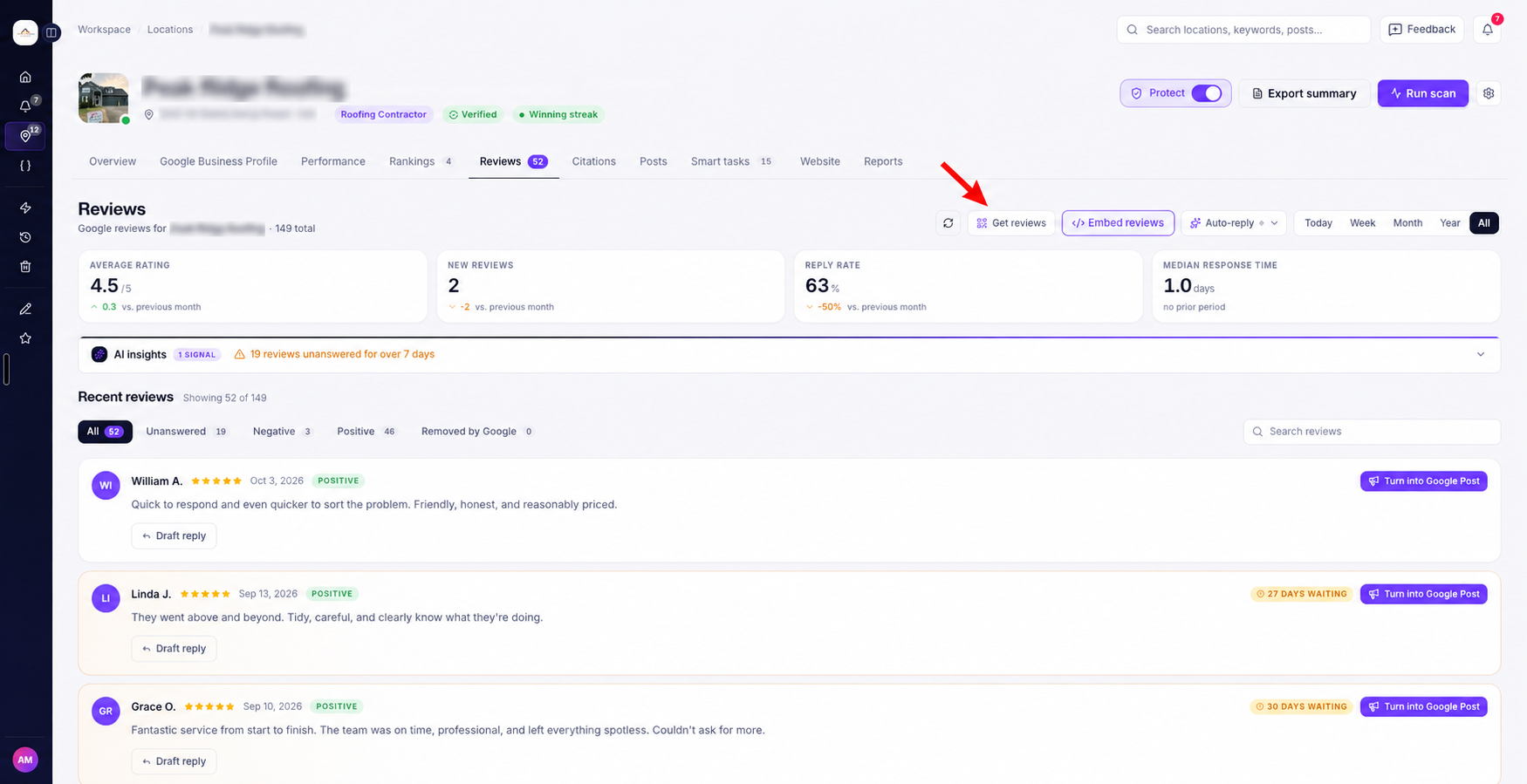
The Google Review QR Code Generator lets you create a printable QR code that customers can scan to leave a review on Google.
When someone scans the QR code using their phone camera, it opens your business's Google review page. They don't need to search for your business or enter a website address.
Ranksphere creates a ready-to-print review card that you can customize with your brand colors, logo, and a short message.
You can place the card:
- On your reception desk or counter.
- On tables where customers can easily scan it.
- On printed receipts.
- On posters or other materials displayed at your business.
This gives customers a convenient way to open your Google review page.
Where can I find the QR Code Generator?
- Go to Locations.
- Open the business you want to create a QR code for.
- Select the Reviews tab.
- Click Get reviews.
This opens the Google Review QR Code Generator.
For more information about managing reviews, see Google Reviews.
How to create a Google review QR code
You can create and download a review QR code in a few steps.
Step 1: Open the QR Code Generator
- Open your business location.
- Go to Reviews.
- Click Get reviews.
The review card designer will open.
Step 2: Choose your card size
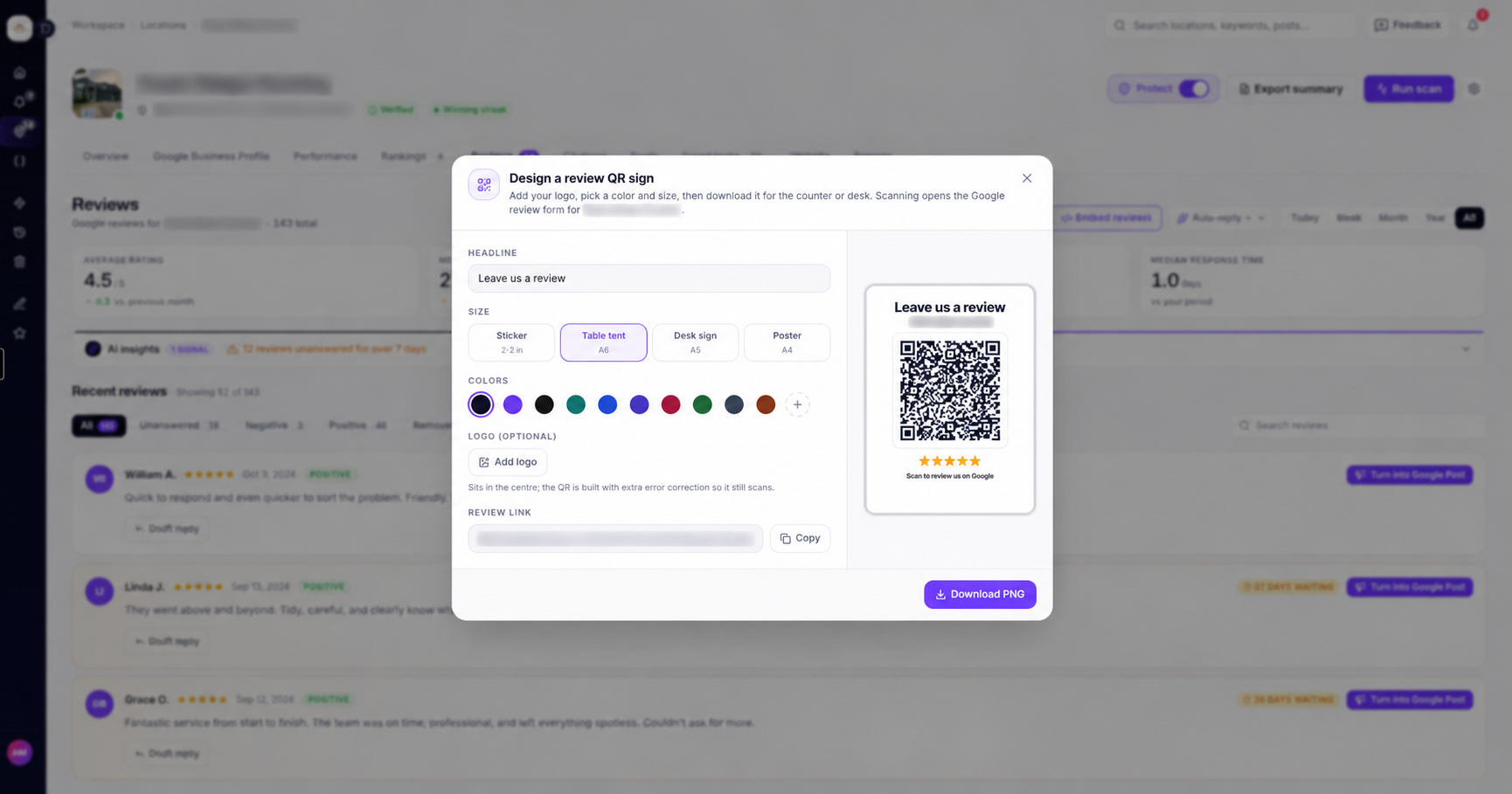
Select the print size that best fits where you plan to display your QR code.
For example, you might choose a table tent for a restaurant or a desk sign for a reception area.
Step 3: Customize your card
You can change:
- The card's color.
- The headline displayed above the QR code.
- The business logo displayed in the middle of the QR code.
You can also leave the default settings if you don't need to customize the design.
Step 4: Download your QR code
Once you're satisfied with the design, click Download PNG.
Ranksphere downloads a high-resolution image based on the print size you've selected.
You can print the card directly or add the image to your own design.
What information is included automatically?
Ranksphere creates the card with several details already included.
| Card element | What it shows |
| Headline | "Leave us a review" by default, or your custom message. |
| Business name | The name of your business. |
| Five-star row | A row of five stars displayed on the card. |
| QR code | A scannable code linked to your Google review page. |
| Instruction text | "Scan to review us on Google" to tell customers what to do. |
You don't need to add the business name, stars, or instruction text yourself.
The card is ready to download using the default design.
How to customize your Google review QR code
The designer lets you adjust the card's size, color, headline, and logo.
Choose a print size
Ranksphere provides four print sizes designed for different uses.
| Print size | Dimensions or format | Recommended use |
| Sticker | Approximately 2 inches | Small stickers for counters, receipts, or other surfaces. |
| Table tent | A6 | Cards displayed on restaurant tables or counters. |
| Desk sign | A5 | Signs for reception desks or checkout counters. |
| Poster | A4 | Larger signs displayed on walls or other visible areas. |
Table tent (A6) is the default size.
Each option is a template designed for its intended print format.
When you download the card, Ranksphere creates a high-resolution image sized for your selection, helping it remain sharp when printed at that size.
Change the card color
You can choose a color that matches your business branding.
Ranksphere includes the following color presets:
- Navy
- Violet
- Black
- Teal
- Blue
- Indigo
- Maroon
- Forest
- Slate
- Brown
You can also choose your own color using the CMYK color picker.
What color should I use for the QR code?
QR codes generally scan more reliably when they have strong contrast against their background.
For this reason, Ranksphere's preset ink colors are all dark shades.
If you choose a custom color, use a sufficiently dark shade so the QR code remains easy to scan.
The designer reminds you that deeper ink colors work best, but it doesn't prevent you from selecting a lighter color.
Change the headline
You can customize the message at the top of your review card.
By default, the headline says:
Leave us a review
You can replace this with your own message, up to 40 characters.
For example:
- We'd love your feedback
- How was your experience?
- Share your experience on Google
Only the headline is customizable in this section.
Your business name, five-star row, and "Scan to review us on Google" text are added automatically.
Add your business logo
You can upload your business logo to personalize the QR code.
The logo appears in the center of the code.
To add a logo:
- Open the Get reviews designer.
- Find the logo option.
- Upload an image from your device.
- Review how the logo appears in the QR code.
Ranksphere creates QR codes with high error correction, allowing a centered logo to be included while keeping the code scannable.
How to download and print your review QR code
Once you've finished customizing the card, you can download it as a PNG image.
Download your review card
- Open the Get reviews designer.
- Select your preferred size and design.
- Click Download PNG.
The downloaded image is high-resolution and sized for your chosen print format.
You can:
- Print the card yourself.
- Send the PNG to a printing company.
- Add the image to another design or printable template.
For example, you can download an A6 table tent design and send the image to a printer to create cards for your tables.
Can I copy the Google review link instead?
Yes.
The QR Code Generator also includes a Copy button.
This copies the plain Google review link rather than the QR code image.
You can paste the link into:
- An email.
- A text message.
- Your business website.
This is useful when you want to share your Google review page digitally instead of using a printed QR code.
Where does the QR code send customers?
The QR code links directly to your business location's Google review page.
When a customer scans it using their phone camera, they can open the page and leave a review.
They don't need to search for your business on Google first.
Do I need to connect my Google Business Profile?
No. You can create a Google review QR code even if your business location isn't connected to Google through Ranksphere. The QR Code Generator uses the Google listing information already saved for your location to create the review link.
If your Google Business Profile is connected, Ranksphere can use Google's own review link for that location. This helps keep the link accurate as your Google listing information changes.
For more information about connecting a profile, see Google Business Profile Management.
Does the Google Review QR Code Generator use credits?
No.
Creating and downloading a Google review QR code is free.
You don't use any credits to customize the card, download the PNG, or copy the review link.
| Action | Credits used |
| Create a review QR code | 0 |
| Customize the card | 0 |
| Download PNG | 0 |
| Copy the review link | 0 |
Who can use the Google Review QR Code Generator?
Anyone who has permission to view reviews for a business location can use the QR Code Generator.
This includes Guest users.
| Workspace role | Create and download a review QR card |
| Owner | Yes |
| Admin | Yes |
| Member | Yes |
| Guest | Yes |
Can Guests create Google review QR codes?
Yes. Guests can use the Get reviews tool for locations where they have access to Reviews.
This allows a client to create and download their own review QR card without needing permission to edit other business information.
Can I prevent Guests from using the tool?
Yes. Because the QR Code Generator is part of the Reviews tab, you can prevent a Guest from using it by removing their access to Reviews for that location.
For more information about controlling access, see Users, Roles & Permissions.
Quick guide to the Google Review QR Code Generator
| What you want to do | Where to go |
| Open the QR Code Generator | Locations → Select location → Reviews → Get reviews |
| Choose a print size | Get reviews → Size |
| Change the card color | Get reviews → Color |
| Change the headline | Get reviews → Headline |
| Add your business logo | Get reviews → Logo |
| Download the QR card | Get reviews → Download PNG |
| Copy your Google review link | Get reviews → Copy |
Frequently asked questions
How do I create a QR code for Google reviews?
Open your business location, go to Reviews, and select Get reviews.
Choose the size, color, and headline you want to use. You can also upload your business logo.
Once you're satisfied with the design, click Download PNG.
The card will contain a QR code that links directly to your Google review page.
How do QR codes help customers leave Google reviews?
A QR code gives customers a quick way to open your Google review page. Instead of searching for your business, they can scan the code using their phone camera and go directly to the review page. This removes an extra step when someone wants to leave feedback.
Where does the QR code link to?
It links directly to your business location's Google review page. Customers can open the page by scanning the code with their phone camera.
Do I need to connect my Google Business Profile?
No. You can generate a review QR code using the Google listing information already saved for your location. If your Google Business Profile is connected, Ranksphere can use Google's own review link to keep it accurate as your listing changes.
Can I use my own brand colors?
Yes. You can choose from the available preset colors or use the CMYK color picker to select your own color. For reliable scanning, choose a dark color with strong contrast against the background.
Can I change the text on the card?
You can customize the headline at the top of the card, up to 40 characters. The business name, five-star row, and "Scan to review us on Google" text are added automatically.
Can I add my logo to the QR code?
Yes. You can upload a logo from your device, and it will appear in the center of the QR code. Ranksphere uses high error correction to support the centered logo.
What size should I print?
Choose the format that fits where you plan to display the card.
- Sticker: About 2 inches, for smaller spaces.
- Table tent: A6, suitable for tables.
- Desk sign: A5, suitable for counters or reception desks.
- Poster: A4, suitable for walls or larger displays.
The A6 table tent is the default option.
What file format can I download?
The card is downloaded as a high-resolution PNG image. You can print it directly or use it in another design.
Can I share my Google review link without the QR code?
Yes. Click Copy to copy the plain review link. You can then paste it into an email, text message, or website.
Does creating a Google review QR code cost anything?
No. Creating, customizing, and downloading a QR card is free and doesn't use any credits.
Can Guests use the QR Code Generator?
Yes. Guests can create and download review QR cards for locations where they have permission to view Reviews. If you don't want a Guest to use the tool, remove their Reviews access for that location.
Still stuck?
Start free and set this up in your own workspace, or reach out and we'll help.