Reviews
This guide explains how Ranksphere brings in your Google reviews, how to read and filter them, and how to reply (including with AI).
What is Google Reviews Management?
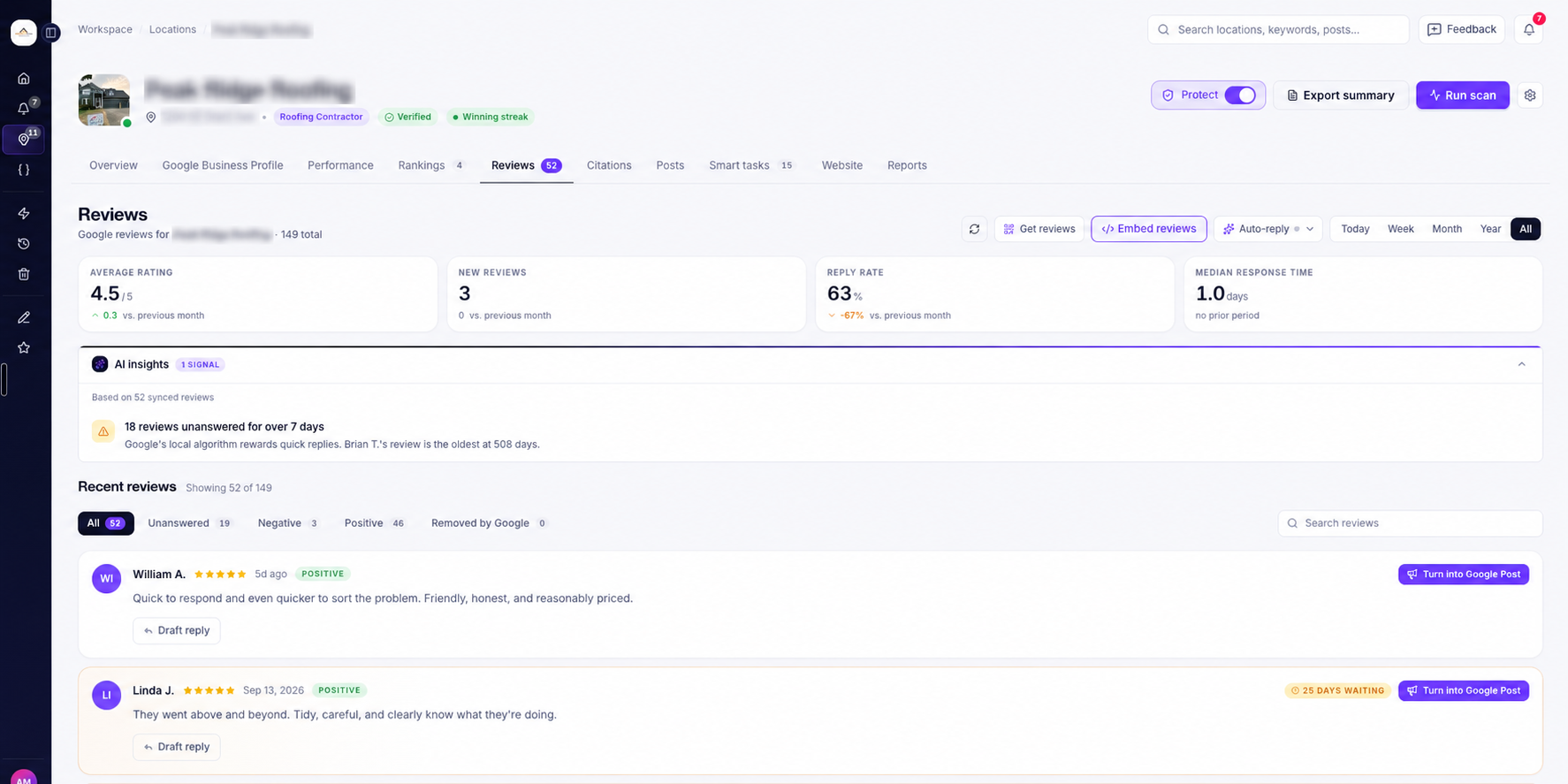
The Reviews tab lets you view and manage your Google Business Profile reviews from Ranksphere.
You can check customer feedback, find reviews that haven't received a reply, write responses, and use AI to help you draft replies.
If your Google Business Profile is connected, you can also publish your replies directly to Google.
Where can I find my Google reviews?
You can access reviews in two ways:
| Where to go | What you'll see |
| Locations → Select location → Reviews | Reviews for one business location. |
| Sidebar → Google Reviews | Reviews from all the locations you can access. |
If you manage several businesses, the Google Reviews page in the sidebar lets you review feedback across your locations without opening each one separately.
For more information about managing business locations, see Locations in Ranksphere.
What information is shown in the Reviews tab?
At the top of the Reviews page, you'll see four metrics that summarize your Google reviews and response activity.
| Metric | What it means |
| Average rating | Your business's average Google review rating, out of five stars. |
| New reviews | The number of new Google reviews received in the last 30 days. |
| Reply rate | The percentage of reviews you've replied to. |
| Median response time | How long you typically take to reply to customer reviews. |
These metrics help you see how your business is doing with customer reviews and whether you're keeping up with replies.
What information does each review show?
Below the metrics, you'll find your list of Google reviews.
Each review includes:
- Reviewer: The customer's name and Google profile photo, or their initials if no photo is available.
- Star rating: The rating the customer gave your business.
- Review date: When the review was posted.
- Review text: The customer's written feedback.
- Photos: Any photos the customer attached to the review.
Ranksphere also labels reviews as Positive, Neutral, or Negative to make them easier to identify.
What are AI Insights for reviews?
The Reviews page includes an AI Insights panel that highlights feedback or review activity that may need attention.
For example, it may highlight:
- Customer reviews that haven't received a response.
- A recent increase in negative feedback.
You can use these insights to decide which reviews or issues to look at first.
How to find and filter Google reviews
You can filter your reviews to find the feedback you want to check.
Filter by review type
Use the filters at the top of the Reviews page.
| Filter | What it shows |
| All | All available reviews. |
| Unanswered | Reviews that haven't received a reply. |
| Negative | Reviews marked as negative. |
| Positive | Reviews marked as positive. |
| Removed by Google | Reviews that Google has removed. This filter is available for connected profiles. |
Filter reviews by date
You can also choose a time period.
| Time period | What it shows |
| Today | Reviews from today. |
| Week | Reviews from the selected weekly period. |
| Month | Reviews from the selected monthly period. |
| Year | Reviews from the selected yearly period. |
| All | Reviews across all available dates. |
Search for a specific review
Use the search bar to find reviews by:
- Reviewer name
- A word or phrase used in the review
For example, if you're looking for reviews mentioning "customer service," enter that phrase in the search bar.
How can I find reviews waiting for a reply?
Select the Unanswered filter to see reviews that haven't received a response.
Reviews left unanswered for more than seven days show a days waiting badge.
This makes it easier to identify older unanswered reviews.
How to refresh your Google reviews
When you first add a business location, Ranksphere imports its most recent Google reviews.
If you want to retrieve your full review history or check for newer reviews, use the Refresh button.
How to refresh reviews
- Open your location.
- Go to Reviews.
- Find the Refresh icon, shown as circular arrows.
- Click it to retrieve your reviews from Google.
The button has the tooltip Refresh reviews from Google.
What happens when I refresh?
The refresh process depends on whether your Google Business Profile is connected.
| Connection status | What happens |
| Connected through Google | Ranksphere pulls your latest Google reviews directly. |
| Not connected | Ranksphere checks your Google reviews in the background. |
If your business has a long review history, retrieving all reviews may take a minute.
If the history is still loading, you can click Refresh again shortly.
For more information about connecting and managing your listing, see Google Business Profile Management.
How to reply to Google reviews
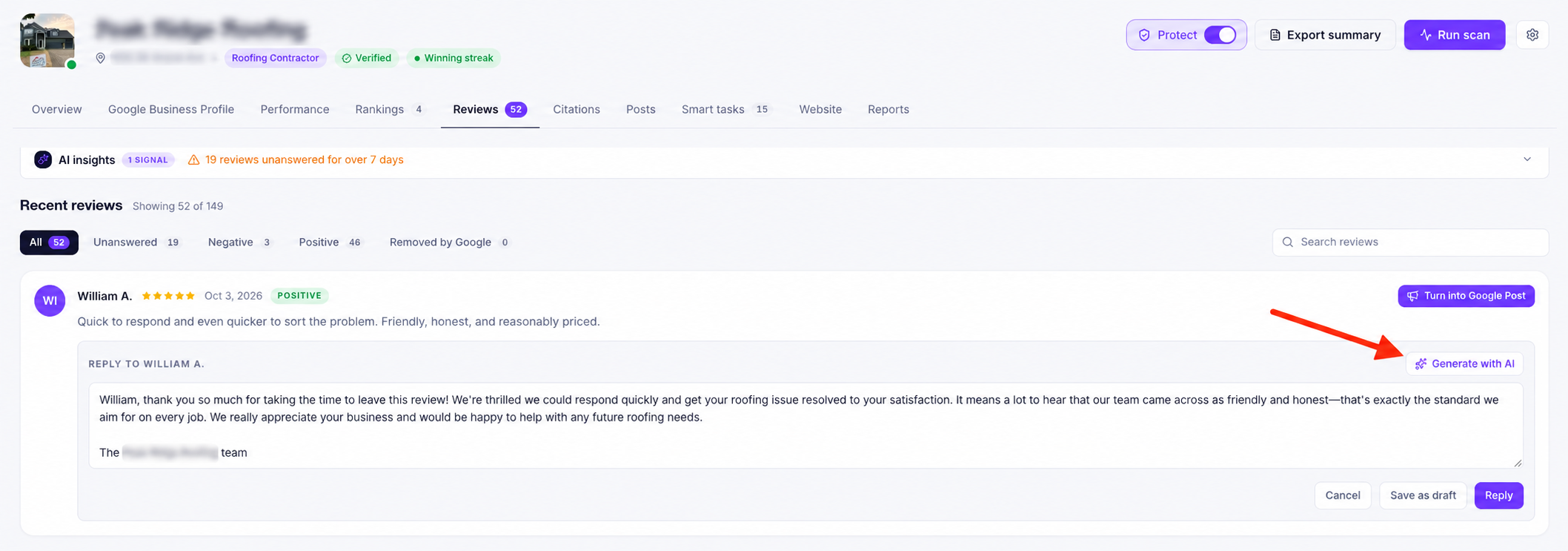
You can write replies to customer reviews directly from Ranksphere.
If your Google Business Profile is connected, replies are published straight to Google.
If it isn't connected, you can still prepare responses and save them as drafts.
How to reply to a review
- Open Reviews for your location.
- Find the review you want to answer.
- Open the review.
- Write your response in the reply box.
- Use the Reply option to submit your response.
What happens next depends on whether your Google Business Profile is connected.
| Connection status | What happens to your reply |
| Connected through Google | Your reply is published directly to Google. |
| Not connected | Your reply is saved as a draft in Ranksphere, ready to publish once you connect. |
Replies you've already posted directly on Google also appear in Ranksphere.
Do review replies need approval?
No. Review replies do not have an approval step.
If your Google Business Profile is connected, your reply is published as soon as you post it.
The review-and-approval workflow is for Google Posts, not Google review replies.
To learn more, see Google Posts.
How to write review replies with AI
Ranksphere includes an AI writing tool to help you prepare responses to customer reviews.
Instead of writing every reply yourself, you can use Generate with AI to create a suggested response.
The AI considers the review's star rating and adjusts the tone of the reply.
For example:
| Review type | How AI responds |
| Positive review | Creates a warm, grateful response thanking the customer. |
| Negative review | Creates an understanding, helpful response that addresses the feedback. |
The AI also addresses the reviewer by name.
How to generate a review reply
- Open your location's Reviews tab.
- Select the review you want to reply to.
- Click Generate with AI.
- Review the suggested response.
- Edit the wording if needed.
- Publish the reply if your Google Business Profile is connected, or save it as a draft if it isn't.
The AI-generated reply appears in the reply box before you publish it, so you can check and adjust the wording.
How many AI credits does a review reply use?
Each AI-generated review reply uses 10 AI credits.
| AI action | Credits used |
| Generate a review reply | 10 |
For more information about AI credit usage, see AI Credits.
How to reply to new reviews automatically
If you don't want to write or generate every reply manually, you can use AI Review Auto-Reply.
This feature lets Ranksphere generate and publish replies to new Google reviews automatically.
You can choose:
- Which review ratings should receive an automatic reply.
- The tone of the replies.
- How long Ranksphere should wait before replying.
How to enable AI auto-reply
- Open the business location.
- Go to Reviews.
- Open the AI auto-reply settings.
- Turn on auto-reply.
- Choose your preferred reply settings.
Important: AI auto-reply requires a connected Google Business Profile.
It only replies to new reviews received after you've turned the feature on. Reviews that were already there won't receive automatic replies from this feature.
To learn more about the settings, timing, and rules, see AI Review Auto-Reply.
How to get more Google reviews with a QR code
Ranksphere lets you create a QR code and review link that customers can use to leave feedback on Google.
You can find this feature under Get reviews in a location's Reviews tab.
How to create a Google review QR code
- Open your location.
- Go to Reviews.
- Select Get reviews.
- Create your Google review QR code and link.
The QR code takes customers directly to your Google review form.
You can share the link or use the QR code so customers can open the review form without having to search for your business manually.
For more information about creating and customizing the QR code, see Google Review QR Code Generator.
How to turn a positive review into a Google Post
You can use a positive customer review as the starting point for a Google Post.
This lets you share positive customer feedback through your Google Business Profile.
How to create a post from a review
- Open your location's Reviews tab.
- Find a positive review you want to share.
- Select Turn into Google Post.
Ranksphere will start a draft Google Post based on the review.
You can then review and prepare the post before publishing it.
For more information about creating and publishing posts, see Google Posts.
How to display Google reviews on your website
Where available, Ranksphere lets you create a review widget that you can add to your website.
You can find this feature under Embed reviews in the location's Reviews tab.
The widget lets you display your Google reviews in different layouts.
| Widget layout | How reviews are displayed |
| Grid | Reviews arranged in a grid. |
| Carousel | Reviews displayed in a carousel. |
| List | Reviews arranged in a list. |
| Badge | Reviews displayed in a compact badge format. |
Once you've generated your widget, you can paste it into your website.
How to keep track of new and unanswered reviews
You don't need to check every location manually to find new reviews or reviews that need attention.
Ranksphere can help you stay updated through notifications and Smart Tasks.
Notifications for new reviews
Ranksphere sends notifications when a location receives a new Google review.
You can view these updates through the notification bell in the top navigation.
For more information, see Notifications.
Smart Tasks for reviews
Ranksphere can also create Smart Tasks when it identifies review-related issues.
For example:
- Reviews that haven't received a reply.
- A recent increase in low ratings.
These tasks help you see which reviews or review-related issues may need attention.
You can find them in your location's Smart Tasks tab.
For more information, see Smart Tasks.
Google Reviews on the Free trial
The Free trial has a limit on how many reviews you can access.
| Plan | Review access |
| Free (14-day trial) | View your 10 most recent Google reviews. |
| Paid plans | Access your full review history and reply to every review. |
During the Free trial, reviews beyond your ten most recent are locked behind an upgrade prompt.
To unlock your full review history and reply to every review, you'll need to move to a paid plan.
For more information about subscription options, see Billing, Plans & Add-ons.
Who can view and manage Google reviews?
Your workspace role determines whether you can view reviews, write replies, or use AI to generate responses.
| Workspace role | View reviews | Draft and generate AI replies |
| Owner | Yes | Yes |
| Admin | Yes | Yes |
| Member | Yes | Yes |
| Guest | Yes | No |
Members can manage reviews for locations shared with them.
Guests can view reviews for their shared locations but cannot write or generate replies.
Who can refresh Google reviews?
Refreshing reviews uses the same permission as replying.
This means users who are allowed to reply can also refresh reviews from Google.
Who can manage AI auto-reply?
AI auto-reply has its own permission, separate from manually writing review replies.
Workspace Owners and Admins have access to this control by default.
For more information about workspace roles and permissions, see Users, Roles & Permissions.
Quick guide to managing Google reviews
| What you want to do | Where to go |
| View reviews for one business | Locations → Select location → Reviews |
| View reviews across locations | Sidebar → Google Reviews |
| Find unanswered reviews | Reviews → Unanswered |
| Find negative reviews | Reviews → Negative |
| Search for a review | Reviews → Search |
| Refresh reviews from Google | Reviews → Refresh |
| Write a review reply | Reviews → Select review → Reply |
| Generate an AI reply | Reviews → Select review → Generate with AI |
| Set up automatic replies | Reviews → AI auto-reply settings |
| Create a review QR code | Reviews → Get reviews |
| Turn a review into a Google Post | Reviews → Positive review → Turn into Google Post |
| Create a review widget | Reviews → Embed reviews |
| Check review-related Smart Tasks | Locations → Select location → Smart Tasks |
Frequently asked questions
How can I see all my Google reviews instead of just the recent ones?
Open your location's Reviews tab and click the Refresh icon.
Ranksphere will retrieve your review history from Google.
If your business has a long review history, it may take a minute to finish loading.
Why can I only see ten reviews?
The Free trial only shows your ten most recent Google reviews.
To access your full review history and reply to every review, you'll need to upgrade to a paid plan.
I wrote a reply, but it isn't showing on Google. Why?
If your Google Business Profile isn't connected, your reply is saved as a draft in Ranksphere.
You'll need to connect the profile before publishing the reply to Google.
If your profile is connected, replies you post from Ranksphere are published directly to Google.
Do I need to check for new reviews manually?
No. Ranksphere notifies you when a new review comes in.
Smart Tasks can also highlight unanswered reviews or recent negative feedback that may need attention.
Can I use AI to write review replies?
Yes. Open a review and select Generate with AI.
Ranksphere creates a suggested response based on the review's rating and feedback.
You can review and edit the reply before publishing it.
Each AI-generated reply uses 10 AI credits.
Can Ranksphere reply to reviews automatically?
Yes. You can turn on AI Review Auto-Reply for a location with a connected Google Business Profile.
You can choose which ratings receive replies, the tone, and the timing.
AI auto-reply only responds to new reviews received after the feature has been enabled.
See AI Review Auto-Reply.
Is there an approval process for review replies?
No. Review replies don't use an approval workflow.
When your Google Business Profile is connected, a reply is published as soon as you post it.
The review-and-approval workflow applies to Google Posts.
Can I create a QR code to collect Google reviews?
Yes. Open your location's Reviews tab and select Get reviews.
You can create a QR code and link that sends customers directly to your Google review form.
See Google Review QR Code Generator.
Can I display Google reviews on my website?
Yes, where the Embed reviews feature is available.
You can generate a review widget in grid, carousel, list, or badge format and add it to your website.
Can Guests reply to reviews?
No. Guests can view reviews for locations shared with them, but they cannot write replies or use AI to generate responses.
Can I see replies that were already published on Google?
Yes. Replies already posted by the business owner on Google also appear in Ranksphere.
Still stuck?
Start free and set this up in your own workspace, or reach out and we'll help.