GBP Management
This guide explains what the Google Business Profile tab shows, how to connect your profile, and how to edit and publish your details straight to Google.
What is Google Business Profile Management?
The Google Business Profile tab lets you view and manage your Google Business Profile information from Ranksphere.
You can see your business description, categories, contact details, opening hours, photos, services, and other profile information in one place.
This makes it easier to check whether your business information is complete and see what might need updating.
How does it work?
What you can do depends on whether your Google Business Profile is connected to Ranksphere.
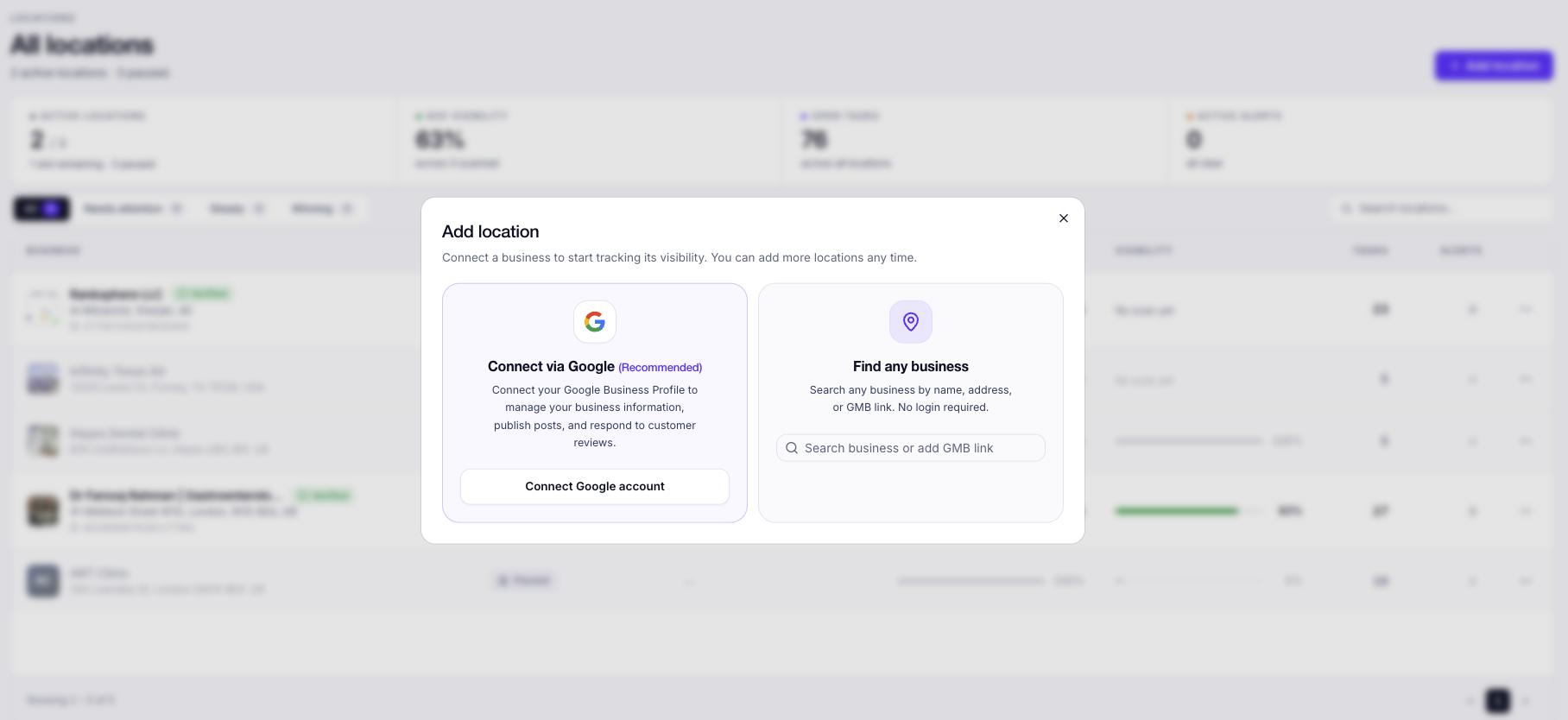
| Connection status | What you can do |
| Connected through Google | View and edit your business information in Ranksphere, then publish your changes directly to Google. |
| Not connected | View business information collected from Google's public listing, use AI to improve your description, and prepare changes as drafts. You'll need to connect Google before publishing them. |
Connecting your Google Business Profile is a one-time process.
If you haven't connected yet, you can still review your listing and prepare updates in Ranksphere.
For more information about adding and connecting business locations, see Locations in Ranksphere.
What can I manage in the Google Business Profile tab?
Open your business location and select the Google Business Profile tab.
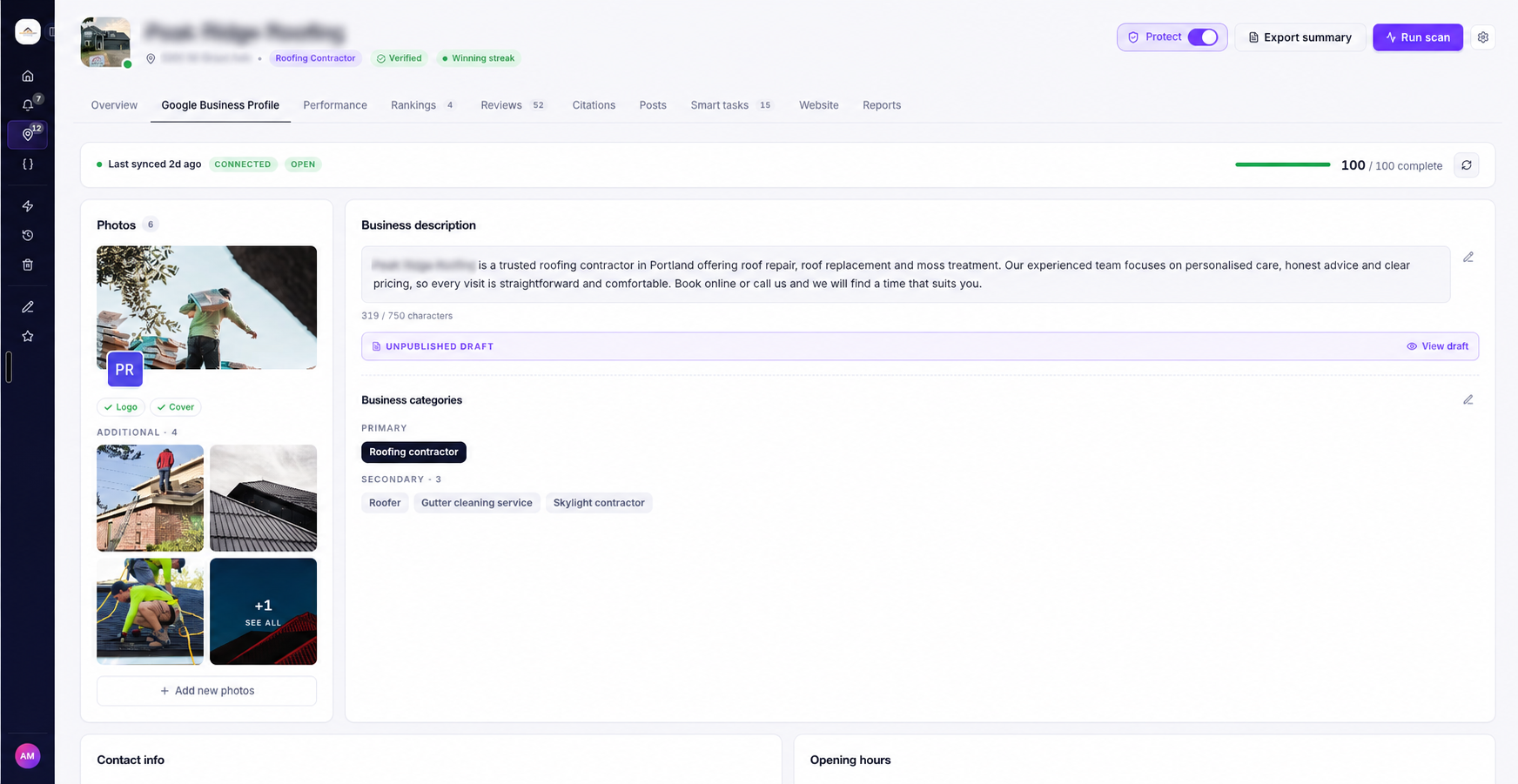
You'll find the different parts of your business listing organized into sections.
| Section | What you'll find |
| Photos | Your business logo, cover photo, and other photos. |
| Business description | Your current description, with AI writing tools to help improve it. |
| Business categories | Your primary and secondary Google Business Profile categories. |
| Contact information | Your business phone number, website, and other contact details. |
| Opening hours | Your regular business hours. |
| Services | The services your business offers. |
| Service area | Your business location and the areas you serve, displayed on a map. |
| Attributes | Business features and details supported by Google, such as wheelchair accessibility. |
At the top of the page, you'll also see your Profile Completeness Score, which shows how complete your business information is.
How to connect your Google Business Profile
If you added a business without connecting Google, you can connect its Google Business Profile later.
To connect:
- Go to Locations.
- Open the location you want to connect.
- Select the Google Business Profile tab.
- Choose the option to connect your Google Business Profile.
You can also select Connect to Google from the location's menu in the Locations list.
Once connected, you can edit supported business information in Ranksphere and publish those changes directly to Google.
If you've already prepared changes as drafts, they'll be ready for you to review and publish after connecting.
For more information, see Locations in Ranksphere.
How to refresh your business information from Google
If you've made changes to your listing outside Ranksphere, or want to check for newer reviews, you can refresh your business information.
The Refresh button pulls the latest available details from Google into Ranksphere.
What information does Refresh update?
Refresh retrieves your latest business details and reviews, including:
- Business name
- Business address
- Phone number
- Website
- Business categories
- Google reviews
How to refresh your profile
- Open your location.
- Go to the Google Business Profile tab.
- Find the Refresh button, shown as a circular-arrows icon.
- Click it to retrieve the latest information from Google.
When you hover over the button, you'll see the tooltip Refresh reviews from Google.
How long does Refresh take?
Your latest business details and reviews are pulled into Ranksphere when you refresh.
However, retrieving your full review history may take a minute.
If the review history is still loading, you can click Refresh again.
Note: Refresh works whether your Google Business Profile is connected through Google or added using public business information.
You can use it whenever you want to update the business details and reviews shown in Ranksphere.
For more information about managing reviews, see Reviews.
How to write or improve your business description with AI
Ranksphere includes an AI writing tool to help you create or improve your Google Business Profile description.
You can use it to write a new description or make changes to one you already have.
Available AI writing options
| AI option | What it does |
| Generate | Creates a new business description. |
| Rewrite | Rewrites your existing description. |
| Shorten | Creates a shorter version of your description. |
| Warmer | Makes your description sound warmer and more approachable. |
You can also provide a few details to guide the AI, such as which services you want to highlight.
How to generate a business description
- Open your location.
- Go to Google Business Profile.
- Find the Business description section.
- Open the description editor.
- Choose Generate, Rewrite, Shorten, or Warmer.
- Add any details you want the AI to consider.
- Review the generated description and edit it if needed.
The AI-generated text appears in the editor, where you can make changes before publishing.
How many AI credits does it use?
Each AI writing action uses 10 AI credits.
| Action | AI credits |
| Generate a description | 10 |
| Rewrite a description | 10 |
| Shorten a description | 10 |
| Make a description warmer | 10 |
For example, if you generate a description and then use Rewrite to create another version, those are two separate AI writing actions.
Does the AI description publish automatically?
No. The AI only prepares the description for you.
You can review and edit the result before publishing it.
If your Google Business Profile is connected, you can publish the description directly to Google.
If it isn't connected, you can save the description as a draft until you're ready to connect.
For more information about how AI credits are used, see AI Credits.
Understanding your Profile Completeness Score
At the top of the Google Business Profile tab, you'll see a Profile Completeness Score out of 100.
This score helps you understand how much of your business information has been filled in.
What affects the completeness score?
Ranksphere checks your main business information and additional profile details.
| Profile information | What Ranksphere checks |
| Business name | Whether your business name is available. |
| Address | Whether your business address is included. |
| Phone number | Whether your phone number is provided. |
| Website | Whether your business website is added. |
| Business category | Whether your business has a category. |
| Logo | Whether your business logo is added. |
| Cover photo | Whether your cover photo is added. |
| Business description | Whether your profile includes a description. |
| Secondary categories | Whether additional business categories have been added. |
| Opening hours | Whether your regular hours are included. |
Your main business details make up the core of the score.
However, even if those details are complete, your score may still be below 100 if information such as your description, secondary categories, or opening hours is missing.
How to improve your completeness score
Open your location's Overview tab to see a checklist of information that may be missing.
For example, Ranksphere may suggest adding your:
- Business website
- Phone number
- Business categories
- Other missing profile details
You can use this checklist to see what still needs to be completed.
Keeping your Google Business Profile complete and accurate is also an important step toward improving your local rankings.
To learn more about tracking your Google Maps rankings, see Local Rank Tracking.
How to edit your Google Business Profile
Once you've connected your Google Business Profile through Google, you can update supported business information directly from Ranksphere.
You can edit:
- Business description
- Primary and secondary categories
- Attributes
- Opening hours
- Services
- Photos
- Contact details
How to update your business information
- Open your location.
- Go to Google Business Profile.
- Find the section you want to update.
- Make your changes.
- Save and publish the updated information.
When your profile is connected, changes can be published directly to Google.
What happens if my profile isn't connected?
You can still prepare changes in Ranksphere.
However, they won't be published to your Google Business Profile until you connect it.
Your changes are saved as drafts and marked Not published.
Once you've connected Google, you can review those drafts and publish them.
Can I change my business categories?
Yes.
Ranksphere uses Google's list of business categories.
When your profile is connected, you can select your primary and secondary categories and publish the changes directly to Google.
If your profile isn't connected, you can prepare your changes as drafts.
Who can view and manage Google Business Profile information?
Your workspace role determines whether you can view business information, make changes, or use the AI writing tools.
| Workspace role | View profile | Edit, use AI, and refresh |
| Owner | Yes | Yes |
| Admin | Yes | Yes |
| Member | Yes | Yes |
| Guest | Yes | No |
Who can connect a Google Business Profile?
Connecting a Google account has a separate permission.
By default, only Workspace Owners and Admins can connect a Google Business Profile.
An Admin can grant this permission to a Member.
Members who have permission to edit a location can still use the AI writer and prepare drafts before the Google Business Profile is connected.
Guests can view the profile but cannot edit information, use the AI writing tools, or refresh the profile.
For more information, see Users, Roles & Permissions.
Quick guide to Google Business Profile Management
Use this table to find the action you need.
| What you want to do | Where to go |
| View your Google Business Profile | Locations → Select location → Google Business Profile |
| Connect your Google Business Profile | Google Business Profile tab → Connect to Google |
| Refresh your business details and reviews | Google Business Profile tab → Refresh |
| Generate a business description with AI | Google Business Profile → Business description → Generate |
| Rewrite a business description | Google Business Profile → Business description → Rewrite |
| Edit your business categories | Google Business Profile → Business categories |
| Update your opening hours | Google Business Profile → Opening hours |
| Update your contact details | Google Business Profile → Contact information |
| Check your completeness score | Google Business Profile → Profile Completeness Score |
| Find missing profile information | Location → Overview |
| Check AI credits | Settings → Credit Usage → AI Credits |
Frequently asked questions
What's the difference between a connected and an unconnected Google Business Profile?
When your profile is connected through Google, you can edit supported business information in Ranksphere and publish changes directly to Google.
If your profile isn't connected, Ranksphere shows the available public business information from Google.
You can still review the profile, use AI to prepare a description, and save changes as drafts.
You'll need to connect Google before those changes can be published.
I edited my opening hours, but they didn't change on Google. Why?
If your profile isn't connected, your changes are saved as drafts in Ranksphere.
They won't appear on Google until you connect your Google Business Profile and publish them.
When your profile is connected, saving your changes publishes the updated hours to Google.
How do I get the latest business details from Google?
Open your location's Google Business Profile tab and click Refresh.
The button has a circular-arrows icon and the tooltip Refresh reviews from Google.
It pulls your latest business name, address, phone number, website, categories, and reviews into Ranksphere.
Can I refresh my profile without connecting Google?
Yes. Refresh works even if you added the business without connecting its Google Business Profile.
Ranksphere retrieves the available business information and reviews from Google.
Can I change my primary and secondary business categories?
Yes. Ranksphere uses Google's list of business categories.
Once your Google Business Profile is connected, you can choose your categories and publish the changes directly to Google.
Does an AI-generated description automatically appear on Google?
No. The description appears in the editor first.
You can review, edit, and publish it yourself if your profile is connected.
If your profile isn't connected, the description can be saved as a draft.
How many AI credits does generating a description use?
Each AI writing action uses 10 credits.
This includes Generate, Rewrite, Shorten, and Warmer.
See AI Credits for more information.
Why isn't my completeness score 100?
Your profile may still be missing information such as a description, secondary categories, or opening hours.
Even if your main business details are complete, these additional fields can affect your score.
Check the completeness checklist in your location's Overview tab to see what still needs attention.
Can Members connect a Google Business Profile?
By default, only Owners and Admins can connect a Google Business Profile.
An Admin can grant a Member permission to connect one.
Members with editing access can still use the AI description writer and prepare changes as drafts before the profile is connected.
Can Guests edit Google Business Profile information?
No. Guests can view the profile but cannot edit business information, use AI writing tools, or refresh the profile.
Still stuck?
Start free and set this up in your own workspace, or reach out and we'll help.
More in Google Business Profile
Google Business Profile Performance
This guide explains what the Google Business Profile performance view shows, where the numbers come from, and how to read them, export them, and schedule them.
Google Business Profile Protection
How Google Business Profile Protection watches your connected profile and auto-reverts hostile or unwanted edits to your real business details.
Google Posts
This guide explains what Google posts are, how to write and schedule them, the review-and-approval workflow, and how they publish to Google.