Schema Generator
This guide explains what the Schema Generator does, how to use it, and how it's metered.
What is the Schema Generator?
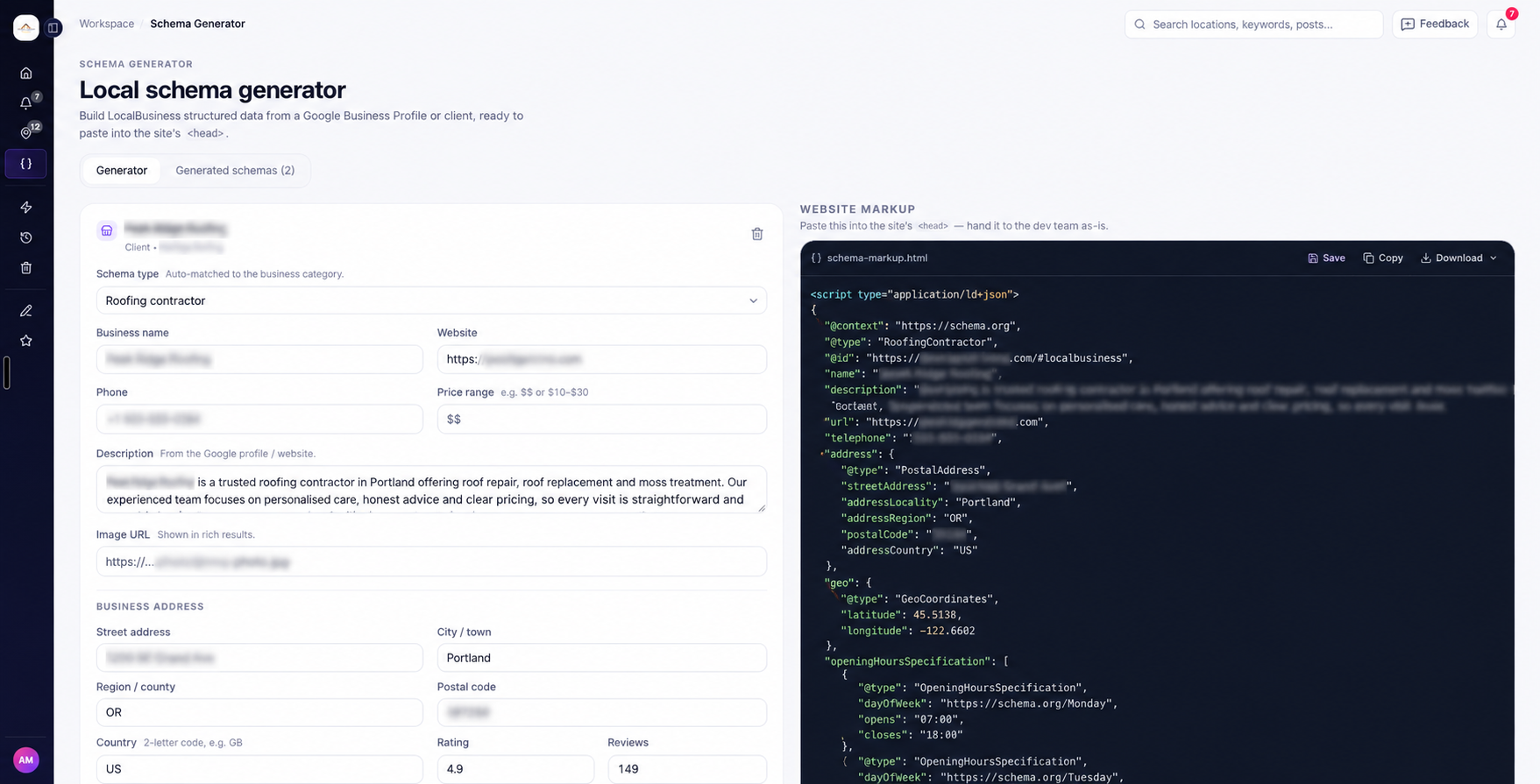
The Schema Generator helps you create structured data for your business website without writing the code yourself.
Schema markup gives search engines information about your business, such as its name, address, phone number, website, and opening hours.
Ranksphere creates this information in JSON-LD format, which you can add to your website.
Adding accurate schema markup can help Google better understand your business and the information on your website.
Where can I find the Schema Generator?
You'll find Schema Generator in the main workspace sidebar.
You can use it for any business, even if you haven't added that business as a location in Ranksphere.
For example, you can create schema for:
- A business already added to your Ranksphere workspace.
- A business you find through Google search.
- A business whose details you enter manually.
You don't need to connect a Google Business Profile to use the Schema Generator.
How to create schema markup
You can create schema using an existing business location, information from Google, or a blank form.
Step 1: Open the Schema Generator
- Sign in to Ranksphere.
- Select Schema Generator from the sidebar.
Step 2: Choose how to add your business
You'll have three options for providing the business information.
| Option | How it works |
| Existing Ranksphere location | Select a business you've already added to your workspace. |
| Search on Google | Search for a business and use the information available from its Google listing. |
| Start with a blank form | Enter the business information yourself. |
Choose whichever option works best for the business you're creating schema for.
Step 3: Review your business information
If you select a business from Google, Ranksphere fills in the information available from its Google listing.
Review those details before using the schema.
Check the business name, address, phone number, website, opening hours, and business type.
You can correct information that's missing, outdated, or incorrect.
Step 4: Add additional business details
Complete any other relevant information you want to include in the schema.
Depending on the business, this may include:
- Business description
- Photos
- Price range
- Social profile links
- Other supported business information
You only need to complete fields that apply to the business and for which you have accurate information.
Step 5: Add more locations if needed
If the business has several branches, you can add more locations to the schema.
Ranksphere also supports shared brand information to help connect those locations.
Step 6: Review your schema
As you enter or update your business information, the schema markup appears on the right-hand side of the page.
You don't need to click a separate Generate button.
The markup updates automatically as you complete the form.
You can review the code and make changes before copying, downloading, or saving it.
Step 7: Copy, download, or save
Once you're satisfied with the schema, you can:
- Copy the code to add it to your website.
- Download the schema.
- Save it to your Generated schemas list.
We'll explain how schema builds are counted later in this guide.
What information can the Schema Generator include?
The information included depends on the type of business and the details available.
Ranksphere can create schema containing the following information:
| Information | What it describes |
| Business name | The name of the business. |
| Description | A description of what the business does. |
| Business type | The type of business, such as a restaurant or another supported category. |
| Address | The business's physical address. |
| Map location | The business's geographic location. |
| Phone number | The business's contact number. |
| Website | The business's website address. |
| Opening hours | When the business is open. |
| Photos | Images associated with the business. |
| Price range | Pricing information, when available. |
| Rating | Rating information, when available. |
| Social profiles | Links to the business's social media profiles and other relevant pages. |
Not every business will need every field.
The schema includes information based on the business and the details you provide.
How does Ranksphere choose the business type?
Ranksphere automatically selects a suitable business type based on the available business information.
For example, a restaurant and a healthcare business may use different schema types.
You can review the suggested type and change it if another option is more appropriate.
This helps make sure the schema accurately describes the business.
Can I add information specific to my industry?
Yes.
Certain business types have additional fields that may not apply to other businesses.
For example, restaurants and other food businesses can include menu information in their schema.
These additional fields let you provide more relevant information about the business.
How to create schema for multiple business locations
If your business has more than one branch, you can include multiple locations in the Schema Generator.
You don't need to create a separate workspace location for every branch just to use this feature.
How to add another location
- Open Schema Generator.
- Add or select your business.
- Review the available business information.
- Use the option to add another location.
- Enter or review the details for that branch.
- Continue adding locations as needed.
- Review the updated schema preview.
Ranksphere also supports shared brand information to connect the different branches of the same business.
For example, a business with several branches can include individual location details alongside information about the overall brand.
How to review and edit your schema
Before adding schema markup to a website, make sure the information is accurate.
This is especially important if the details were imported from Google.
What should I check?
| Field | What to review |
| Business name | Make sure the name is correct. |
| Address | Check the street address, city, region, and other location details. |
| Phone number | Make sure the contact number is current. |
| Website | Check that the website address is correct. |
| Opening hours | Make sure the hours reflect when the business operates. |
| Business type | Confirm that the selected type accurately describes the business. |
You can edit any field that needs correcting.
What happens when I change a field?
The schema preview updates immediately.
For example, if you correct the phone number, the new number will appear in the generated markup.
You don't need to regenerate the schema manually.
This makes it easier to check the final information before copying or saving it.
How to check if your schema is valid
Ranksphere includes a schema preview that helps you review the generated markup.
The preview shows whether the schema is valid and highlights useful fields you haven't completed.
What does the validation check show?
The preview helps you identify:
- Whether the generated schema is valid.
- Fields that may still need information.
- Recommended details that haven't been added.
Some recommended fields are optional.
Leaving an optional field blank doesn't necessarily make the schema invalid.
You can review the validation message to see whether anything needs attention.
How to test schema with Google
You can also check your schema using Google's official Rich Results Test.
To do this:
- Open your schema in Ranksphere.
- Review the generated markup.
- Select Test in Rich Results.
- Review the results in Google's Rich Results Test.
This lets you check the markup using Google's testing tool before publishing it on your website.
Note: Valid schema helps search engines understand your business information, but it doesn't guarantee higher rankings or that Google will display a special search result.
How to add schema markup to your website
Once your schema is ready, you can copy the JSON-LD code and add it to your website.
Steps to add the schema
- Open your completed schema in Ranksphere.
- Select Copy to copy the code.
- Open the website where you want to add it.
- Place the schema code inside the website's <head> section.
If someone else manages your website, you can copy the code and send it to your developer or website administrator.
They can add it to the appropriate part of the website.
Does Ranksphere add the schema to my website automatically?
The Schema Generator creates the code for you, ready to use on your website.
You'll still need to add the code to the website yourself or ask the person managing your website to add it.
How to save or download your schema
After reviewing the schema, you can choose how you want to use it.
| Action | What it does | Uses a schema build? |
| Copy | Copies the markup so you can add it to your website. | No |
| Download | Downloads the generated schema. | No |
| Save new schema | Saves a new schema to your Generated schemas list. | Yes, 1 build |
| Edit and save existing schema | Updates a schema you've already saved. | No |
What is Generated schemas?
Generated schemas is where your saved schema markup is kept in Ranksphere.
Saving a schema makes it easier to return to it later.
For example, if a business changes its phone number or opening hours, you can open the saved schema, update the information, and save your changes.
When does a schema build count?
A schema build is only counted when you save a new schema to the Generated schemas list.
Copying or downloading a schema doesn't use a build.
Editing and saving changes to an existing schema also doesn't use another build.
This means you can make updates to previously saved schema without using your monthly allowance again.
How many schema builds are included in each plan?
Each Ranksphere workspace receives a schema build allowance based on its subscription.
| Plan | Included schema builds |
| Free (14-day trial) | 1 |
| Single Business | 2 per month |
| Starter | 5 per month |
| Growth | 20 per month |
| Agency | 50 per month |
Your monthly schema build allowance resets at the beginning of each billing period.
Remember that builds are only counted when you save new schema to Generated schemas.
How to check your remaining schema builds
You can see how many schema builds you've used and how many remain.
- Go to Settings.
- Select Credit Usage.
- Check your schema build allowance.
For more information about how schema builds are counted, see Report, Schema & Crawl Credits.
How to buy additional schema builds
If you've used your monthly schema build allowance, you can purchase additional builds.
Ranksphere offers the following add-on:
| Add-on | Price |
| 10 schema builds | $4 |
How to purchase more schema builds
- Go to Settings → Billing.
- Open the Add-ons tab.
- Find the schema build pack.
- Purchase the additional builds.
You can also upgrade to a plan with a larger monthly allowance.
For more information about add-ons and subscriptions, see Billing, Plans & Add-ons.
Who can use the Schema Generator?
Access to the Schema Generator depends on your workspace role.
| Workspace role | Use Schema Generator | Create and manage schema |
| Owner | Yes | Yes |
| Admin | Yes | Yes |
| Member | Yes | Yes |
| Guest | No | No |
Workspace Owners, Admins, and Members can create and manage schema markup.
Guests cannot access the Schema Generator to create or manage schema.
For more information about workspace access, see Users, Roles & Permissions.
Quick guide to the Schema Generator
| What you want to do | Where to go |
| Create business schema | Sidebar → Schema Generator |
| Use an existing business | Schema Generator → Select an existing location |
| Find a business on Google | Schema Generator → Search for a business |
| Enter business details manually | Schema Generator → Blank form |
| Add another business location | Schema Generator → Add another location |
| Review generated markup | Schema Generator → Live preview |
| Test your markup | Schema Generator → Test in Rich Results |
| Find previously saved schema | Schema Generator → Generated schemas |
| Check remaining schema builds | Settings → Credit Usage |
| Purchase additional schema builds | Settings → Billing → Add-ons |
Frequently asked questions
What is schema markup?
Schema markup is structured data that helps search engines understand information on a website.
For local businesses, it can describe details such as the business name, address, phone number, website, and opening hours.
Ranksphere generates this information in JSON-LD format.
Do I need to know how to code to use the Schema Generator?
No.
You can enter or select your business information in Ranksphere, and the JSON-LD markup updates automatically.
You don't need to write the schema code yourself.
Where should I add the schema code?
Add the generated JSON-LD code inside the <head> section of your website.
If you don't manage your website yourself, copy the code and send it to your developer or website administrator.
Do I need to click Generate after entering my details?
No.
The schema preview updates automatically as you fill in or change the business information.
There's no separate Generate button.
Can I create schema for a business that's not in my Ranksphere workspace?
Yes.
You can search for the business on Google or start with a blank form.
You don't need to add the business as a Ranksphere location first.
Can I create schema for several business locations?
Yes.
You can add multiple business locations and include shared brand information to connect them.
Can I change the business type?
Yes.
Ranksphere suggests a suitable business type automatically, but you can change it before copying, downloading, or saving the schema.
Can restaurants include menu information?
Yes.
Restaurants and other food businesses can add menu information to their schema.
How do I know if my schema is correct?
Review the validation message in the schema preview.
You can also select Test in Rich Results to check the markup using Google's official tool.
Do I need to complete every field?
No.
Some fields are recommended but optional.
Leaving an optional field blank doesn't necessarily prevent the schema from being valid.
Make sure the information you include is accurate.
Does copying or downloading schema use a build?
No.
Copying or downloading generated schema is free.
A schema build is counted only when you save a new schema to the Generated schemas list.
Does editing an existing schema use another build?
No.
You can edit and save changes to an existing schema without using another schema build.
Where can I find my saved schemas?
Open Schema Generator and go to Generated schemas.
This is where you can find the schema you've previously saved.
How many schema builds do I get each month?
Your allowance depends on your plan.
The Single Business plan includes two builds per month, Starter includes five, Growth includes 20, and Agency includes 50.
The Free trial includes one schema build.
What happens if I use all my schema builds?
You can purchase an additional pack of 10 schema builds for $4 from Settings → Billing → Add-ons.
You can also upgrade to a plan with a higher monthly allowance.
Can Guests use the Schema Generator?
No.
Workspace Owners, Admins, and Members can use the Schema Generator.
Guests cannot create or manage schema.
Still stuck?
Start free and set this up in your own workspace, or reach out and we'll help.