White-label & Custom Domains
Use your own branding on reports and shared links, and present them from a web address connected to your domain.
What is white-label reporting?
White-label reporting lets you use your own business or agency branding on reports created in Ranksphere.
Instead of showing Ranksphere branding, your reports can display your logo, brand colors, business name, and website.
You can also connect your own report domain, so clients can open shared reports using a web address associated with your business.
For example, an agency could share reports using:
reports.youragency.comWhite-label reporting and custom domains are available on the Growth and Agency plans.
You can manage these settings from Settings → White Label.
For more information about creating and sharing reports, see Reporting.
How to enable white-label reporting
Before adding your branding, you'll need to enable white-label reporting for your workspace.
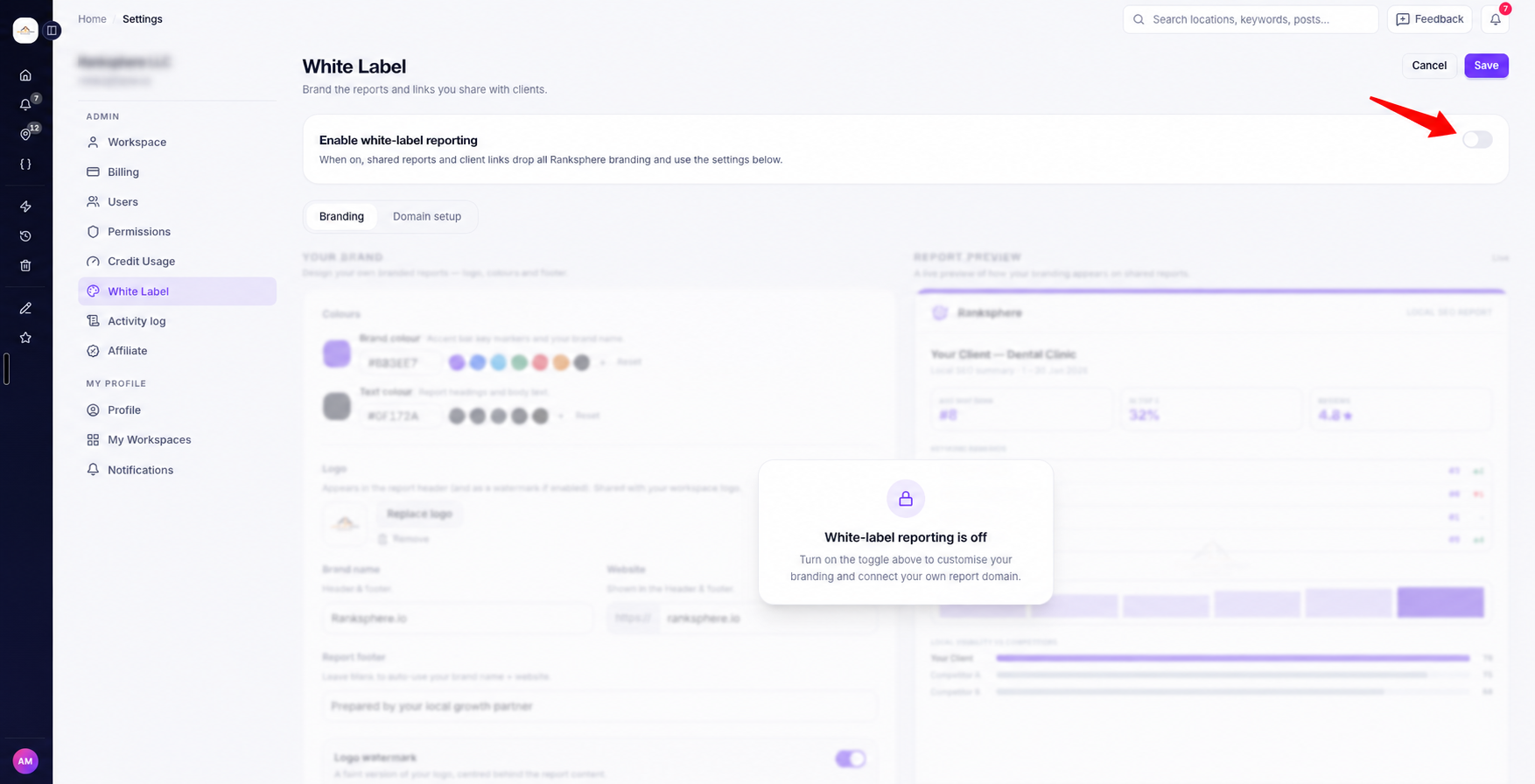
Steps to enable white-label reporting
- Go to Settings.
- Select White Label.
- Turn on Enable white-label reporting.
- Open the Branding tab to add your business information and branding.
Once enabled, you can replace Ranksphere branding with your own across your reports and shared report links.
What can I customize?
The Branding tab lets you configure how your reports look.
| Branding option | What it does |
| Logo | Displays your business or agency logo in the report header. |
| Logo watermark | Lets you display your logo as a light watermark. |
| Brand color | Sets the colors used for accents, key figures, and highlighted details. |
| Text color | Changes the color of report headings and body text. |
| Brand name | Displays your business or agency name in the report header and footer. |
| Website | Displays your business website in the report header and footer. |
| Report footer | Lets you add custom footer text to your reports. |
How to add your branding
- Open Settings → White Label.
- Go to the Branding tab.
- Add your logo.
- Choose your brand and text colors.
- Enter your brand name and website.
- Add custom footer text if needed.
- Check the preview and save your changes.
How does the report footer work?
You can write your own footer text to appear on reports.
If you leave the footer field empty, Ranksphere automatically uses your brand name and website instead.
This means you don't need to create custom footer text unless you want something different.
How to preview your report branding
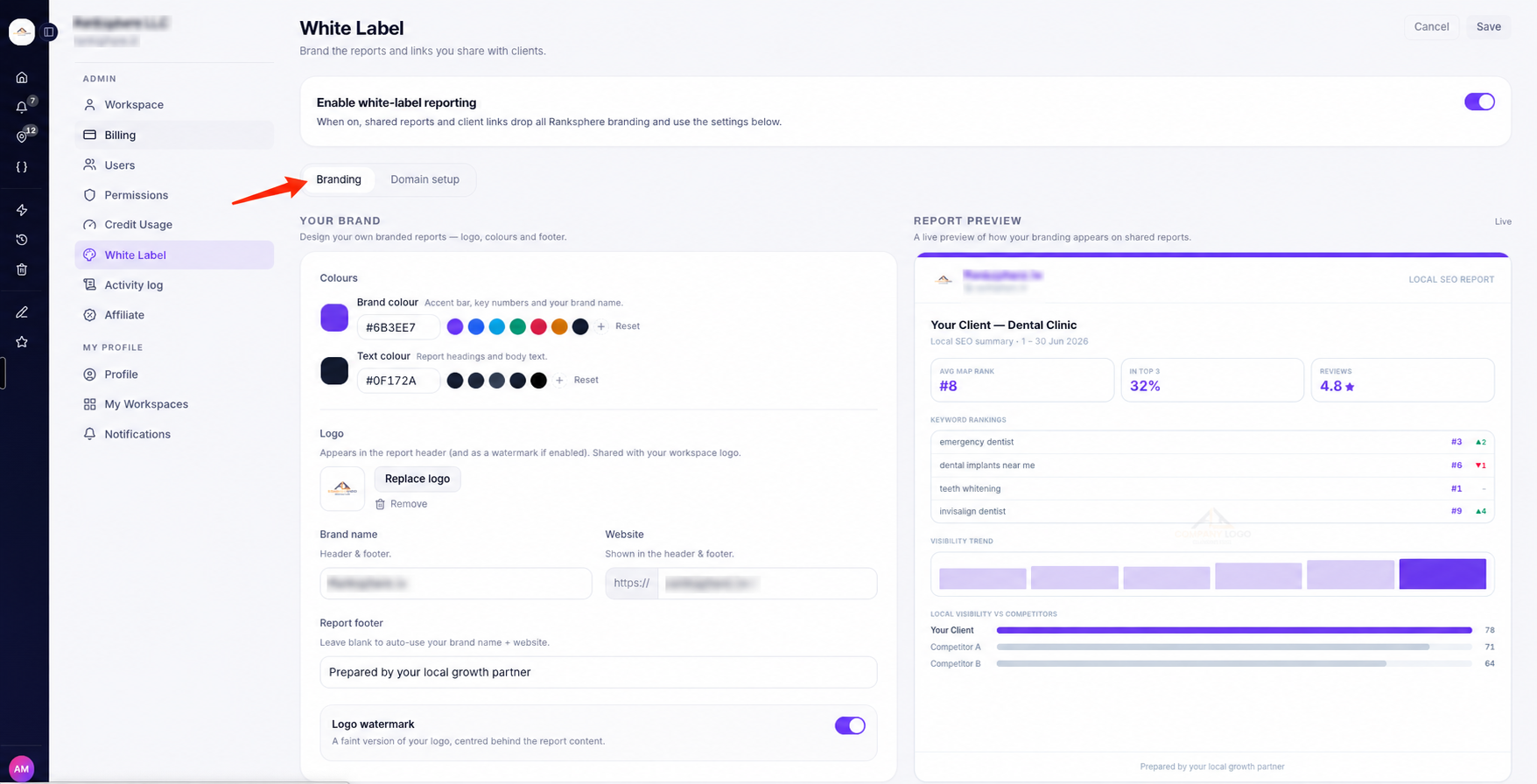
You can see how your reports will look before saving your branding settings.
The live preview updates as you make changes.
For example, when you change your brand color or add a logo, the preview reflects those updates.
This lets you check the appearance of your reports before applying the changes.
Where will my branding appear?
Your white-label settings apply across three areas.
| Where the report appears | How your branding is used |
| Reports inside Ranksphere | Reports display your selected branding. |
| Public report links | Clients viewing shared reports see your branding instead of Ranksphere's. |
| Downloaded PDF reports | PDF reports include your logo, colors, and other brand details. |
For example, if you download a report to email to a client, the PDF will use the branding you've configured.
If you share the same report using a public link, the online report will also use your branding.
For more information about sharing reports, see Reporting.
What is a custom report domain?
A custom report domain lets you share Ranksphere reports using a web address connected to your own business or agency website.
By default, shared report links use a Ranksphere web address.
With a custom domain, you can use a subdomain such as:
reports.youragency.comThis gives clients a consistent experience when they open reports you share with them.
You can use your own branding on the report page and your own domain in the report link.
Do I need to change my main website?
No.
A custom report domain uses a subdomain, such as reports.youragency.com.
You only need to add the required DNS record for that subdomain.
Your main website and its existing domain settings remain unchanged.
How to connect a custom report domain
To use your own report domain, you'll need to add a DNS record.
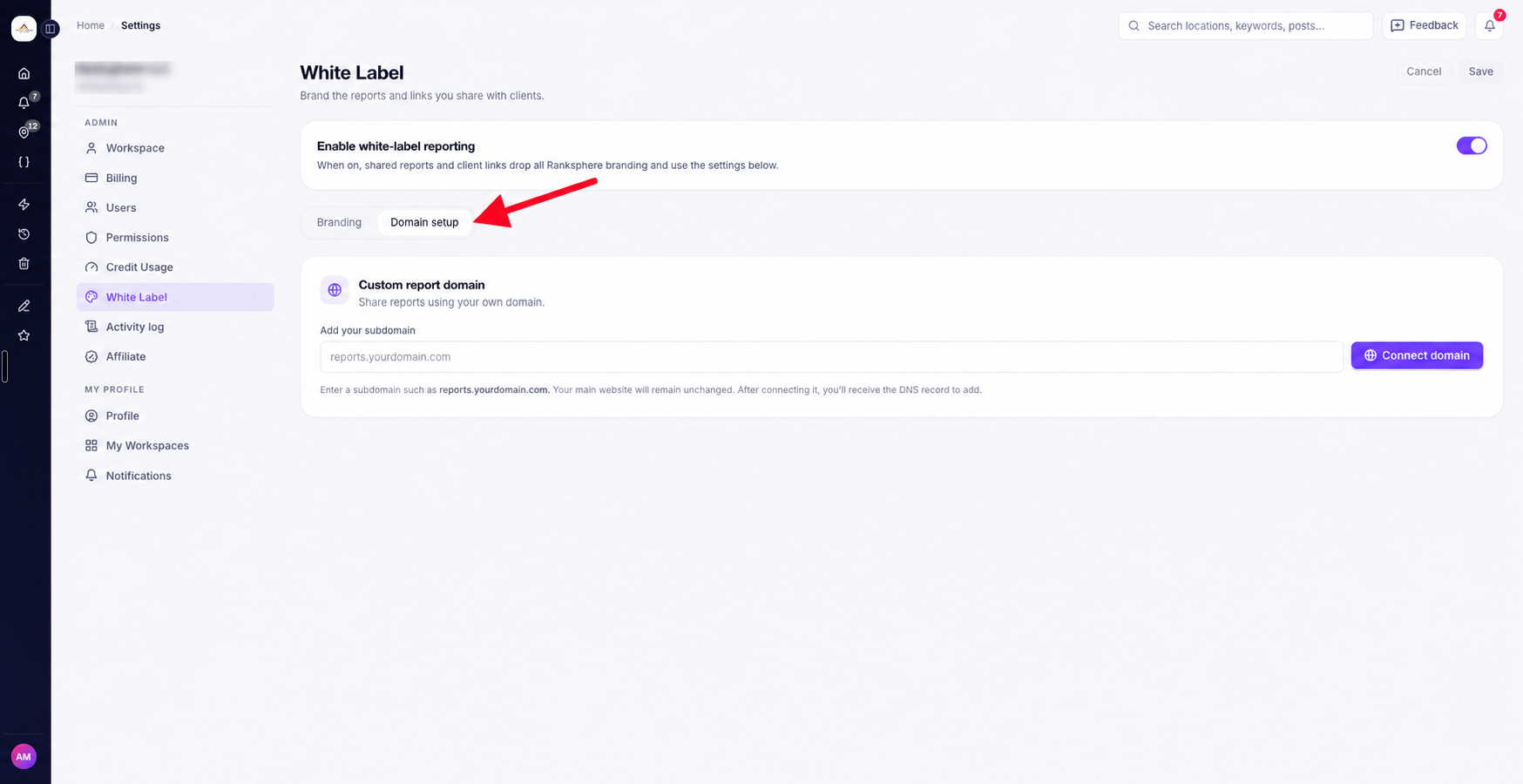
Ranksphere provides the record details, so you don't need to create them yourself.
Step 1: Open the domain settings
- Go to Settings → White Label.
- Select the Domain setup tab.
- Enter the subdomain you want to use.
For example:
reports.youragency.com- Click Connect domain.
Ranksphere will show the DNS record you need to add.
Step 2: Copy your CNAME record
Ranksphere provides a CNAME record containing two values:
| DNS field | What to enter |
| Name | The CNAME name provided by Ranksphere. |
| Target | The destination provided by Ranksphere. |
A CNAME record connects your chosen report subdomain to the service that displays your reports.
Important: Copy the CNAME name and target exactly as they appear in Ranksphere.
Step 3: Add the record to your DNS settings
- Sign in to the company that manages your domain's DNS settings.
- Open the DNS management area.
- Add a new CNAME record.
- Enter the name provided by Ranksphere.
- Enter the target provided by Ranksphere.
- Save the DNS record.
Your DNS settings are usually managed by your domain registrar or hosting provider.
The exact steps may look different depending on which company manages your domain.
Step 4: Verify your DNS record
After saving the CNAME record:
- Return to Settings → White Label.
- Open the Domain setup tab.
- Click Verify records.
Ranksphere will check whether the required DNS record has been added correctly.
Step 5: Wait for verification
DNS changes often take a few minutes to become available, although some providers may take longer.
If Ranksphere doesn't detect the record immediately, wait a little while and click Verify records again.
Once the record has been verified, Ranksphere automatically adds an SSL certificate to secure your report domain.
When the domain status changes to Verified, your shared reports will use your custom domain.
What is an SSL certificate?
An SSL certificate helps secure the connection between a visitor's browser and your report domain.
Ranksphere sets this up automatically after your DNS record is verified.
You don't need to install the certificate yourself.
What happens after my domain is verified?
Once your custom domain is verified, Ranksphere uses it for shared report links.
For example, instead of sharing a report using a Ranksphere web address, you can share it through your own report subdomain.
Clients will see your custom domain in the report link and your branding on the report page.
Your downloaded PDF reports will also continue to use your white-label branding.
Will the maps in my reports still work?
Yes.
Maps included in your reports continue to work when you're using a custom domain.
You don't need to configure anything else for them.
They will also continue working if you later remove your custom domain and return to standard Ranksphere report links.
How to remove a custom report domain
You can remove your custom domain whenever you want.
Steps to remove a domain
- Go to Settings → White Label.
- Open the Domain setup tab.
- Find your connected domain.
- Select Remove.
After removing the custom domain, shared reports return to using the standard Ranksphere report address.
Your reports and their maps will continue to work without any additional setup.
Which plans include white-label reporting?
White-label reporting and custom domains are included with the Growth and Agency plans.
| Plan | White-label reporting | Custom report domain |
| Free (14-day trial) | Not included | Not included |
| Single Business | Not included | Not included |
| Starter | Not included | Not included |
| Growth | Included | Included |
| Agency | Included | Included |
If your plan doesn't include white-label reporting, you'll see an option to upgrade under Settings → White Label.
For more information about available plans, see Billing, Plans & Add-ons.
Who can manage white-label settings?
Only Workspace Owners and Admins can configure white-label reporting and custom domains.
| Workspace role | View and manage white-label settings |
| Owner | Yes |
| Admin | Yes |
| Member | No |
| Guest | No |
Owners and Admins can:
- Enable or disable white-label reporting.
- Add or update logos and colors.
- Change brand details and footer text.
- Connect and verify custom report domains.
- Remove an existing custom domain.
Members and Guests cannot access or change these settings.
For more information about workspace permissions, see Users, Roles & Permissions.
Quick guide to white-label reporting
| What you want to do | Where to go |
| Enable white-label reporting | Settings → White Label → Enable white-label reporting |
| Add your logo | Settings → White Label → Branding |
| Change report colors | Settings → White Label → Branding |
| Update your brand name or website | Settings → White Label → Branding |
| Add report footer text | Settings → White Label → Branding |
| Preview your branding | Settings → White Label → Branding → Live preview |
| Connect a report domain | Settings → White Label → Domain setup |
| Verify your DNS record | Domain setup → Verify records |
| Remove a custom domain | Domain setup → Remove |
| View and share reports | Locations → Select location → Reports |
Frequently asked questions
Which plans include white-label reporting and custom domains?
White-label reporting and custom domains are included with the Growth and Agency plans.
If you're on another plan, you can go to Settings → White Label to see the upgrade option.
Can I add my own logo and colors to reports?
Yes.
You can add your logo, choose your brand and text colors, and enter your business name and website.
You can also add custom footer text or use your brand name and website as the default footer.
Where will my branding appear?
Your branding will appear on:
- Reports viewed inside Ranksphere.
- Public report links.
- Downloaded PDF reports.
When white-label reporting is enabled, your branding replaces Ranksphere branding across these reports.
Can I see how my report will look before saving?
Yes.
The Branding tab includes a live preview that updates as you make changes.
You can check your logo, colors, and other brand details before saving.
Do I need to change my main website to use a custom domain?
No.
You only need to add a CNAME record for your chosen report subdomain.
Where do I add the CNAME record?
Add it through the company that manages your domain's DNS settings.
This is usually your domain registrar or hosting provider.
Copy the CNAME name and target from Ranksphere and enter them exactly as provided.
How long does it take for my custom domain to become active?
It often takes a few minutes after you've added the DNS record.
However, DNS changes can sometimes take longer depending on your provider.
If verification doesn't work immediately, wait a little while and select Verify records again.
Do I need to install an SSL certificate?
No.
Once your DNS record has been verified, Ranksphere automatically sets up an SSL certificate for your report domain.
Why is my custom domain not verifying?
The DNS record may not have updated yet, or the CNAME name or target may not match the information provided by Ranksphere.
Check that you've entered the record exactly as shown.
If everything looks correct, allow some time for the DNS change to take effect, then select Verify records again.
What will clients see when I share a white-label report?
Clients will see your:
- Logo
- Brand colors
- Business or agency name
- Website
- Custom report domain, if you've connected one
Your branding appears on the report page, public share link, and downloaded PDF.
Ranksphere branding is replaced by your own.
Can I remove my custom domain later?
Yes.
Go to Settings → White Label → Domain setup and select Remove.
Your shared reports will return to using the standard Ranksphere report address.
Will removing my custom domain affect the maps in my reports?
No.
Maps continue working with your custom domain and after you switch back to standard Ranksphere report links.
No additional map setup is required.
Can Members or Guests change white-label settings?
No.
Only Workspace Owners and Admins can configure white-label reporting and custom domains.
Still stuck?
Start free and set this up in your own workspace, or reach out and we'll help.