Account & Workspaces
Your account contains your personal sign-in details. Workspaces keep each business, client, team and subscription separate.
Account vs Workspace
Your account is the profile you use to sign in to Ranksphere. It includes your name, email address, password and other personal details.
A workspace is where you manage local SEO for a business or client. Each workspace has its own locations, team members, reports, credits, subscription and billing details.
You can belong to more than one workspace and switch between them without creating another account.

Update your profile
Go to Settings → Profile to update your personal information. These changes apply to your account and will appear wherever your profile is shown.
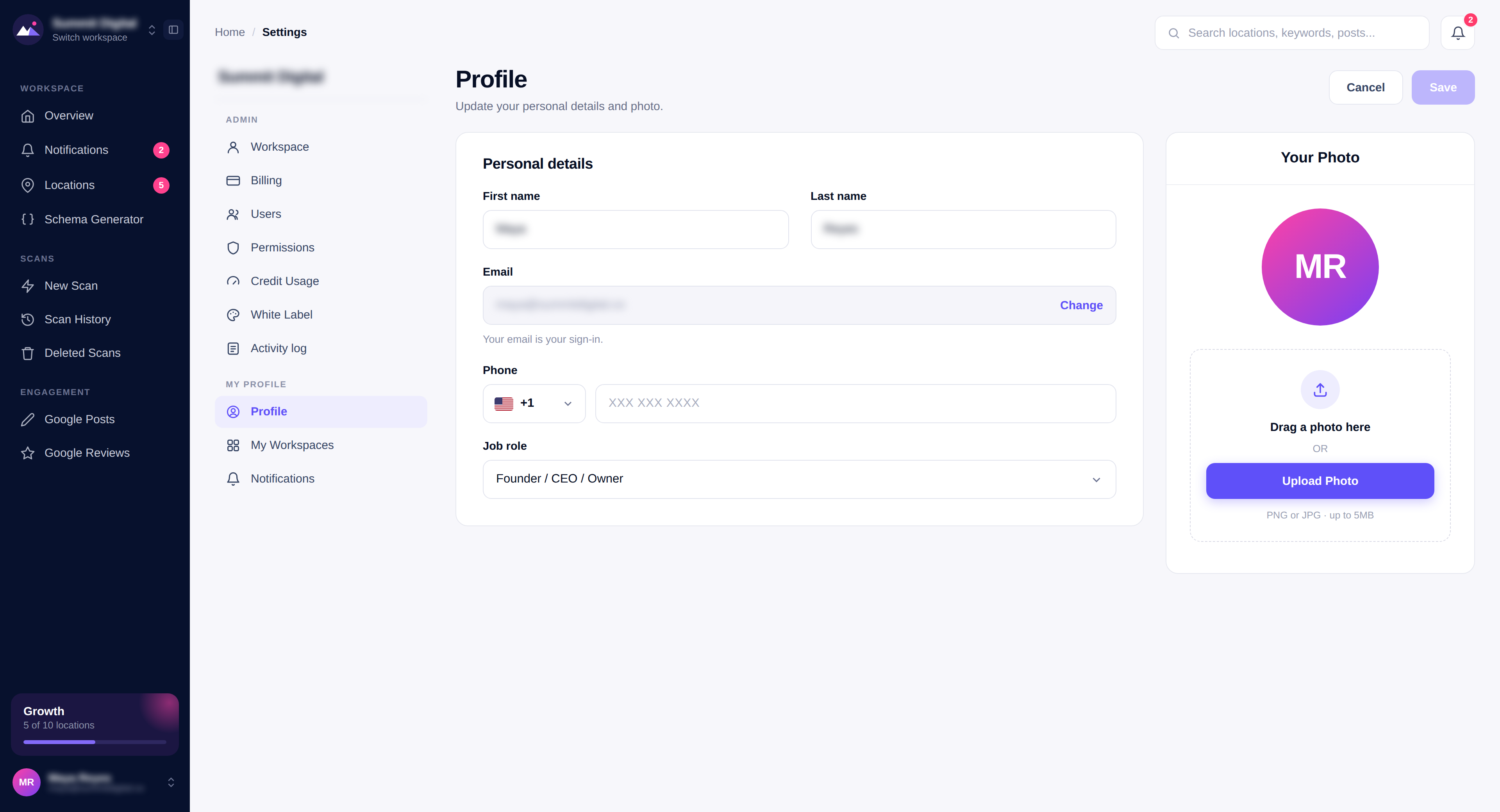
You can update your:
- First and last name
- Email address
- Phone number
- Job role
- Profile photo
Change your email address
Enter a new email address to receive a verification code. Add the code in Ranksphere to confirm the change. You will remain signed in throughout the verification process.
Change your password
To set a new password, sign out of Ranksphere and select Forgot password? on the sign-in page. A password reset link will be sent to your email address.
Delete your account
To permanently delete your personal account, contact support@ranksphere.io
Workspace Owners can delete a workspace from the workspace settings. Deleting a workspace permanently removes its locations, reports, scans and all other connected data.
Update your workspace details
Workspace Owners and Admins can update workspace details from Settings → Workspace. These settings are not visible to Members or Guests.
From here, you can manage:
- Workspace name shown in the sidebar and workspace switcher
- Company name, industry, and website
- Country
- Time zone and time format
- Workspace logo in PNG or JPG format
Set your workspace time zone
Choose the time zone where the business is based. Ranksphere will use this time for scheduled scans, Google Posts, and report dates across the workspace.
Create or switch workspaces
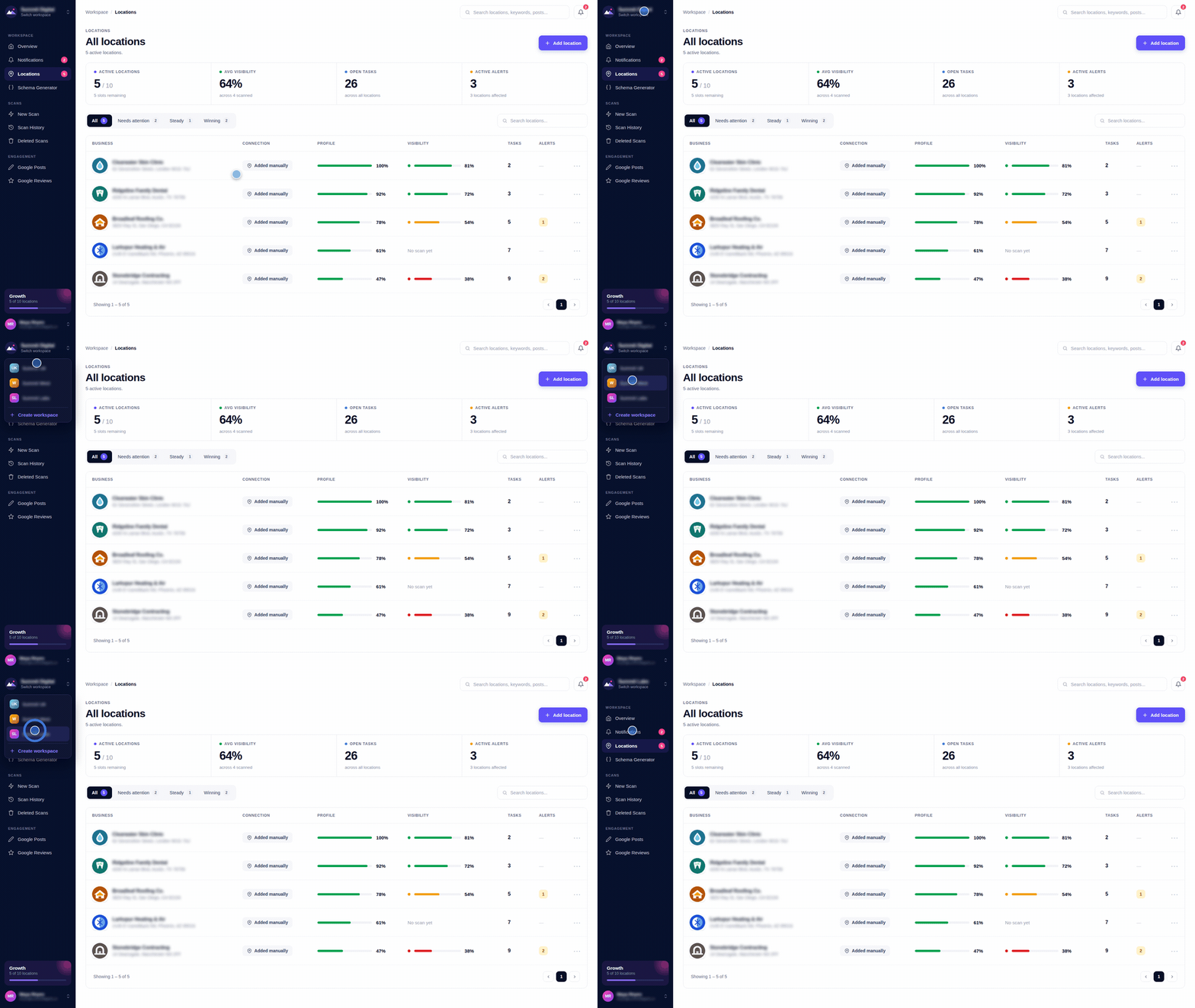
Use the workspace switcher at the top of the sidebar to move between the workspaces you have access to. You can also select Create workspace from the same menu.
Your first workspace includes a 14-day free trial. Any additional workspace requires its own paid plan because its locations, credits, settings, and team members are managed separately.
When creating another workspace, you will be asked to choose a plan and complete payment first. The workspace will only be created once the payment is successful. If you leave the checkout before paying, no workspace will be created and you will not be charged.
Your 14-day free trial
Your first workspace includes a 14-day free trial, so you can explore the platform before choosing a paid plan.
The trial includes:
- 1 location
- 500 scan credits
- 200 AI credits
- Access to AI Insights and Smart Tasks
- Access to the core local SEO tools included in the trial
No credit card is required to start.
When the trial ends, the workspace will be locked until a paid plan is selected. Your data will remain saved, so you can continue where you left off after upgrading.
Workspace limits by plan
Each plan includes a set number of locations and team seats.
| Plan | Locations | Team Seats |
| Free (14-day trial) | 1 | 1 |
| Single Business | 1 | 1 |
| Starter | 3 | 2 |
| Growth | 10 | 5 |
| Agency | 25 | 15 |
On a paid plan you can add more locations or seats. See Billing, Plans & Add-ons.
Roles and seats are covered in Users, Roles & Permissions.
Roles and permissions
Workspace access depends on the role assigned to each user.
Owner
Has full control of the workspace, including billing, settings, team access and workspace deletion.
Admin
Can manage workspace settings, locations and most day-to-day activity, but does not have the same ownership controls as the Owner.
Member
Can work within the workspace based on the access provided to them.
Guest
Has limited access to selected parts of the workspace.
The Workspace Owner cannot leave the workspace. Ownership must be transferred first if another person needs to take over.
Manage your account and workspace
Your personal account and workspace settings are managed separately.
For personal details such as your name, email address, password and profile photo, go to Settings → Profile.
For workspace details, team access, time zone and other workspace settings, go to Settings → Workspace.
Billing and plan information can be managed from Settings → Billing & Plans.
Frequently Asked Questions
Why can’t I change my workspace settings?
Only Workspace Owners and Admins can update workspace settings such as the workspace name, logo and time zone. If you’re a Member or Guest, these settings won’t be available to you.
How do I change my password?
Sign out of your account and select Forgot password? on the sign-in page. A password reset link or verification code will be sent to your email address.
Does every workspace include a free trial?
No. You get one free workspace. Any others run on their own paid plan.
My trial ended and I'm locked out. Did I lose my data?
No. The 14-day free trial is available for your first workspace only. Any additional workspace requires its own paid plan.
What happens when my free trial ends?
Your workspace will be locked when the trial ends, but your data will remain saved for 90 days. Choose a paid plan during this period to regain access and continue where you left off.
If no plan is selected within 90 days, the workspace and its data will be permanently deleted.
Can I leave or delete a workspace?
Workspace Owners cannot leave a workspace they own. They can permanently delete it from the workspace settings.
Deleting a workspace also removes all connected data, including locations, scans, reports and workspace settings.
Admins, Members and Guests can leave a workspace without deleting it.
Can I transfer my workspace to a new owner?
Yes. Contact the Ranksphere support team (support@ranksphere.io) with the details of the current Owner and the person who will take over the workspace.
Related: Users, Roles & Permissions · Scan Credits · Billing, Plans & Add-ons
Still stuck?
Start free and set this up in your own workspace, or reach out and we'll help.
More in Getting started
Activity Log
See every action in your workspace and every credit spent, in the User log and the Credit log.
Overview Dashboard
This guide explains what your dashboard shows, how to read it, and who can see it.
Smart Tasks
This guide explains where Smart Tasks come from, how priorities work and how to manage them. Smart Tasks help you keep track of work that may be needed for each location. They can highlight updates to your business profile, unanswered reviews, ranking opportunities and other areas worth checking.