Overview Dashboard
This guide explains what your dashboard shows, how to read it, and who can see it.
What is the Overview Dashboard?
The Overview Dashboard gives you a summary of all the business locations you manage in Ranksphere.
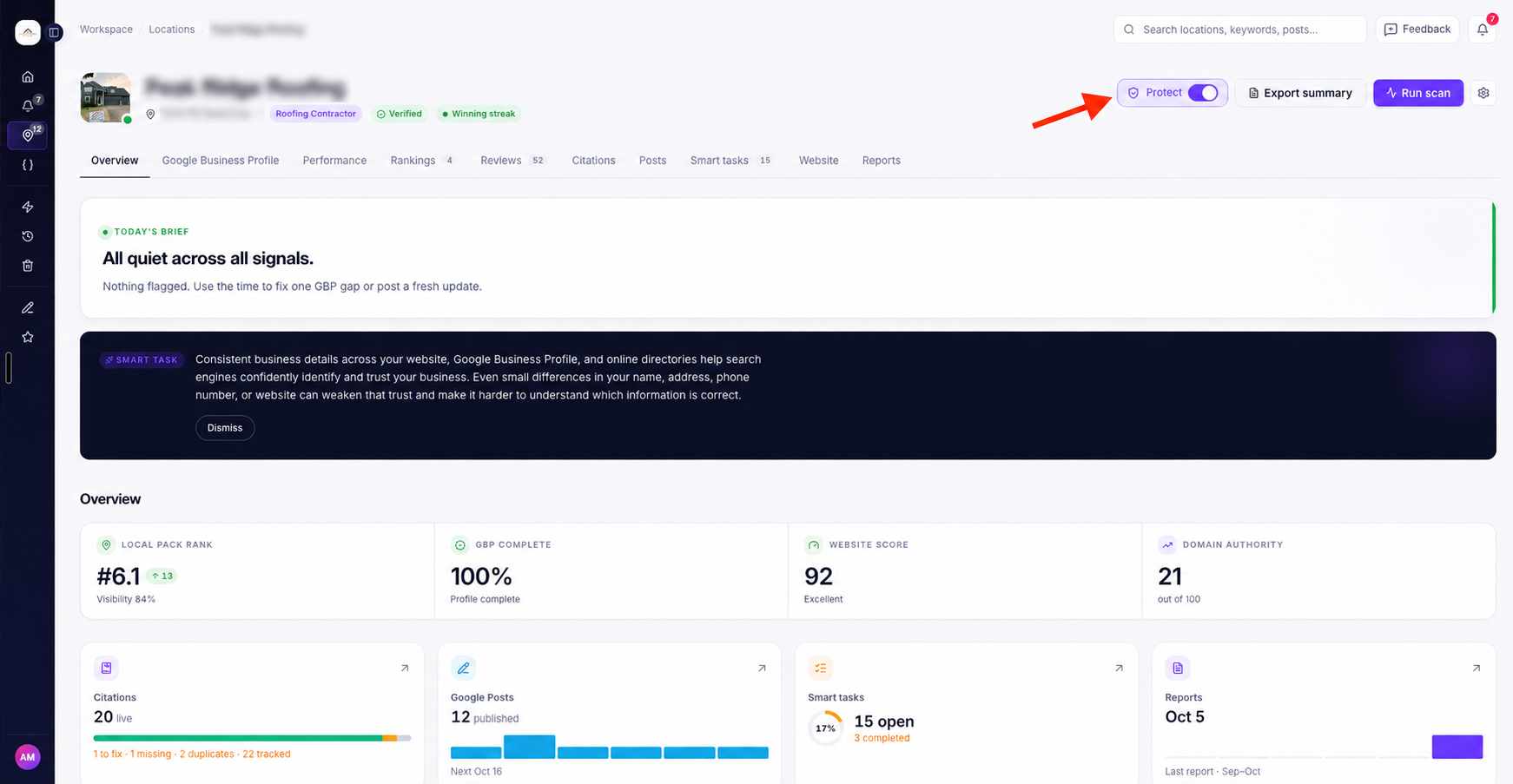
Instead of opening each location separately, you can see how your businesses are performing, which ones need attention, and what has changed recently.
For example, you can quickly check:
- Which businesses have improved or declined in local search visibility.
- Which locations have unanswered Google reviews.
- How many tasks are still open.
- Whether business directory listings are consistent.
- Which locations haven't published Google Posts recently.
If you manage an SEO agency, the dashboard gives you an overview of your clients in one place.
If you manage your own business, you can use it to check the performance of your different locations.
Note: Ranksphere uses the term Clients on the dashboard, whether you're managing client businesses or your own locations.
Where can I find the Overview Dashboard?
The Overview Dashboard is the first screen you see when you open a Ranksphere workspace.
It brings together information from the locations you have access to.
Workspace Owners and Admins see information from every location in the workspace.
Members see the same dashboard, but only for locations assigned to them.
Understanding the six dashboard metrics
At the top of the Overview Dashboard, you'll see six cards showing important information about your workspace.
These give you a quick way to check how your locations are performing without reviewing each one individually.
| Dashboard metric | What it shows |
| Clients | The number of locations you manage and how many need attention. |
| Avg visibility | Average local search visibility across your scanned locations and how it has changed. |
| Open tasks | The number of outstanding tasks and how many have been completed in the last 30 days. |
| Unanswered | Google reviews waiting for a response, along with your average star rating and total reviews. |
| Live citations | The number of active directory listings and how many have inconsistent information. |
| Posts / 30d | The number of Google Posts published in the last 30 days and how many locations haven't posted recently. |
Clients
The Clients card shows how many business locations you're managing.
It also tells you how many need attention.
If none of your locations have issues flagged by the dashboard, you'll see All healthy.
This gives you a quick way to see whether any locations need to be reviewed.
Avg visibility
The Avg visibility card shows the average local visibility across your scanned locations.
It also shows how that visibility has changed.
You can use this metric to see whether your locations are generally gaining or losing visibility in local search results.
For a closer look at an individual business's rankings, open its Rankings section.
See Local Rank Tracking.
Open tasks
The Open tasks card shows how many tasks are still outstanding across your locations.
It also shows how many tasks you've completed during the last 30 days.
This helps you see whether work is being completed or whether tasks are building up.
For more information about managing tasks, see Smart Tasks.
Unanswered
The Unanswered card shows the Google reviews that haven't received a reply.
It also includes:
- Average Google star rating.
- Total number of Google reviews.
You can use this card to check whether customer feedback is being addressed across your locations.
See Google Reviews.
Live citations
The Live citations card shows how many business directory listings are live.
It also highlights listings with inconsistent business information.
If all the relevant details match, you'll see NAP consistent.
NAP stands for Name, Address, and Phone number.
This helps you identify businesses whose directory listings may need correcting.
See Local Citation Management.
Posts / 30d
The Posts / 30d card shows how many Google Posts have been published in the last 30 days.
It also identifies how many locations haven't posted during that period.
You can use this information to see which businesses have been posting regularly and which have gone quiet.
See Google Posts.
How to find locations that need attention
Below the dashboard metrics, you'll find a Needs attention card.
This section highlights locations that may need work.
Rather than checking every business individually, you can use this list to see which locations should be reviewed first.
How are locations prioritized?
Ranksphere displays locations with more urgent issues first.
For example, a location may appear because its visibility has declined, its reviews are unanswered, or its directory listings contain inconsistent information.
You can start with the locations at the top of the list and review the issues that have been flagged.
What causes a location to be marked as needing attention?
Ranksphere checks several areas when deciding whether a location needs attention.
| Area | When a location may be flagged |
| Local visibility | Visibility has dropped or hasn't changed since the previous scan. |
| Ranking scans | The location hasn't been scanned recently or has never been scanned. |
| Google reviews | There are reviews waiting for a response. |
| Smart Tasks | There are outstanding tasks, with none completed in the last 30 days. |
| Citations | Business information is inconsistent across directories, or citations haven't been audited. |
| Google Posts | The location hasn't published a Google Post in the last 30 days. |
| Profile completeness | The Google Business Profile completeness score is below 80%. |
A location can be flagged when any one of these conditions applies.
For example, a business might have improving local rankings but still appear in Needs attention because it has unanswered reviews.
The dashboard helps you identify these issues without having to open every location first.
How to review recent activity
Next to Needs attention, you'll find Recent activity.
This section shows a running feed of updates from the locations in your dashboard.
You can see activity related to:
- Ranking scans.
- Google reviews.
- Tasks.
- Other location updates.
For example, you can check whether a ranking scan has been completed or whether there has been new review activity.
This gives you a quick overview of what's happening across your locations without opening each business separately.
Understanding the Visibility Trend chart
The Visibility trend chart shows how average local visibility has changed across your locations over time.
It covers the last 12 weeks, with results displayed week by week.
This helps you understand whether visibility across your workspace is generally improving, declining, or remaining stable.
What does the chart show?
| Chart information | What it means |
| Weekly visibility | Your average visibility across locations for each week. |
| 12-week history | How that average has changed over the last 12 weeks. |
| Change badge | The overall visibility change across the period. |
For example, if the line moves upward over several weeks, average visibility has improved over that period.
If it moves downward, average visibility has declined.
Why can't I see the Visibility Trend chart?
The chart needs ranking scan data from at least two weeks before it can show a trend.
If you've only recently started tracking rankings, you may not have enough scan history yet.
Once there's sufficient scan data, the visibility trend will appear.
For more information about running scans, see Local Rank Tracking.
How to review all your clients
Below the visibility chart, you'll find the All clients table.
This section shows the individual business locations included in your dashboard.
Each location appears in its own row, along with important performance information.
The table is sorted by lowest visibility first, helping you identify businesses with weaker local search visibility.
What information does the All clients table show?
| Column | What it means |
| Client | The business name and city. |
| Visibility | The location's visibility score out of 100, shown with a bar. |
| Change | Whether visibility improved, declined, or stayed the same since the last scan. |
| Unanswered | How many Google reviews haven't received a reply. |
| Open tasks | The number of outstanding tasks for the location. |
| Citations | How many directory listings are live and whether any are inconsistent. |
| Posts 30d | The number of Google Posts published in the last 30 days. |
| Last scan | How recently the location's last ranking scan was completed. |
Understanding the Visibility column
Each location has a visibility score out of 100, displayed alongside a bar.
This lets you compare local visibility across your businesses.
If a location hasn't been scanned, its visibility is displayed as a dash (—) instead of a score.
Understanding the Change column
The Change column shows whether a location's visibility has:
- Increased.
- Decreased.
- Stayed the same.
The comparison is based on the previous scan.
You can use this to identify businesses whose visibility has improved or declined since their last ranking check.
Understanding the Citations column
The Citations column shows how many directory listings are live.
It also highlights inconsistent listings.
If a location hasn't had its citations checked yet, you'll see Not audited.
This helps you distinguish between a business with checked directory information and one that hasn't been audited.
Understanding the Last scan column
The Last scan column tells you how long ago the location was last scanned.
If no ranking scan has been completed, it displays Never.
This is useful when reviewing locations that may need a new ranking scan.
How to use the All clients table
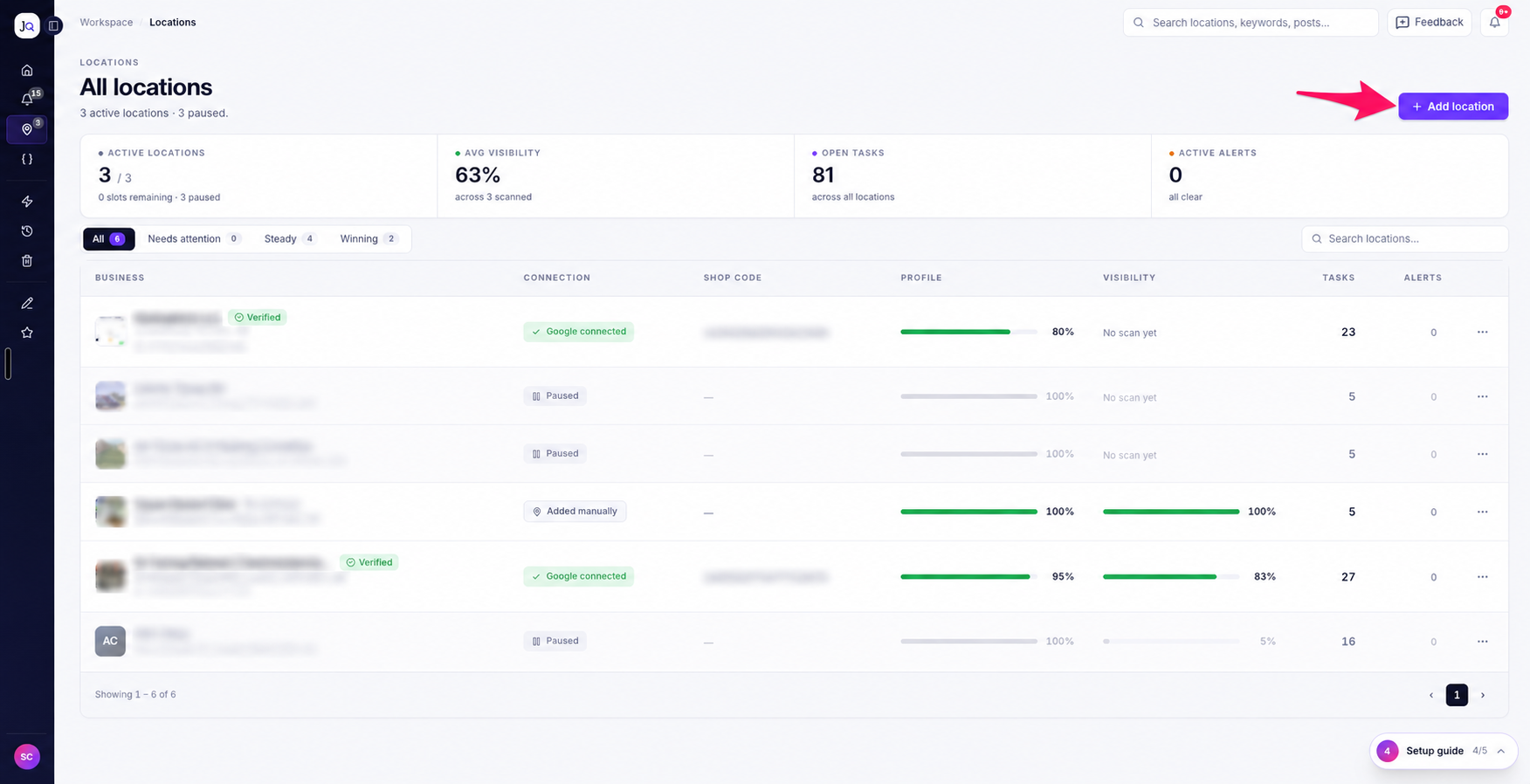
You can use the table to find locations that need a closer look.
For example, you might notice that a business:
- Has lower visibility than your other locations.
- Has lost visibility since its last scan.
- Has several unanswered reviews.
- Has outstanding tasks.
- Has inconsistent directory listings.
- Hasn't published Google Posts recently.
- Has never had a ranking scan.
When you identify a location that needs attention, open that business to review its individual data and tools.
For more information about managing individual locations, see Locations in Ranksphere.
What's the difference between the Overview Dashboard and a location's Overview tab?
Ranksphere has two different overview screens.
| Overview | What it shows |
| Workspace Overview Dashboard | Information from multiple locations in your workspace, including overall visibility, reviews, tasks, citations, and posts. |
| Location Overview tab | Information about one specific business location. |
The workspace dashboard helps you see how all your locations are doing together.
A location's Overview tab helps you focus on that individual business.
Both use the same View overview permission, but access to the workspace dashboard is restricted by role.
How often does the Overview Dashboard update?
The dashboard is rebuilt whenever you open it.
Ranksphere uses the latest available information from your:
- Ranking scans.
- Google reviews.
- Smart Tasks.
- Citation checks.
- Google Posts.
This means the dashboard reflects the latest information available in Ranksphere each time you open it.
You don't need to set up a separate dashboard refresh schedule.
Who can view the Overview Dashboard?
Access to the dashboard depends on your workspace role.
| Workspace role | View Overview Dashboard | Locations included |
| Owner | Yes | All workspace locations |
| Admin | Yes | All workspace locations |
| Member | Yes | Only assigned locations |
| Guest | No | Not available |
Owners and Admins
Workspace Owners and Admins can view the dashboard for every location in the workspace.
This gives them an overview of the businesses being managed.
Members
Members can access the Overview Dashboard, but the information is limited to the locations assigned to them.
For example, if a Member has access to three locations in a workspace containing ten, the dashboard will use information from those three assigned locations.
Guests
Guests cannot access the workspace Overview Dashboard.
When a Guest signs in, they're directed to the locations shared with them instead.
Dashboard access cannot be enabled for Guests, even by changing workspace permissions.
This restriction applies specifically to the workspace Overview Dashboard.
For more information about roles and permissions, see Users, Roles & Permissions.
Quick guide to the Overview Dashboard
| What you want to check | Where to look |
| Number of locations managed | Clients card |
| Average local visibility | Avg visibility card |
| Outstanding tasks | Open tasks card |
| Unanswered Google reviews | Unanswered card |
| Directory listing consistency | Live citations card |
| Google Posts published recently | Posts / 30d card |
| Locations needing attention | Needs attention |
| Recent workspace updates | Recent activity |
| Visibility changes over time | Visibility trend |
| Performance of individual locations | All clients |
| Detailed data for one business | Open the location → Overview |
Frequently asked questions
What is the Overview Dashboard?
The Overview Dashboard shows a summary of the business locations you manage in Ranksphere.
It brings together information about visibility, rankings, reviews, tasks, citations, and Google Posts so you can see which locations are doing well and which may need attention.
Is the Overview Dashboard the same as a location's Overview tab?
No.
The workspace Overview Dashboard shows information across multiple business locations.
Each location also has its own Overview tab, which shows information specific to that business.
Both use the same View overview permission, although Guests cannot access the workspace dashboard.
What does Avg visibility mean?
Avg visibility shows the average local search visibility across the scanned locations included in your dashboard.
It also shows how that average has changed.
You can open a location's Rankings section to review its individual ranking results.
Why isn't a location showing a visibility score?
The location may not have completed a ranking scan yet.
In the All clients table, locations without scan results show a dash instead of a visibility score.
The Last scan column will show Never if no scan has been completed.
Why can't I see the Visibility Trend chart?
You need ranking scan data from at least two weeks before the chart can display a trend.
Once enough history is available, Ranksphere shows your weekly average visibility across the last 12 weeks.
What causes a client to appear under Needs attention?
Ranksphere flags a location when it identifies one or more conditions that may need attention.
These include:
- Visibility has dropped or hasn't changed since the last scan.
- The location hasn't been scanned recently or has never been scanned.
- There are unanswered Google reviews.
- There are open tasks, with none completed in the last 30 days.
- Business citations are inconsistent or haven't been audited.
- No Google Posts have been published in the last 30 days.
- The profile completeness score is below 80%.
The most urgent locations appear first.
Why is the All clients table sorted by visibility?
The table shows locations with lower visibility first.
This makes it easier to spot businesses with weaker local search visibility and decide which ones to review.
What does Not audited mean in the Citations column?
It means the location hasn't had its citation listings checked yet.
Once a citation check has been completed, the table can show live listings and any inconsistencies found.
How often does the dashboard update?
Ranksphere rebuilds the dashboard whenever you open it.
It uses the latest available data from scans, reviews, tasks, citations, and Google Posts.
Can Members view the Overview Dashboard?
Yes.
Members see the dashboard using information from the locations assigned to them.
They don't see information from locations they haven't been given access to.
Can Guests view the Overview Dashboard?
No.
Guests are directed to their shared locations instead of the workspace dashboard.
The workspace Overview Dashboard is reserved for Owners, Admins, and Members.
Guest dashboard access cannot be enabled from the Permissions settings.
Why can't I access the Overview Dashboard?
Your workspace role or overview permissions may not allow access.
Guests cannot access the workspace dashboard.
If you're an Owner, Admin, or Member and can't access it, your workspace's permissions may need to be reviewed.
Owners and Admins can manage role permissions under Settings → Permissions.
Still stuck?
Start free and set this up in your own workspace, or reach out and we'll help.
More in Getting started
Account & Workspaces
Your account contains your personal sign-in details. Workspaces keep each business, client, team and subscription separate.
Activity Log
See every action in your workspace and every credit spent, in the User log and the Credit log.
Smart Tasks
This guide explains where Smart Tasks come from, how priorities work and how to manage them. Smart Tasks help you keep track of work that may be needed for each location. They can highlight updates to your business profile, unanswered reviews, ranking opportunities and other areas worth checking.