Smart Tasks
This guide explains where Smart Tasks come from, how priorities work and how to manage them. Smart Tasks help you keep track of work that may be needed for each location. They can highlight updates to your business profile, unanswered reviews, ranking opportunities and other areas worth checking.
What are Smart Tasks?
Smart Tasks are recommendations that help you identify what needs attention for each business location in Ranksphere.
Ranksphere automatically creates tasks based on your business information, local rankings, reviews, competitors, and website performance.
For example, you might see a task suggesting that you respond to an unanswered review, check missing business information, or review a keyword where your competitors are ranking higher.
Each task explains what Ranksphere found, why it may matter, and what you can do next.
Important: Smart Tasks are recommendations only. They do not automatically change your Google Business Profile, website, or other business information. You decide whether to take action.
Where can I find Smart Tasks?
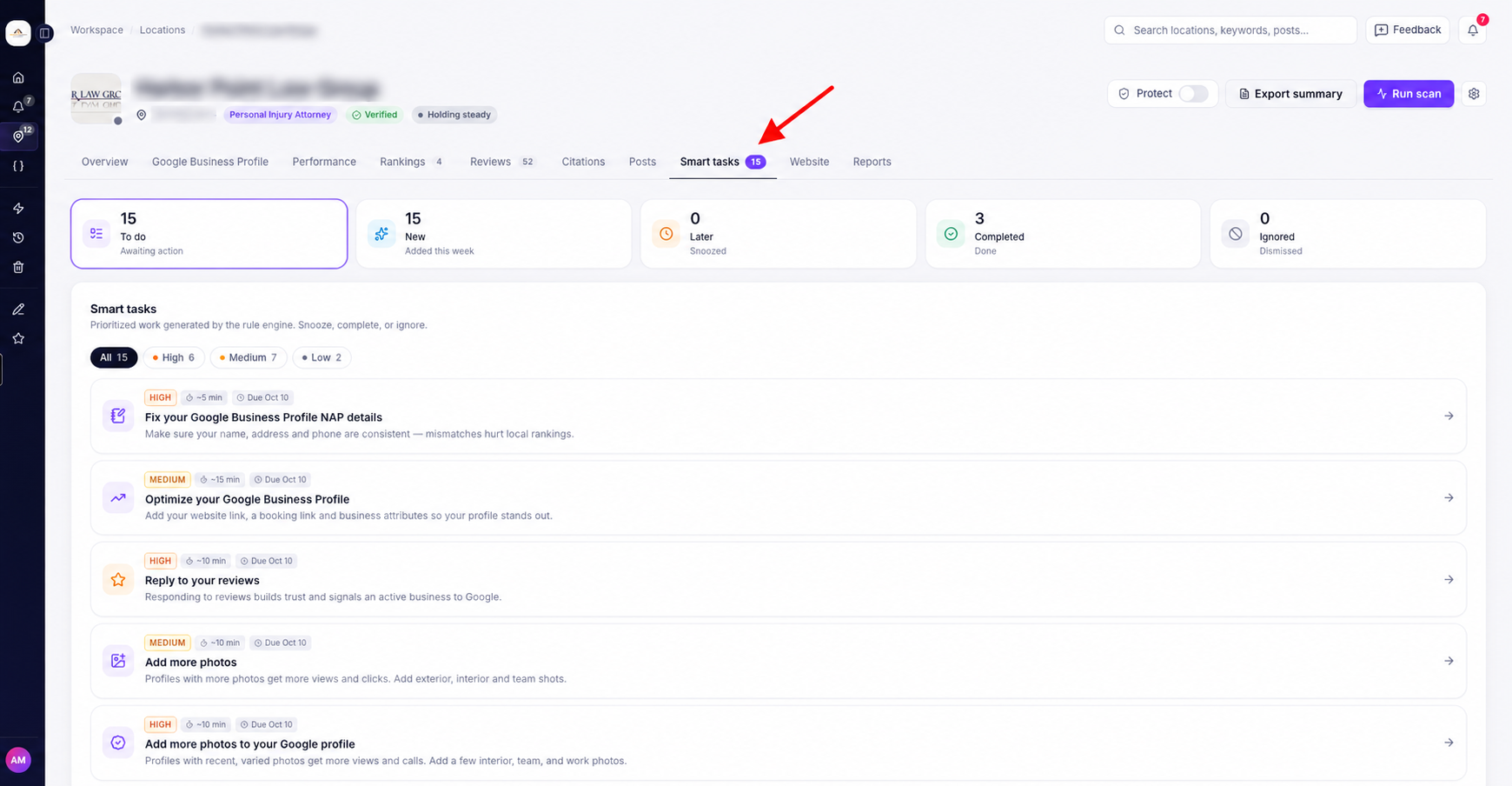
You can find Smart Tasks inside each location.
- Go to Locations.
- Open the location you want to review.
- Select the Smart Tasks tab.
You'll see a list of recommendations for that location.
The number beside the Smart Tasks tab shows how many tasks are still open.
Your highest-priority open task may also appear on the location's Overview page, so you can see what needs attention without opening the full task list.
If you're new to managing business locations, see Locations in Ranksphere.
How does Ranksphere create Smart Tasks?
Ranksphere reviews the information available for each location and creates tasks when it finds something that may need attention.
These recommendations can come from different parts of your business profile and local SEO performance.
| Source | What Ranksphere checks |
|---|---|
| Google Business Profile | Missing or incomplete business information and other profile details that may need reviewing. |
| Local rank tracking | Ranking gaps and keywords where your business may need attention. |
| Reviews | Unanswered customer reviews or a recent increase in low ratings. |
| Competitor rankings | Areas where competitors appear above your business in Google Maps results. |
| Website | Issues found during website audits, page-speed improvement opportunities, and content gaps compared with competitors. |
| Location setup | Initial steps such as connecting Google, adding keywords, reviewing business information, and checking reviews. |
For example, if Ranksphere finds that several reviews haven't received a response, it may create a task reminding you to review them.
If a ranking scan shows that competitors are appearing above your business in certain areas, Ranksphere may suggest reviewing those ranking gaps.
Smart Tasks can change as new information becomes available. They may also be updated after a new ranking scan.
To understand where these recommendations come from, see:
How do Smart Task priorities work?
Each Smart Task has a priority level to help you decide what to review first.
| Priority | What it means |
|---|---|
| Critical | Needs your attention as soon as possible. |
| High | An important issue or recommendation that should be checked. |
| Medium | Worth reviewing when you have time. |
| Low | A smaller improvement or suggestion you can consider. |
Tasks with higher priorities appear first in your list.
This helps you focus on the items that may need attention sooner, rather than going through every recommendation in no particular order.
Location setup tasks work a little differently. They're arranged in a guided order so you can complete the initial setup steps one at a time.
What information is included in a Smart Task?
Click a Smart Task to see more information about the recommendation.
Depending on the task, you may see:
| Information | What it tells you |
|---|---|
| Reason for the task | What Ranksphere found and why the task was created. |
| Recommended steps | What you can do to address the issue or complete the task. |
| Related keyword | The keyword connected to the recommendation, when applicable. |
| Estimated time | Approximately how long the task may take to complete. |
| Due date | When the task should be reviewed or completed, if a due date is provided. |
Not every task will include all of these details. The information shown depends on the type of recommendation.
Before making any changes, review the task and check whether the recommendation is relevant to your business.
How to manage your Smart Tasks
You can manage each task depending on whether you've completed the work, want to return to it later, or don't need to take action.
Complete, snooze, or ignore a task
Open a Smart Task and choose the action that matches what you want to do.
| Action | What happens |
|---|---|
| Complete | Marks the task as finished and moves it to Completed. |
| Snooze | Sets the task aside for seven days so you can return to it later. |
| Ignore | Removes the recommendation from your active tasks and moves it to Ignored. |
For example, if you've already updated the missing business information mentioned in a task, you can mark it as complete.
If you don't have time to work on a recommendation, you can snooze it for seven days.
If the recommendation doesn't apply to your business, you can ignore it.
Can I reopen a completed or ignored task?
Yes. You can reopen a task that you've previously completed or ignored.
This is useful if you want to review the recommendation again or take further action.
Can Smart Tasks close automatically?
Yes. Some tasks close automatically when Ranksphere detects that the issue has been resolved.
For example, if a task was created because a customer review hadn't received a response, the task may close after Ranksphere detects that a reply has been added.
You don't always need to mark these tasks as complete yourself.
How to filter Smart Tasks
You can use the filters at the top of the Smart Tasks page to find the tasks you want to review.
| Filter | What you'll find |
|---|---|
| To Do | Tasks that still need your attention. |
| New | Newly created tasks. |
| Later | Tasks you've set aside to review later. |
| Completed | Tasks that have been finished or automatically resolved. |
| Ignored | Tasks you've chosen not to act on. |
For example, if you want to check the recommendations you've already finished, select Completed.
If you want to revisit a task you previously ignored, open the Ignored section.
You can also return to To Do to see which tasks still need your attention.
Who can access Smart Tasks?
Smart Tasks are available to Workspace Owners, Admins, and Members.
Your role determines whether you can access and manage tasks for a location.
| Workspace role | Can view Smart Tasks? | Can manage Smart Tasks? |
|---|---|---|
| Owner | Yes | Yes |
| Admin | Yes | Yes |
| Member | Yes, for locations shared with them | Yes, for locations shared with them |
| Guest | No | No |
Owners and Admins can manage Smart Tasks for the locations they can access.
Members can view and manage tasks only for the locations shared with them.
Guests cannot access Smart Tasks. This feature is reserved for Owners, Admins, and Members. Guest access to Smart Tasks cannot be enabled through Settings → Permissions.
For more information about workspace roles and location access, see Users, Roles & Permissions.
Frequently asked questions
Do I need to create Smart Tasks myself?
No. Ranksphere creates Smart Tasks automatically when it finds something that may need attention for a location.
You can open the Smart Tasks tab to review the recommendations.
Does Ranksphere automatically complete the work suggested in Smart Tasks?
No. Smart Tasks only recommend actions. They don't automatically update your Google Business Profile, website, or other business information.
You'll need to review the recommendation and decide what changes to make.
However, some tasks can be marked as completed automatically when Ranksphere detects that the issue has already been resolved.
Why did a Smart Task disappear?
Ranksphere may have closed the task automatically after detecting that the issue was resolved.
If a task is no longer in your open list, check the Completed section.
Can I delay a Smart Task?
Yes. Open the task and select Snooze.
The task will be set aside for seven days so you can return to it later.
What if a Smart Task doesn't apply to my business?
Open the task and select Ignore.
The task will move to the Ignored section and won't appear in your active task list.
You can reopen it later if you change your mind.
Can I reopen a completed or ignored task?
Yes. You can reopen completed or ignored tasks if you want to review or work on them again.
Why did my Smart Tasks change after a ranking scan?
Ranksphere uses ranking data to identify areas that may need attention.
When a new scan is completed, it may identify different ranking gaps, keyword opportunities, or competitor positions. Your Smart Tasks may change to reflect the latest information.
Learn more in Local Rank Tracking.
Should I review a Smart Task before making changes?
Yes. Smart Tasks are recommendations based on the information currently available for your location.
Always check the task details and your business information before making changes.
Why can't a Guest see Smart Tasks?
Smart Tasks are only available to Owners, Admins, and Members.
Guests cannot access the Smart Tasks tab, and this permission cannot be enabled for Guests.
See Users, Roles & Permissions for more details.
Related: Local Rank Tracking · Google Business Profile · Reviews
Still stuck?
Start free and set this up in your own workspace, or reach out and we'll help.
More in Getting started
Account & Workspaces
Your account contains your personal sign-in details. Workspaces keep each business, client, team and subscription separate.
Activity Log
See every action in your workspace and every credit spent, in the User log and the Credit log.
Overview Dashboard
This guide explains what your dashboard shows, how to read it, and who can see it.