Citations
This guide explains how to review citations, update their status, and keep business information consistent. Check where a business is listed online, find incorrect details, and identify directories where it may be missing.
What are local citations?
A local citation is an online mention of your business, usually on a business directory such as Yelp, Yellow Pages, or an industry-specific website.
These listings typically include information such as your:
- Business name
- Address
- Phone number
- Website
- Business category
Keeping your business information consistent across directories makes it easier for customers and search engines to recognize your business.
With Ranksphere, you can find your existing directory listings, check whether your business details are accurate, and discover directories where your business could be listed.
You can also keep track of listings that need attention, including incorrect information and possible duplicates.
Where can I find my citations?
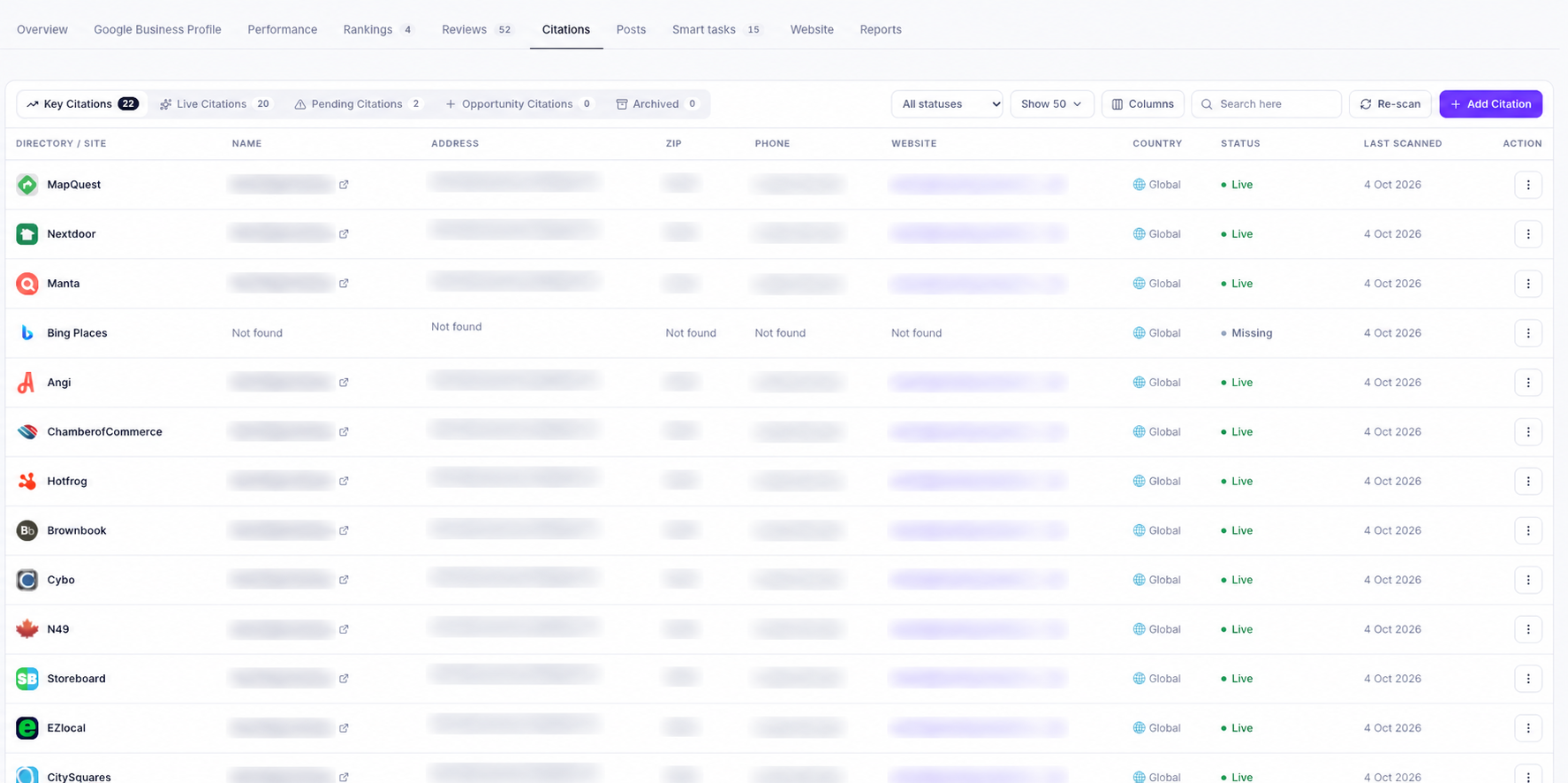
To view your business citations:
- Go to Locations.
- Open the business you want to review.
- Select the Citations tab.
You'll see your directory listings, their current statuses, and a summary of your citation information.
Understanding your citation dashboard
At the top of the Citations page, you'll see four main metrics.
| Metric | What it means |
| Live citations | Business listings that are active and have matching information. |
| NAP accuracy | How closely your business name, address, and phone number match across your directory listings. |
| Need attention | Listings with information that may be incorrect or inconsistent. |
| Opportunities | Directories where your business hasn't been found and could be added. |
What does NAP mean?
NAP stands for Name, Address, and Phone number.
These are the main business details Ranksphere checks when comparing your listings across directories.
Understanding citation statuses
Each directory listing has a status so you can see which ones are accurate and which may need attention.
| Status | What it means |
| Live | The listing is active and its business information matches your saved reference details. |
| Needs Attention | The listing is active, but one or more details may be incorrect. |
| Pending | The listing is still being created or updated. |
| Missing | Ranksphere hasn't found your business in that directory. |
For example, if your business phone number is different on a directory, the listing may be marked Needs Attention.
If your business isn't listed in a directory, it may be marked Missing.
How to organize your citation listings
The Citations page includes several tabs to help you find the listings you want to review.
| Tab | What you'll find |
| Key Citations | Important directory listings for your business. |
| Live Citations | Active listings with matching business information. |
| Pending Citations | Listings that are being created or updated. |
| Opportunity Citations | Directories where your business hasn't been found. |
| Archived | Listings you've archived in Ranksphere. |
You can also:
- Search for a directory.
- Filter listings by status.
- Choose which columns appear in the table.
- Export your citation information as a report.
How to export a citation report
You can save your citation information as a report to review or share later.
- Open your location's Citations tab.
- Click Export.
- Open the saved report from the Reports tab.
From Reports, you can download the citation report as a PDF or share it.
Note: Exporting a citation report uses one of your monthly saved report credits.
For more information, see Reporting and Report, Schema & Crawl Credits.
How to set your reference business information
Before checking your citations, make sure the business details saved in Ranksphere are correct.
Ranksphere uses these details as your source of truth.
This means it compares the information found on directory listings against the business information you've saved in Ranksphere.
What information can I set?
Your reference business details may include:
| Business information | What it's used for |
| Business name | Checks whether directories show the correct business name. |
| Address | Checks the business's street address. |
| City, region, and postcode | Checks the rest of the business address. |
| Country | Identifies the country where your business operates. |
| Phone number | Checks whether the correct contact number is listed. |
| Website | Checks whether directories link to the correct website. |
| Business category | Helps Ranksphere identify directories relevant to your business type. |
Why is accurate reference information important?
Ranksphere compares directory listings against the details you've saved.
If your reference information is incorrect, Ranksphere may flag a correct directory listing as inconsistent.
For example, if you've saved an old phone number in Ranksphere, a directory showing your current phone number may appear incorrect.
Make sure your reference details are accurate before reviewing the results.
Your selected business category also helps Ranksphere find relevant industry-specific directories.
Important: Updating your reference information in Ranksphere does not change your actual directory listings. It only updates the information used to check them.
How to review a directory listing
You can open any directory from your Citations table to see more information about that listing.
What can I do inside a citation?
Select a directory to open its details.
From here, you can:
- Update the citation status.
- Add the public URL of the directory listing.
- Run another check.
- See which business details match your reference information.
- Identify details that may need correcting.
- Add notes about the listing.
How does Ranksphere check listing information?
When a public listing URL is available, Ranksphere compares the information it can read from that directory with the reference details you've saved.
Each checked field may have one of three results.
| Result | What it means |
| Match | The information matches your saved reference details. |
| Incorrect | The information doesn't match your saved reference details. |
| Unverified | Ranksphere couldn't confirm whether the information matches. |
For example, if a directory shows the wrong phone number, you can see the number found on the listing alongside the correct number saved in Ranksphere.
This helps you identify exactly what needs to be checked or corrected.
An Unverified result doesn't necessarily mean the information is wrong. It means Ranksphere couldn't confirm it.
How to add notes to a citation
You can add notes to individual citations to keep track of what you've done or what still needs attention.
For example, you might use a note to record:
- Where the listing was created.
- Whether you've submitted a correction.
- Which details still need updating.
- Anything you need to check later.
Notes are saved as plain text.
Important: Don't store passwords, security answers, or other sensitive information in citation notes. The notes field is not a password manager or secure storage area.
How to scan directories for existing listings
Ranksphere can check supported online directories to see whether your business is already listed.
You can run these checks using Re-scan.
How to re-scan your citations
- Open your location.
- Go to Citations.
- Select Re-scan.
Ranksphere will check supported directories again.
For directories that can be checked automatically, Ranksphere searches for your business and updates the citation status based on the results.
A directory may be marked:
- Live if the listing is found and its details match.
- Needs Attention if the listing is found but contains information that may be incorrect.
- Missing if the business isn't found.
Why can't some directories be checked automatically?
Some directories require users to sign in or restrict automatic checks.
When Ranksphere can't check a directory automatically, you can visit the directory yourself.
Use the Submit Listing link to open the relevant website.
From there, you can review your existing listing or create a new one.
Once the listing is live:
- Copy its public URL.
- Return to the citation in Ranksphere.
- Add the listing URL.
- Run another check.
Ranksphere can then compare the information available at that URL with your saved business details.
Does Ranksphere check citations automatically?
Yes. In addition to manual Re-scans, Ranksphere checks your existing live directory listings automatically in the background.
These checks run approximately once a month.
You don't need to set up a schedule.
What happens during an automatic check?
Ranksphere checks the listings it has already found to see whether their information still matches your saved reference details.
If something changes, Ranksphere can:
- Detect the difference.
- Update the citation's status.
- Flag the listing for your attention.
- Send you a notification.
For example, if a directory changes your business phone number and it no longer matches the number saved in Ranksphere, the listing may be flagged as needing attention.
What's the difference between automatic checks and Re-scan?
| Automatic checks | Manual Re-scan | |
| When does it run? | Approximately once a month | When you select Re-scan |
| What does it check? | Existing live listings already found by Ranksphere | Supported directories for existing business listings |
| Can it find new or missing directories? | No | Yes, where automatic checking is supported |
| Do you need to schedule it? | No | No, you start it manually |
| Does it update citation statuses? | Yes, when changes are detected | Yes, based on the results |
Automatic checks help you keep track of listings you've already found.
If you want Ranksphere to search supported directories again for new or missing listings, use Re-scan.
Can I receive an email about citation changes?
Yes.
If you enabled the email option when setting up your citation details, Ranksphere sends you a citation consistency summary when its automatic checking process runs.
You can also receive notifications about citation changes inside Ranksphere.
For more information, see Notifications.
What happens if I pause a location?
Automatic citation checks stop while the location is paused.
They resume when you reactivate the location.
For more information, see Locations in Ranksphere.
How to fix incorrect citation information
If a listing is marked Needs Attention, it means Ranksphere found business information that may not match your saved reference details.
How to check what needs correcting
- Open your location's Citations tab.
- Find a listing marked Needs Attention.
- Open the listing.
- Review the fields marked Incorrect or Unverified.
- Compare the information found with your saved reference details.
Depending on the listing, you may need to check:
- Business name
- Address
- Phone number
- Website
- Opening hours
- Business category
How to correct a directory listing
Ranksphere identifies the information that may need correcting, but the actual changes must be made through the directory.
To correct a listing:
- Open the directory's website.
- Follow its process for editing or claiming the business listing.
- Update the incorrect information.
- Wait until the changes appear on the live directory listing.
- Return to Ranksphere and run another check.
Ranksphere can then compare the updated listing with your reference information.
Important: Changing citation details or statuses inside Ranksphere does not automatically update the actual directory.
How to manage duplicate citations
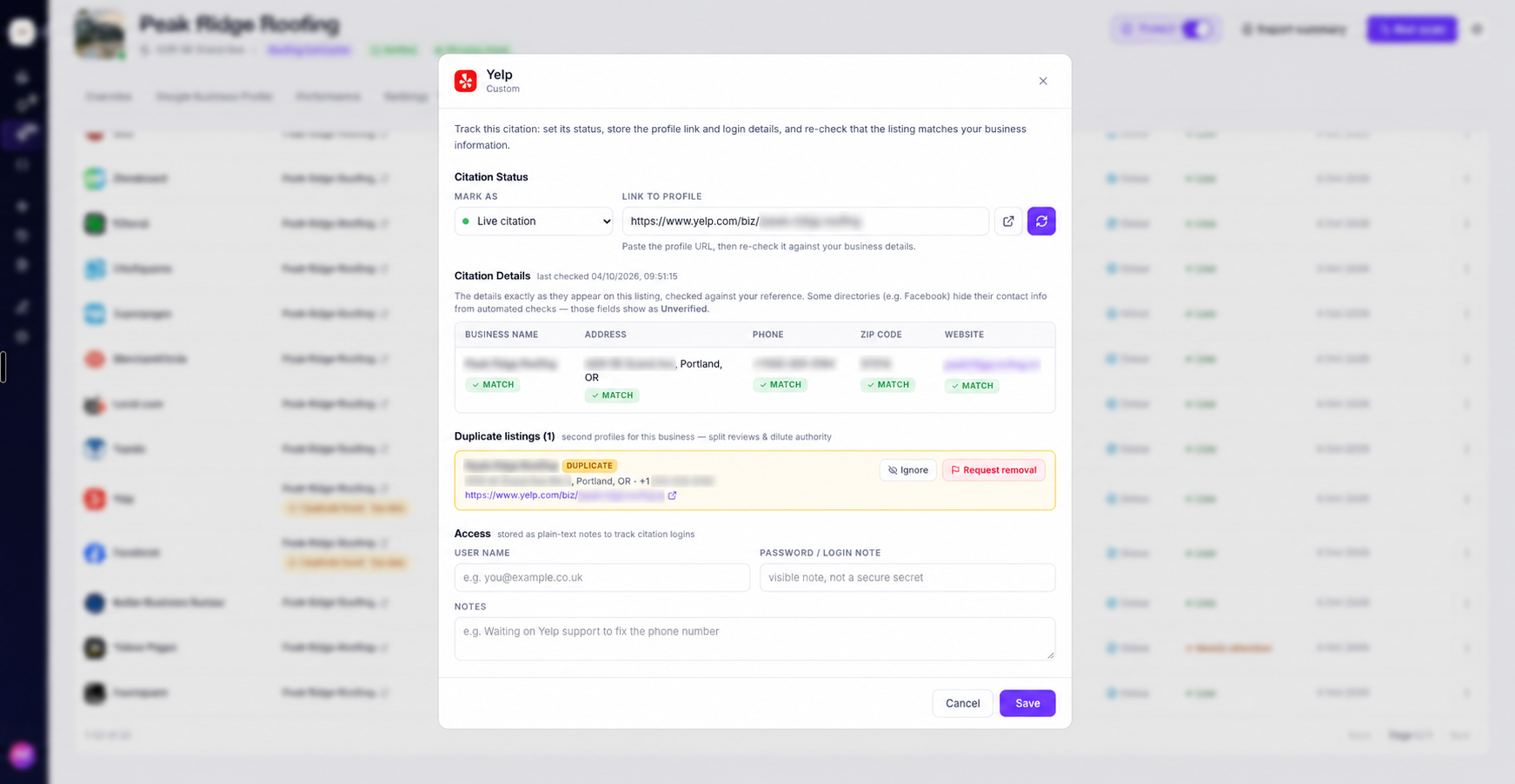
Sometimes a business may have more than one listing in the same directory.
Ranksphere can identify possible duplicate listings so you can review them.
What can I do with a possible duplicate?
When a possible duplicate is found, you have two options:
| Action | When to use it |
| Ignore | When both listings are valid and don't need to be removed. |
| Request removal | When you want to visit the directory and report or claim the duplicate for removal. |
Selecting Request removal opens the directory's own page so you can follow its process.
Ranksphere does not remove or merge duplicate listings directly.
Any removal or merging must be completed through the directory itself.
How to add your business to a new directory
The Opportunity Citations section shows directories where Ranksphere hasn't found your business.
You can use these opportunities to identify directories where you may want to create a new listing.
How to add a missing listing
- Open your location's Citations tab.
- Go to Opportunity Citations.
- Select the directory where you want to list your business.
- Open the directory's website using the provided link.
- Follow the directory's process to create your business listing.
Once the listing is active:
- Copy its public URL.
- Return to the citation in Ranksphere.
- Add the listing URL.
- Run another check.
Ranksphere can then review the information available on the new listing.
Can I add a directory that's not in the list?
Yes.
If you want to track a directory that isn't already included, select Add Citation.
You can enter the directory information and public listing URL so you can track it in Ranksphere.
How many directories does Ranksphere check?
Ranksphere checks hundreds of online directories.
The directories available for each business depend on its country and business category.
They may include:
| Directory type | Description |
| General business directories | Major directory websites that list businesses across different industries. |
| Local directories | Websites focused on businesses in a specific city, region, or country. |
| Industry-specific directories | Directories focused on particular industries or business types. |
| Review and business platforms | Relevant websites where businesses have listings or customer reviews. |
Not every directory will apply to every business.
For example, a directory for healthcare providers may be relevant to a clinic but not to a roofing company.
Ranksphere uses your business's country and category to identify directories that may be relevant.
Who can manage citations?
Your workspace role determines whether you can view citations, add listings, update statuses, or run checks.
| Workspace role | View citations | Add and manage citations | Run checks |
| Owner | Yes | Yes | Yes |
| Admin | Yes | Yes | Yes |
| Member | Yes, for shared locations | Yes, for shared locations | Yes, for shared locations |
| Guest | Yes, for shared locations | No | No |
Workspace Owners, Admins, and Members can manage citations for the locations they have access to.
Guests can view citation information for shared locations, but they cannot edit entries, add citations, or run checks.
For more information, see Users, Roles & Permissions.
Can Ranksphere create or update directory listings automatically?
Not yet.
Ranksphere currently helps you:
- Find your existing directory listings.
- Check business information for inconsistencies.
- Identify directories where your business isn't listed.
- Track listing statuses and changes.
- Find possible duplicate listings.
- Monitor existing live listings for changes.
However, creating new directory listings and correcting existing ones must still be done through the directory's own website.
Automated citation-building campaigns are coming soon.
Quick guide to Local Citation Management
| What you want to do | Where to go |
| View your citations | Locations → Select location → Citations |
| Find listings that need attention | Citations → Needs Attention status filter |
| View missing directory opportunities | Citations → Opportunity Citations |
| Check directories again | Citations → Re-scan |
| Review listing information | Citations → Select a directory |
| Add a listing URL | Citations → Open directory → Add listing URL |
| Add a new directory to track | Citations → Add Citation |
| Visit a directory to create a listing | Citations → Opportunity Citations → Directory link |
| Review possible duplicates | Citations → Open possible duplicate |
| View archived citations | Citations → Archived |
| Export a citation report | Citations → Export |
| Download or share a citation report | Location → Reports |
Frequently asked questions
What is a local citation?
A local citation is an online mention of your business, usually on a directory website.
It typically includes your business name, address, phone number, website, or category.
What does NAP mean?
NAP stands for Name, Address, and Phone number.
Ranksphere compares these details across directories to help identify inconsistent business information.
What information does Ranksphere check in a citation?
Ranksphere compares the business information it can read from a listing with the reference details saved for your location.
This may include your business name, address, phone number, website, and category.
Why is a citation marked Needs Attention?
One or more details on the directory listing may not match your saved business information.
Open the citation to see which fields need reviewing.
What does Unverified mean?
It means Ranksphere couldn't confirm whether a particular field matches your saved reference information.
It doesn't necessarily mean the information is incorrect.
Does Ranksphere check citations automatically?
Yes.
Ranksphere automatically re-checks your existing live directory listings approximately once a month.
If it detects information that no longer matches your reference details, it updates the status, flags the listing, and sends a notification.
These checks don't discover new or missing directories. Use Re-scan for that.
Why can't Ranksphere check some directories automatically?
Some directories require a login or restrict automated checking.
If a directory can't be checked automatically, use Submit Listing to open the website and review the listing yourself.
Once the listing is live, you can add its public URL to Ranksphere and run another check.
Can Ranksphere update my directory listings for me?
Not yet.
Ranksphere can identify incorrect or missing business information, but corrections must be made through the directory itself.
Automated citation-building campaigns are coming soon.
Can I add a directory that isn't already listed?
Yes.
Select Add Citation and enter the directory information and public listing URL.
How do I fix incorrect citation information?
Open the citation marked Needs Attention and review the information that doesn't match.
Make the correction through the directory's website.
Once the change appears on the live listing, return to Ranksphere and run another check.
Can Ranksphere remove duplicate listings?
No.
Ranksphere can identify possible duplicates and provide a Request removal option that opens the directory's own page.
Removing or merging duplicate listings must be completed through that directory.
Can I receive email updates about my citations?
Yes.
If you enabled the email option when setting up your citation details, Ranksphere can send a consistency summary after its automatic checks.
You'll also receive notifications when existing listings change and need attention.
Do automatic citation checks stop when I pause a location?
Yes.
Automatic checks stop while the location is paused and resume once it has been reactivated.
Can I export my citations?
Yes.
Select Export from the Citations tab to save a citation report.
The report is saved in your location's Reports tab, where you can download it as a PDF or share it.
Exporting uses one of your monthly saved report credits.
Can I store my directory login details in citation notes?
No.
Citation notes are stored as plain text and shouldn't be used to save passwords, security answers, or other sensitive information.
Use the notes only for reminders and information about your citation work.
Will deleting or archiving a citation remove my business from the directory?
No.
Removing or archiving a citation in Ranksphere only affects the information you're tracking there.
It doesn't change or remove the actual business listing on the directory.
If you want a live listing removed, you'll need to request that through the directory itself.
Can Guests manage citations?
No.
Guests can view citation information for the locations shared with them, but they cannot add listings, edit citation entries, or run checks.
Still stuck?
Start free and set this up in your own workspace, or reach out and we'll help.