Notifications
This guide explains where to find notifications, how to organize them, and how to choose which updates you receive. Keep track of important updates across the locations you manage.
What are notifications?
Notifications help you stay updated on important activity in your Ranksphere workspace.
For example, you can receive notifications when a business gets a new Google review, a ranking scan finishes, or a report is ready.
You'll find the notification bell in the top navigation of Ranksphere.
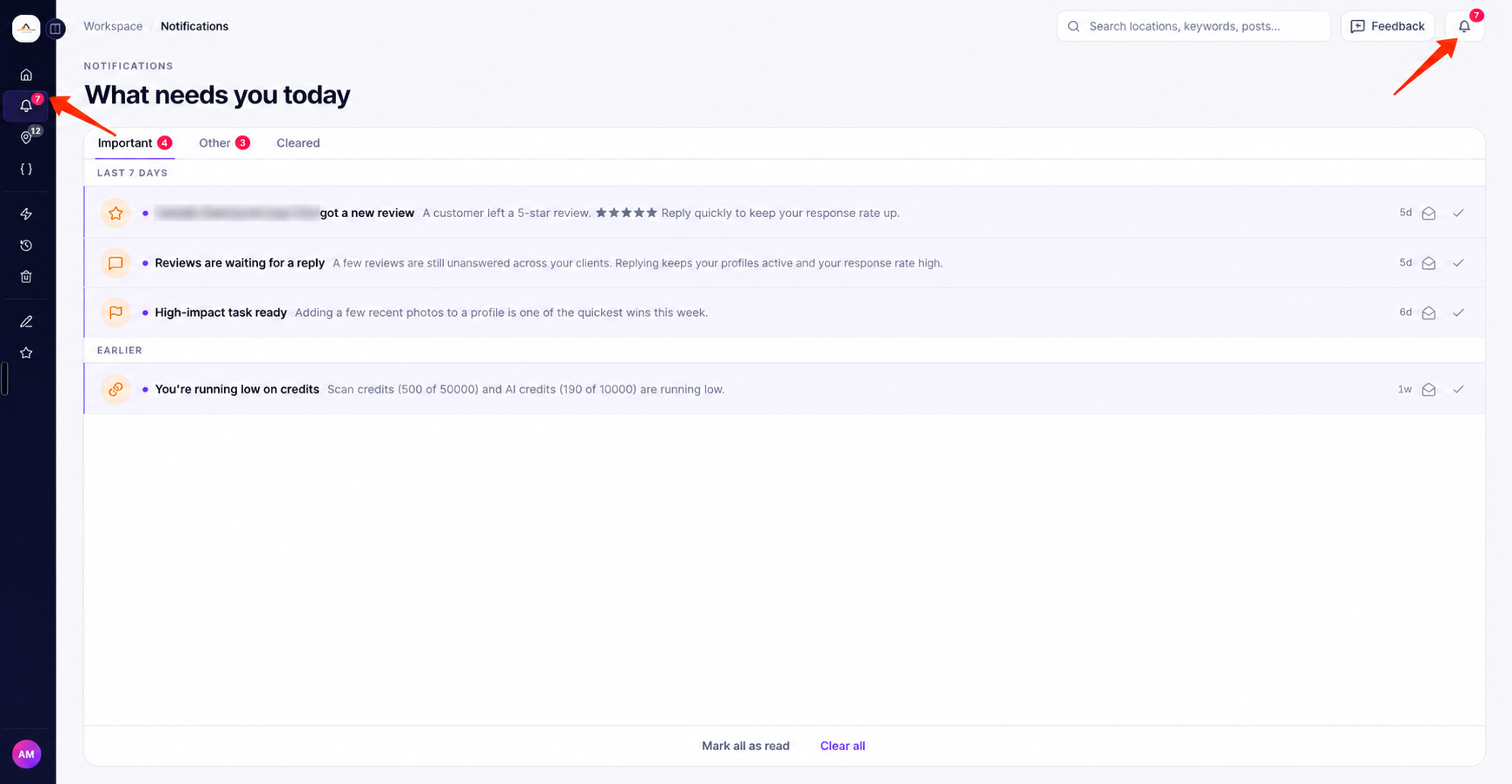
A number beside the bell shows how many unread notifications you have. If you have more than nine unread notifications, the number appears as 9+.
How to view your notifications
- Find the notification bell at the top of Ranksphere.
- Click the bell to see your recent notifications.
- Open the full notification inbox to see and manage all your notifications.
Each user has their own notification inbox.
This means you only receive notifications for the business locations and features you have permission to access.
For more information about workspace access, see Users, Roles & Permissions.
How to manage your notification inbox
Your notification inbox helps you keep track of updates you've received and organize those you've already reviewed.
It has three tabs:
| Tab | What you'll find |
|---|---|
| Important | Notifications grouped under Important. |
| Other | Other notifications and updates. |
| Cleared | Notifications you've removed from your active inbox. You can restore or permanently delete them. |
Within each tab, notifications are organized by date:
- Today — Notifications from today.
- Last 7 days — Notifications from the past seven days.
- Earlier — Older notifications.
Unread notifications are marked so you can easily tell which updates you haven't reviewed yet.
What can I do with a notification?
You can manage individual notifications using the available actions.
| Action | What happens |
|---|---|
| Mark as read | Marks the notification as read without removing it from your inbox. |
| Mark as unread | Marks a notification as unread so you can return to it later. |
| Clear | Moves the notification from your active inbox to the Cleared tab. |
| Restore | Moves a cleared notification back to your active inbox. |
| Delete permanently | Permanently removes a notification from the Cleared tab. |
How to clear a notification
If you've already reviewed a notification and no longer need it in your main inbox:
- Open your notification inbox.
- Find the notification you want to clear.
- Select Clear.
The notification will move to the Cleared tab.
Clearing a notification does not permanently delete it. You can restore it later if you need to review it again.
How to restore a cleared notification
If you cleared a notification by mistake:
- Open your notification inbox.
- Go to the Cleared tab.
- Find the notification you want to restore.
- Select Restore.
The notification will return to your active inbox.
You can also permanently delete notifications from the Cleared tab if you no longer need them.
Can I manage multiple notifications at once?
Yes. You don't need to update every notification individually.
You can:
- Mark all as read to mark your notifications as read.
- Clear the whole inbox to move your active notifications to the Cleared tab.
Cleared notifications are not permanently deleted unless you choose to delete them.
How to open an activity from a notification
You can click a notification to go directly to the part of Ranksphere it relates to.
For example, selecting a notification about a completed ranking scan takes you to the relevant scan.
The same applies to notifications about locations, reviews, reports, and other activities.
This lets you review the update without having to find it manually.
How to choose which notifications you receive
You can control which types of notifications you want to receive and how Ranksphere sends them to you.
To manage your preferences:
- Go to Settings.
- Select Notifications.
- Find the notification type you want to manage.
- Choose whether you want to receive it in the app, by email, or both, depending on the available options.
Notification settings
Your notification preferences are organized into five categories.
| Category | What it covers |
|---|---|
| Rankings & scans | Updates related to ranking scans and ranking changes. |
| Reviews & posts | Updates about customer reviews, review replies, and Google Posts. |
| Citations & reports | Updates related to business directory listings and reports. |
| Account & billing | Updates about your account, credits, and billing. |
| Summaries & updates | Other available summaries and workspace updates. |
Can I receive notifications by email?
Yes. Ranksphere supports both in-app and email notifications.
Depending on the notification type, you can choose:
| Notification option | How it works |
|---|---|
| In-app | The notification appears inside Ranksphere. |
| The notification is sent to your email. | |
| Both | You receive the notification inside Ranksphere and by email. |
Some notification types are currently available only inside the app.
Ranksphere is continuing to add notification types, so email delivery may not be available for every type yet.
You can check the available options for each notification under Settings → Notifications.
What types of notifications can I receive?
Ranksphere can notify you about different activities across your workspace.
The notifications you receive depend on your settings, workspace role, location access, and connected accounts.
Here are some of the updates Ranksphere can notify you about:
| Notification type | When you may receive it |
|---|---|
| New reviews | When one of your business locations receives a new Google review. |
| Citation drift | When a business listing on another directory no longer matches the business information saved in Ranksphere. |
| Scan results | When a local ranking scan finishes or fails. |
| Ranking changes | When your local rankings improve or drop. |
| Credit alerts | When your available credits are running low. |
| Account & billing | When your free trial is ending or there's a payment issue. |
| Google Posts | When a post is submitted for approval or published. |
| Review replies | When a reply to a customer review is published. |
| Reports | When a scheduled report is ready or a client opens a shared report. |
| Team activity | When a teammate joins the workspace or someone's role changes. |
| Profile Protection | When Google Business Profile Protection takes action on a change. |
You can choose which available notifications you want to receive from Settings → Notifications.
Notifications for rankings and scans
You can receive updates when a ranking scan finishes, when a scan fails, or when rankings improve or decline.
This helps you follow changes in your Google Maps rankings without checking every scan manually.
For more information, see Local Rank Tracking.
Notifications for reviews and Google Posts
You can receive notifications when your business gets a new Google review or when a review reply is published.
You can also receive updates when a Google Post is submitted for approval or published.
For more information, see Reviews and Google Posts.
Notifications for citations and reports
Ranksphere can notify you when a directory listing no longer matches the business information saved in Ranksphere.
You can also receive updates when a scheduled report is ready or when a client opens a shared report.
To learn more, see Citations and Reports.
Notifications for your account and workspace
You may receive updates about low credits, upcoming trial expiry, payment issues, or team changes.
These notifications help you keep track of account and workspace activity.
For more information, see Account & Workspaces.
Who receives notifications?
Notifications are personal to each user.
Not everyone in the same workspace receives the same updates.
Ranksphere uses your workspace role, location access, and connected accounts to determine which notifications are relevant to you.
For example, if you're a Member or Guest with access to only certain business locations, you'll receive notifications only for the locations and features you're allowed to access.
Your notification preferences also determine which available updates you receive.
For more information about location access and workspace permissions, see Users, Roles & Permissions.
Quick guide to managing notifications
Use this table to find the action you need.
| What you want to do | Where to go |
|---|---|
| Check recent notifications | Notification bell in the top navigation |
| View all notifications | Notification bell → Full notification inbox |
| Find important notifications | Notification inbox → Important |
| View other updates | Notification inbox → Other |
| Find cleared notifications | Notification inbox → Cleared |
| Restore a notification | Notification inbox → Cleared → Restore |
| Delete a cleared notification | Notification inbox → Cleared → Delete permanently |
| Change notification preferences | Settings → Notifications |
| Choose email or in-app alerts | Settings → Notifications |
Frequently asked questions
Does everyone in my workspace receive the same notifications?
No. Each user has their own notification inbox.
You'll only receive notifications related to the locations and features you have permission to access, based on your notification preferences and connected accounts.
How do I check my unread notifications?
Click the notification bell in the top navigation.
The number beside the bell shows how many unread notifications you have. If there are more than nine, it displays 9+.
Unread notifications are also marked inside your inbox.
Can I restore a notification I cleared by mistake?
Yes.
Open the Cleared tab, find the notification, and select Restore.
The notification will return to your active inbox.
Can I receive notifications by email?
Yes. Many notification types support email delivery.
Go to Settings → Notifications to choose whether you want to receive each available notification in the app, by email, or both.
Some types are currently in-app only.
Why is my notification inbox empty?
You may not have any new updates.
Notifications appear when there is relevant activity for the locations and features you can access.
For example, you may receive a notification after a new review arrives, a ranking scan finishes, or something needs your attention.
What happens when I clear a notification?
Clearing a notification removes it from your active inbox and moves it to the Cleared tab.
It isn't permanently deleted.
You can restore it later or choose to delete it permanently.
Does marking a notification as read remove it?
No. Marking a notification as read only removes its unread indicator.
The notification stays in your inbox until you clear it.
Can I mark all notifications as read?
Yes. You can use Mark all as read to mark your notifications as read without clearing them from your inbox.
Can I clear all notifications at once?
Yes. You can clear your whole inbox instead of clearing notifications individually.
Cleared notifications move to the Cleared tab, where you can restore or permanently delete them.
Why am I not receiving notifications for a particular location?
You may not have access to that location, or the notification type may not be enabled in your preferences.
Check Settings → Notifications to review your preferences.
Notifications also depend on your workspace role, location permissions, and connected accounts.
Why can't I receive a certain notification by email?
Some notification types currently support in-app notifications only.
Email notifications are available for many types, and more options are being added.
Check Settings → Notifications to see which delivery methods are available.
Still stuck?
Start free and set this up in your own workspace, or reach out and we'll help.
More in Account & billing
AI Credits
AI credits are used when Ranksphere generates or rewrites content for you. This guide explains which actions use credits, how many are included with your plan, and how to manage or purchase more.
Billing, Plans & Add-ons
This guide explains the plans and their prices, what's included, how to upgrade or downgrade, the add-ons you can buy, and where to find your card and invoices.
Scan Credits
Scan credits are used whenever you run a local ranking scan. Learn how scan costs are calculated, how to allocate credits to locations, and how to purchase more when needed.
Users, Roles & Permissions
This guide explains the four workspace roles, team seats, invitations, and location access. Invite people to your workspace, choose what they can access, and manage their permissions.