Google Posts
This guide explains what Google posts are, how to write and schedule them, the review-and-approval workflow, and how they publish to Google.
What are Google Posts?
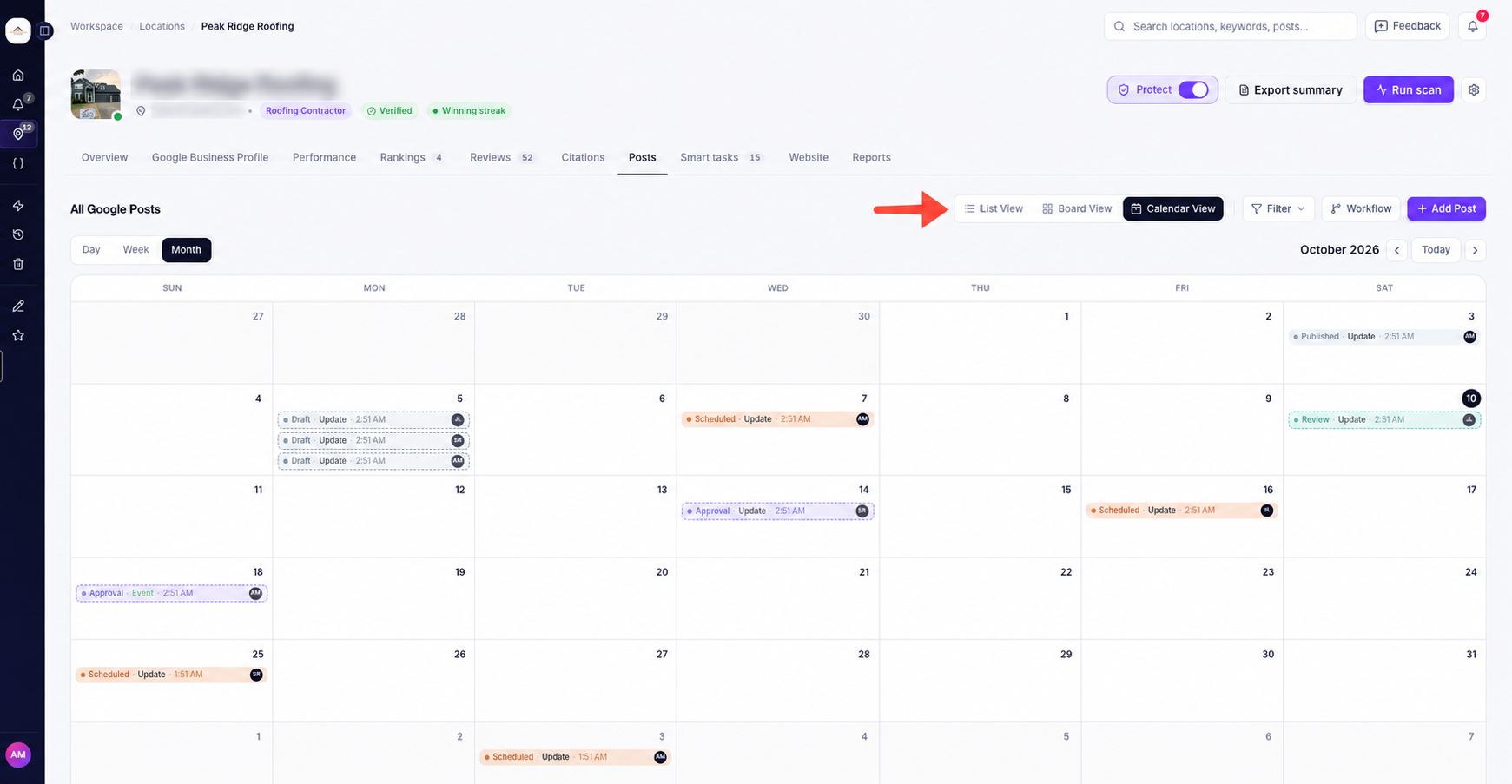
Google Posts are updates you can share on your Google Business Profile. They appear on your Google listing and help customers learn about your business, including your latest news, offers, and events.
With Ranksphere, you can create, schedule, review, and organize Google Posts from one place.
You can manage posts for a specific business or view posts across all your locations.
Where can I find Google Posts?
There are two ways to access your posts:
- For one location: Open the location and select the Posts tab.
- For all locations: Select Google Posts from the sidebar.
For more information about adding and managing business locations, see Locations in Ranksphere.
What types of Google Posts can I create?
Ranksphere supports three types of Google Posts.
| Post type | What it's used for |
| Update | Share business news, helpful tips, announcements, or photos. |
| Offer | Promote a special offer or discount with a start and end date. |
| Event | Announce an event, workshop, sale, or talk with a start and end date. |
What can I include in a Google Post?
Each post can include:
- A description or message
- Up to five photos and/or videos
- Tags to help you organize your posts
Update and Event posts can also include a button that encourages customers to take action.
Available buttons include:
- Book
- Order online
- Buy
- Learn more
- Sign up
- Call now
Offer posts work differently. Instead of a button, you can add a coupon code, terms, and a link where customers can redeem the offer.
How to create a Google Post
You can write your post yourself or use Ranksphere's AI writing tools to help prepare the content.
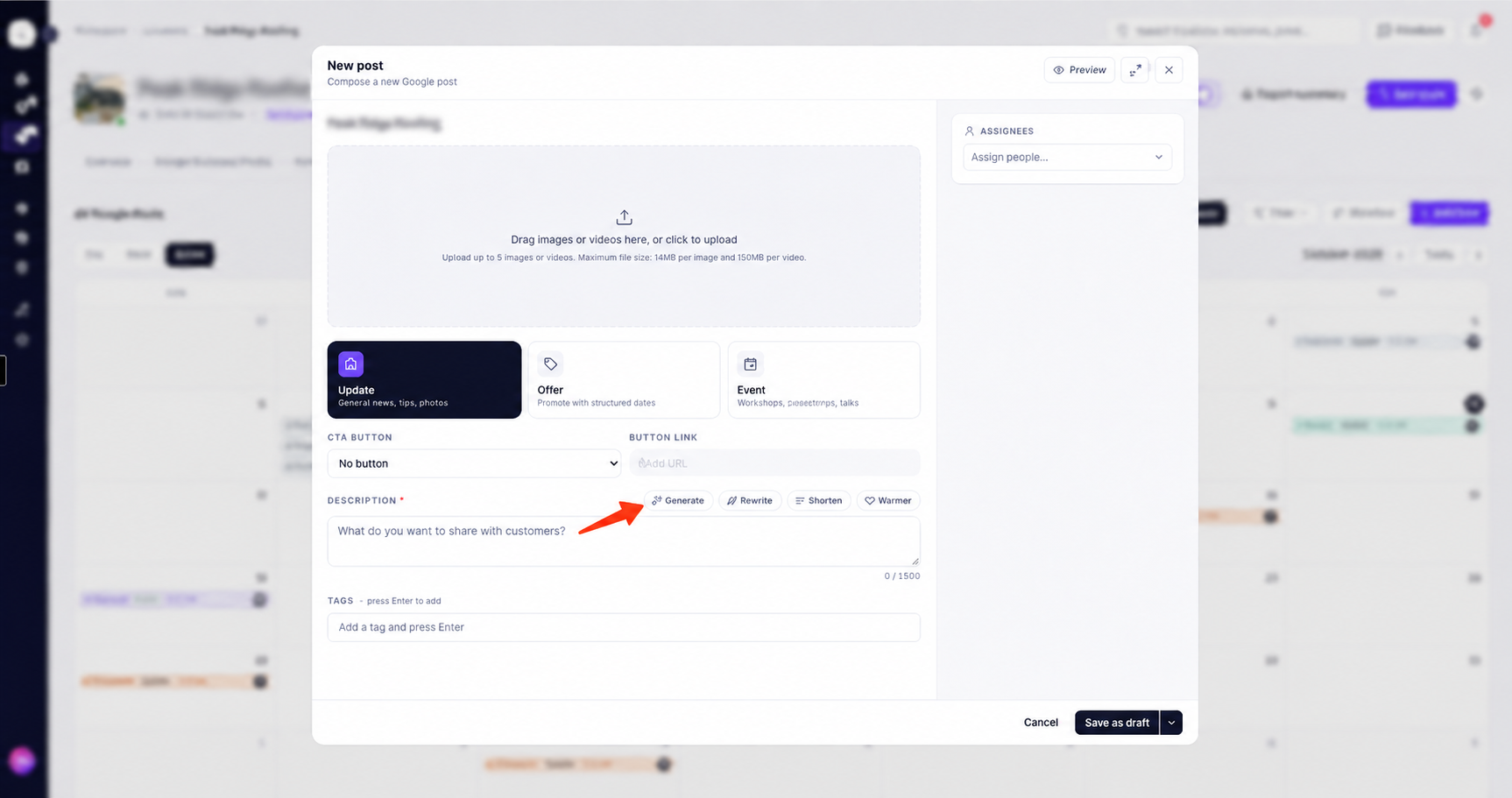
Step 1: Create a new post
- Open Google Posts from the sidebar or the Posts tab inside a location.
- Click Add Post.
- Choose your post type: Update, Offer, or Event.
- Fill in the post details.
- Add photos, videos, or tags if needed.
Step 2: Write your post
You can enter your own text or use AI to generate content.
If you want Ranksphere to write the post, select Generate.
You can also enter a topic to guide the AI.
For example, if you're creating a post about a new service, you can provide that topic so the generated content focuses on it.
Step 3: Improve your post with AI
If you've already written a post, you can use the AI writing options to improve it.
| AI option | What it does |
| Generate | Creates a new post based on your topic. |
| Rewrite | Rewrites your existing text. |
| Shorten | Makes your post shorter. |
| Warmer | Changes the tone to sound warmer and more approachable. |
You can review and edit the generated text before using it.
How many AI credits does writing a post use?
Each AI writing action uses 10 AI credits.
For example, generating a post uses 10 credits. If you then use Rewrite, that is another AI writing action and uses an additional 10 credits.
Ranksphere also checks whether your topic fits the business. This quick check is free and does not use AI credits.
For more information, see AI Credits.
How to schedule Google Posts
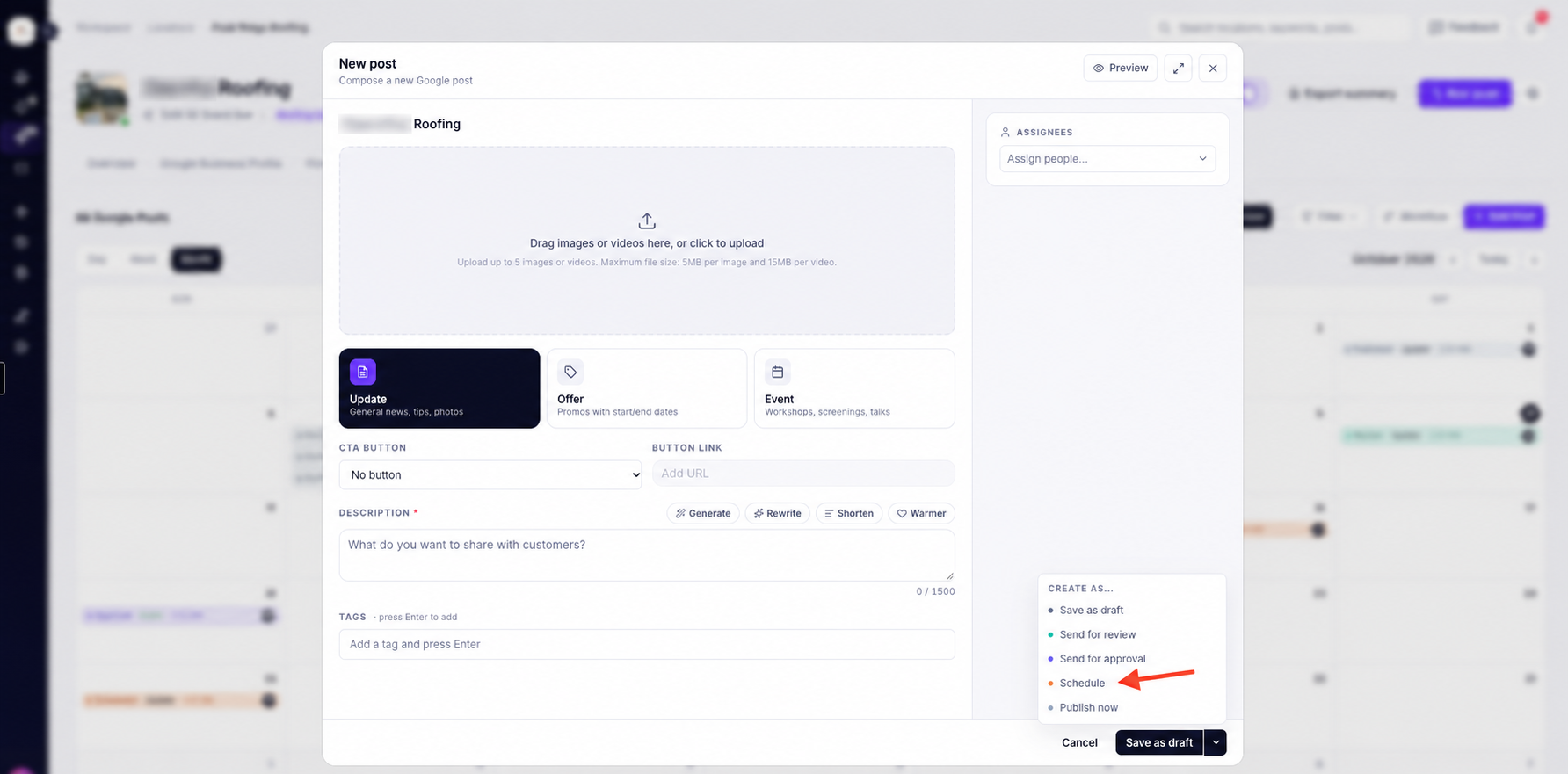
You can publish a post immediately or schedule it for a future date and time.
This is useful if you want to prepare several posts in advance rather than publishing each one manually.
How to schedule a post
- Create your Google Post.
- Complete the post details.
- Choose to schedule the post.
- Select the date and time you want it to publish, or choose one of the suggested times.
Once scheduled, the post will be included in your upcoming posts.
What time zone does Ranksphere use?
Scheduled posts use your workspace's time zone, not your computer's time zone.
For example, if your workspace is set to a particular local time zone, the publishing time you select follows that setting.
You can check or update the time zone from Settings → Workspace.
Make sure your workspace time zone is set correctly before scheduling posts.
For more information about workspace settings, see Account & Workspaces.
How to view and organize your Google Posts
Ranksphere gives you three ways to view your posts: Board, Calendar, and List.
You can switch between them depending on how you prefer to manage your content.
| View | What it's used for |
| Board | Organize posts by their current workflow stage and move them between columns. |
| Calendar | See posts arranged by day, week, or month to review your publishing schedule. |
| List | View your posts in a simple list. |
Board view
Board view organizes posts into columns based on where they are in the workflow.
The stages are:
| Stage | What it means |
| Draft | The post is being prepared. |
| Review | The post is ready for an internal team review. |
| Approval | The post is waiting for sign-off, often from a client. |
| Scheduled | The post has been scheduled for publication. |
| Published | The post has been published. |
You can drag posts between columns as they move through the workflow, provided you have permission to create and edit posts.
For example, once you've finished writing a post, you can move it from Draft to Review.
After your team has checked it, the post can move to Approval before being scheduled.
Calendar view
Calendar view shows your posts according to their scheduled dates.
You can switch between:
- Day
- Week
- Month
This makes it easier to see which posts are planned and when they're scheduled to go out.
List view
List view shows your posts in a simple list.
You can use it when you prefer to review your posts without the Board columns or Calendar layout.
How does the review-and-approval workflow work?
Ranksphere lets your team review posts before they're published.
The workflow includes two stages:
| Stage | Purpose |
| Review | An internal check by your team before the post moves forward. |
| Approval | A final sign-off, often from a client, before the post is scheduled or published. |
You can assign reviewers and approvers to individual posts so everyone knows who's responsible for checking the content.
Who can review and approve a post?
You can name the people responsible for reviewing and approving a post.
However, these assignments are advisory.
This means they help your team keep track of who should review the content, but they don't restrict who can move the post through the workflow.
Anyone with permission to create and edit posts can move a post between stages.
For example, if a post is assigned to a particular reviewer, another team member with editing permission can still move it forward.
There is no separate approval permission that locks a post until a particular person approves it.
How to set default reviewers and approvers
Workspace Owners and Admins can choose default reviewers and approvers for new posts.
To set these defaults:
- Open the Posts page.
- Click Workflow.
- Set your default reviewers and approvers.
New posts will start with those default assignments.
This is useful if your team usually follows the same review process for its posts.
How to collaborate on Google Posts
Each Google Post has an Activity panel where your team can discuss the content before it goes live.
You can use it to:
- Leave comments
- Mention other team members
- Attach images
- Discuss changes or feedback
For example, a team member can leave a comment suggesting an improvement to the post, or a client can provide feedback before publication.
Comments and discussions remain with the post, so your team can review the feedback in one place.
Can clients comment on posts?
Yes. Guests can leave comments on posts they have access to.
They can also suggest reviewers and approvers.
However, Guests cannot create, edit, publish, or move posts between workflow stages.
This allows clients to review and discuss content without giving them permission to change the actual post.
For more information about Guest access, see Users, Roles & Permissions.
How to publish Google Posts
You can publish Google Posts directly from Ranksphere when the location's Google Business Profile is connected through Google.
You have two options:
| Publishing option | How it works |
| Publish now | Publish the post directly to the connected Google Business Profile. |
| Schedule | Choose a future date and time. Ranksphere publishes the post automatically at the scheduled time. |
What happens if my Google Business Profile isn't connected?
You can still create posts and move them through your workflow.
Posts can go through Draft, Review, Approval, and Scheduled even if the location's Google Business Profile isn't connected yet.
However, posts can only be published to Google when the location has a connected Google Business Profile.
If the profile isn't connected, your posts remain scheduled until you connect it.
Once connected, your posts are ready to publish to Google.
To learn how to connect your business profile, see Google Business Profile Management.
Who can manage Google Posts?
Your workspace role determines whether you can view, create, edit, publish, or comment on posts.
| Workspace role | View posts | Create, edit, and publish | Comment |
| Owner | Yes | Yes | Yes |
| Admin | Yes | Yes | Yes |
| Member | Yes | Yes | Yes |
| Guest | Yes | No | Yes |
Members can work with posts for the locations shared with them.
Guests can view and comment on posts but cannot create, edit, publish, or move them between stages.
Who can move posts between workflow stages?
Moving a post from one stage to another requires the Create, edit & publish permission.
This means Owners, Admins, and Members with the required access can move posts through the workflow.
Guests cannot move posts, even if they've been asked to review or approve them.
There is no separate approval permission. Reviewing and approving are handled through comments and the review workflow.
Who can manage workflow defaults?
Only Workspace Owners and Admins can manage the default reviewers and approvers through the Workflow settings on the Posts page.
For more information, see Users, Roles & Permissions.
Quick guide to managing Google Posts
| What you want to do | Where to go |
| View posts for one location | Locations → Select location → Posts |
| View posts across locations | Sidebar → Google Posts |
| Create a post | Posts → Add Post |
| Generate post content with AI | Post editor → Generate |
| Rewrite a post | Post editor → Rewrite |
| Schedule a post | Post editor → Schedule |
| View the publishing calendar | Posts → Calendar |
| Move posts between stages | Posts → Board |
| Leave comments or feedback | Open a post → Activity |
| Set default reviewers and approvers | Posts → Workflow |
| Change your workspace time zone | Settings → Workspace |
| Check your AI credits | Settings → Credit Usage → AI Credits |
Frequently asked questions
What types of Google Posts can I create?
You can create three types of posts: Update, Offer, and Event.
Update posts are used for general news and announcements.
Offer posts are used for promotions with a start and end date.
Event posts are used for activities such as workshops, sales, or talks, also with a start and end date.
How many photos or videos can I add to a post?
You can add up to five photos and/or videos to each post.
You can also add tags to keep your posts organized.
Can I use AI to write a Google Post?
Yes. You can use Generate to create content or Rewrite, Shorten, and Warmer to improve an existing post.
Each AI writing action uses 10 AI credits.
The quick check that your topic fits the business is free.
Do scheduled posts publish automatically?
Yes, provided the location's Google Business Profile is connected.
Ranksphere publishes the post directly to Google at the scheduled time.
If the profile isn't connected, the post remains scheduled until you connect it.
What time zone is used for scheduled posts?
Ranksphere uses your workspace's time zone, not your computer's.
You can check or change this under Settings → Workspace.
Can I review posts before they are published?
Yes. You can move posts through Review and Approval before scheduling or publishing them.
You can also assign reviewers and approvers so your team knows who's responsible for checking the content.
Who can approve a Google Post?
You can assign a reviewer or approver to a post, but these assignments are advisory.
Anyone with permission to create and edit posts can move a post through the workflow.
There is no separate approval permission that restricts who can move a post forward.
Can Guests comment on Google Posts?
Yes. Guests can view posts, leave comments, and suggest reviewers or approvers.
However, they cannot create, edit, publish, or move posts between stages.
Can I create posts without connecting my Google Business Profile?
Yes. You can prepare posts, add content, collect feedback, and organize them through Draft, Review, Approval, and Scheduled.
You'll need to connect the location's Google Business Profile before the posts can be published to Google.
Does moving a published post back to Draft remove it from Google?
No. The status of a post in Ranksphere is separate from the post on your live Google Business Profile.
Moving a post back to Draft in Ranksphere does not remove it from Google.
Can I manage posts for multiple locations?
Yes. Open Google Posts from the sidebar to view posts across your locations.
If you want to work on posts for one business, open that location and select the Posts tab.
Still stuck?
Start free and set this up in your own workspace, or reach out and we'll help.
More in Google Business Profile
GBP Management
This guide explains what the Google Business Profile tab shows, how to connect your profile, and how to edit and publish your details straight to Google.
Google Business Profile Performance
This guide explains what the Google Business Profile performance view shows, where the numbers come from, and how to read them, export them, and schedule them.
Google Business Profile Protection
How Google Business Profile Protection watches your connected profile and auto-reverts hostile or unwanted edits to your real business details.