Google Business Profile Performance
This guide explains what the Google Business Profile performance view shows, where the numbers come from, and how to read them, export them, and schedule them.
What is Google Business Profile Performance?
Google Business Profile Performance helps you understand how people find and interact with your business on Google.
You can see how often people viewed your profile and what they did afterward, such as calling your business, requesting directions, clicking your website, or making a booking.
Ranksphere brings this information into one place so you can review your results and see how they change over time.
The data comes directly from Google. You don't need to enter any numbers manually.
Once you connect your Google Business Profile, Ranksphere retrieves your performance data and refreshes it in the background whenever you open the performance tab.
Where can I find Google Business Profile Performance?
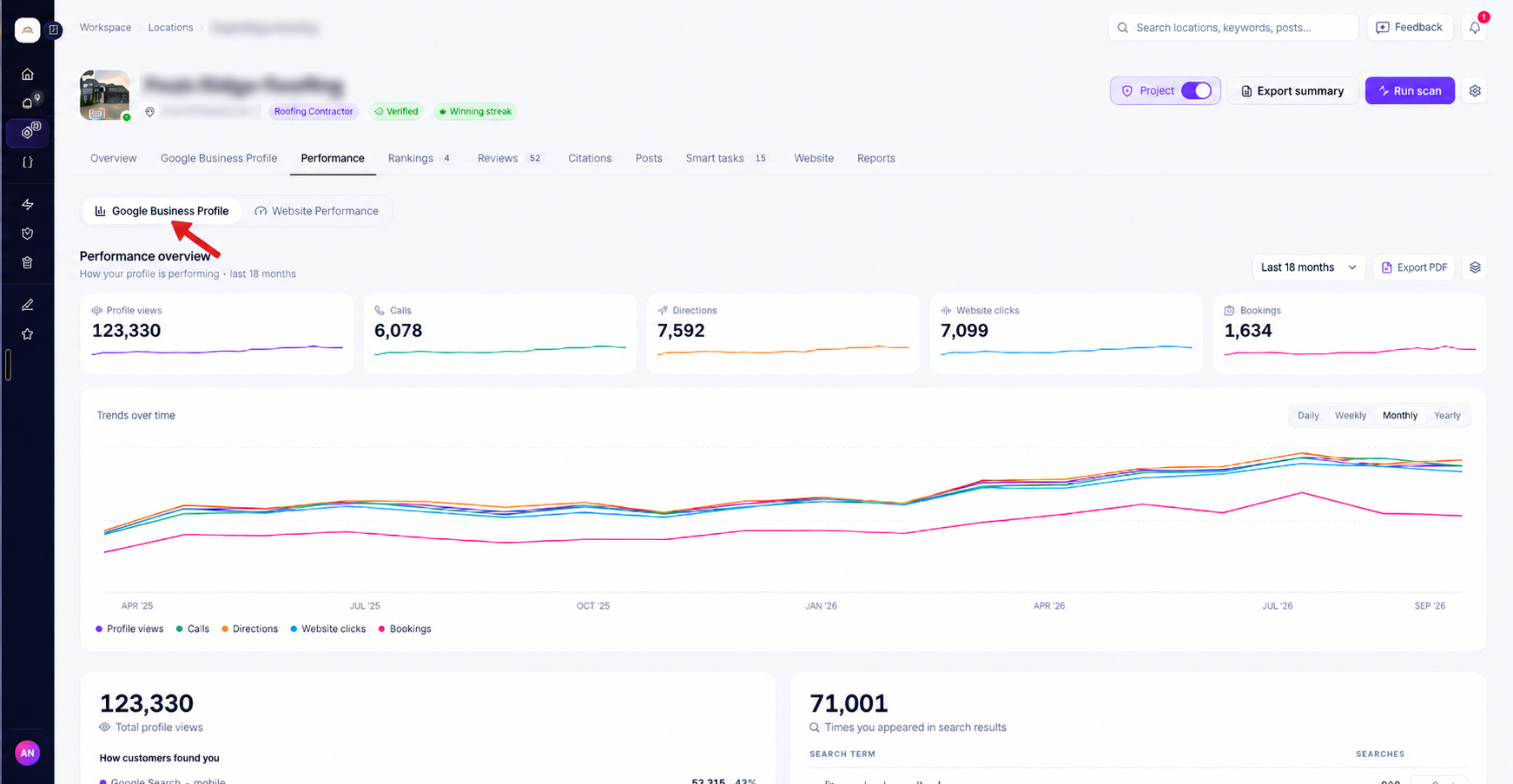
- Go to Locations.
- Open the business you want to review.
- Select the Performance tab.
- Open the Google Business Profile sub-tab.
You'll see your performance metrics, customer discovery information, search terms, and historical trends.
What's the difference between GBP Management and GBP Performance?
These are two separate areas in Ranksphere.
| Section | What it's used for |
| Google Business Profile | Manage your business description, categories, contact details, opening hours, photos, and other profile information. |
| Performance → Google Business Profile | Review how people find and interact with your business on Google. |
The Google Business Profile tab is where you update your listing.
The Performance tab is where you check how your listing is doing.
For more information, see Google Business Profile Management.
What performance metrics can I see?
Your Google Business Profile Performance dashboard shows five main metrics.
Each metric has its own total and trend line based on the date range you select.
| Metric | What it measures |
| Profile views | How many times your business profile appeared to people across Google Search and Google Maps. |
| Calls | How many times people tapped to call your business from your profile. |
| Directions | How many times people requested directions to your business. |
| Website clicks | How many times people clicked your website link from your profile. |
| Bookings | How many bookings came through your profile, where Google booking functionality is supported. |
Profile views
Profile views show how often your business profile appeared to people on Google Search and Google Maps.
This helps you understand how much visibility your listing is receiving.
You can use the trend line to see whether your profile views have increased or decreased over the selected period.
Calls
Calls show how many times people tapped the call button on your Google Business Profile.
This counts call-button interactions, not necessarily completed phone conversations.
For example, if your profile views increase but calls stay the same, you can see that the additional visibility hasn't led to more call-button taps during that period.
Directions
Directions show how many times people requested directions to your business through Google.
This can be useful for businesses with a physical location that customers visit.
A direction request shows that someone wanted to find their way to your business. It doesn't confirm that they actually visited.
Website clicks
Website clicks show how many times people clicked your website link from your Google Business Profile.
This helps you understand how many people are choosing to visit your website after finding your business on Google.
Bookings
Bookings show how many bookings came through your Google Business Profile.
This metric is available when your business profile supports booking through Google.
Understanding profile views and customer actions
It's useful to look at profile views alongside the actions people take.
Profile views show how often your business appears to potential customers.
Calls, directions, website clicks, and bookings show what people do after finding your profile.
For example, your profile may be getting more views than last month, but your calls and website clicks may not have increased.
Looking at these metrics together helps you understand whether greater visibility is also leading to more customer interactions.
How customers found your business
Below the performance metrics, Ranksphere shows where your Google Business Profile views came from.
The information is divided into four categories based on whether people found your business through Google Search or Google Maps, and whether they used a mobile device or desktop computer.
Understanding the four categories
| Category | What it shows |
| Google Search — mobile | Profile views from people using Google Search on mobile devices. |
| Google Search — desktop | Profile views from people using Google Search on desktop computers. |
| Google Maps — mobile | Profile views from people using Google Maps on mobile devices. |
| Google Maps — desktop | Profile views from people using Google Maps on desktop computers. |
Each category shows:
- View count: How many profile views came from that source and device.
- Percentage: How much of the total profile views that category represents.
This helps you understand where people are finding your business.
For example, you may notice that most of your profile views come from Google Maps on mobile devices, while fewer come from Google Search on desktop.
What does "Times you appeared in search results" mean?
Alongside the four categories, you'll also see Times you appeared in search results.
This shows the share of your total profile views that came specifically from Google Search.
It helps you understand how much of your profile's visibility came from Search rather than Maps.
The figures in this section update whenever you change the selected date range.
How to see the search terms customers used
Ranksphere also shows the search terms people used before reaching your Google Business Profile.
These are the words and phrases customers searched for when finding your business.
Each search term includes the number of searches associated with it.
For example, a roofing company may see searches related to roof repairs, gutter replacement, or roofing contractors.
This information can help you understand which searches are already bringing visibility to your business.
What information does the search terms list show?
| Information | What it means |
| Search term | The word or phrase people searched before finding your profile. |
| Search count | How many searches the term brought in, based on Google's data. |
| Track | Adds the selected keyword directly to your rank tracking. |
Why do some search counts have a ~ symbol?
You may notice a tilde (~) before some numbers.
This means the search count is approximate.
Google reports smaller search volumes as rough ranges rather than exact figures, so Ranksphere displays an estimated value for those terms.
For example, a count shown as ~20 should be understood as an approximation, not an exact number of searches.
How to track a search term
If you find a relevant keyword that you want to monitor, you can add it directly to Local Rank Tracking.
- Open Performance → Google Business Profile.
- Find the search terms section.
- Locate the keyword you want to track.
- Click Track beside that keyword.
This lets you add the term to your rank tracking without entering it again manually.
You can then use Local Rank Tracking to see where your business ranks for that keyword across different parts of your selected area.
For more information, see Local Rank Tracking.
What date range do search terms cover?
The search terms list always covers approximately the last six months.
Unlike the main performance metrics, this list doesn't change when you select a different date range.
It comes directly from Google's available search terms data and doesn't build up historical records over time.
For example, even if you select Last 18 months for your performance metrics, the search terms list will still show roughly the most recent six months.
Important: Historical performance data is stored in Ranksphere, but the search terms list remains limited to Google's rolling six-month period.
How much historical data does Ranksphere keep?
One of the benefits of Google Business Profile Performance in Ranksphere is the ability to review your performance over a longer period.
When you first connect a Google Business Profile, Ranksphere imports approximately 18 months of historical performance data.
This is the maximum historical data Google makes available when you connect.
After that, Ranksphere continues saving your daily performance data.
Does my performance history continue growing?
Yes.
Ranksphere stores the daily performance information it collects in your account and doesn't delete it.
This means your available history grows the longer you use Ranksphere.
For example:
| How long you've used Ranksphere | Approximate available history |
| Just connected | 18 months |
| After 6 months | 24 months |
| After 12 months | 30 months |
| After 18 months | 36 months |
These examples assume that 18 months of historical data was available when you first connected your profile.
Why is historical data useful?
Keeping older performance data makes it easier to:
- Compare this month with the same month last year.
- Review changes in calls, direction requests, and website clicks over time.
- Understand how a location has performed over a longer period.
- Show clients how their Google Business Profile performance has changed.
Google's own dashboard only provides access to a rolling 18 months of performance history.
Ranksphere keeps the data it has already collected, allowing you to review older periods even after they are no longer available in Google's dashboard.
How to change the date range
You can choose which period you want to review in Google Business Profile Performance.
Ranksphere offers preset date ranges and a custom date option.
Available date ranges
| Date range | What it shows |
| Last 30 days | Your recent performance over the last 30-day period. |
| Last 3 months | Performance over the last three months. |
| Last 6 months | Performance over the last six months. |
| Last 12 months | Performance over the last twelve months. |
| Last 18 months | Performance over the last eighteen months. |
| Custom range | A period you choose using your own start and end dates. |
How to select a date range
- Open your location.
- Go to Performance → Google Business Profile.
- Open the date range selector.
- Choose a preset period or select Custom range.
- If using a custom range, enter your start and end dates.
The dashboard updates to show the performance information for your selected period.
What updates when I change the date range?
Changing the date range updates:
- The totals in your five performance tiles.
- The trend lines for each metric.
- The four customer discovery categories.
- The counts and percentages showing how customers found you.
This means you can review the same period across your main performance metrics.
The search terms list is the exception. It always covers approximately the last six months, regardless of your selected dates.
How far back can I go with a custom range?
Custom date ranges can reach back up to three years, depending on how much historical data you've accumulated in Ranksphere.
For example, if you've used Ranksphere long enough to build up more than 18 months of performance history, you can use Custom range to view those older periods.
The preset options stop at 18 months, but Custom range lets you look further back, up to the three-year limit.
Why don't the preset ranges include the current incomplete month?
The rolling date presets end at the last complete month.
This prevents a month that's still in progress from making your performance trend appear lower simply because the month hasn't finished yet.
For example, if you're partway through October, the preset monthly periods normally end with September.
There is one exception: when you've just connected a Google Business Profile, Ranksphere shows its data as it becomes available.
How to export a Google Business Profile Performance report
You can download your performance information as a PDF report.
This is useful when you want to share results with a client or keep a copy for your records.
How to export a report
- Open your location.
- Go to Performance → Google Business Profile.
- Choose the date range you want to report on.
- Click Export PDF.
Ranksphere will generate a PDF of the current performance view that you can download and share.
Does exporting a report use credits?
Yes.
Each PDF export uses one saved report credit and counts toward your report allowance.
| Action | Saved report credits used |
| Export GBP Performance as PDF | 1 |
| Generate a scheduled GBP Performance report | 1 per run |
You can check your remaining saved report allowance under Settings → Credit Usage.
For more information about report credits, see Report, Schema & Crawl Credits.
How to schedule Google Business Profile Performance reports
If you want to receive performance reports regularly, you can set up automatic reporting.
Instead of exporting each report manually, Ranksphere can generate reports on a repeating schedule.
How to schedule a report
- Open your business location.
- Go to Performance → Google Business Profile.
- Find the Schedule control, shown as a gear icon.
- Open the scheduling settings.
- Choose how often you want the report to run.
- Set the schedule and save it.
What happens when a scheduled report runs?
Each scheduled run:
- Generates a new Google Business Profile Performance report.
- Emails the report to you.
- Saves it in the location's Reports tab.
Each scheduled run uses one saved report credit.
For example, if you schedule a monthly GBP Performance report, each monthly report generated will use one saved report from your allowance.
To learn more about recurring reports and saved report allowances, see Reporting.
Where does the performance data come from?
All the performance data shown in this section comes directly from Google through your connected Google Business Profile.
You don't need to upload data or enter the numbers manually.
Once the profile is connected, Ranksphere can retrieve your historical performance data and keep the information updated.
Does Ranksphere refresh the data automatically?
Yes.
Ranksphere refreshes your performance data in the background whenever you open the Google Business Profile Performance tab.
You don't need to start a manual refresh each time you want to review the results.
Why are the most recent days missing?
Google typically reports Google Business Profile performance with a delay of two to three days.
This means the latest days may not be available immediately.
When you first connect your profile, Ranksphere imports up to 18 months of historical data, while the most recent days become available as Google reports them.
For example, if you connected your profile today, you may already see your older performance history but not the results from the last couple of days.
Ranksphere retrieves those newer numbers as they become available.
Do I need to connect my Google Business Profile?
Yes.
Google Business Profile Performance requires a Google Business Profile connected through Google.
If you've added a business to Ranksphere without connecting its profile, you'll need to connect it before accessing its performance data.
How to connect your Google Business Profile
- Open the business location.
- Go to the Google Business Profile tab.
- Choose the option to connect your Google account.
- Complete the connection.
Once connected, Ranksphere can retrieve the profile's performance data.
For more information, see Google Business Profile Management.
Can I track performance for multiple locations?
Yes.
You can connect each Google Business Profile you manage and review its performance separately.
For example, an agency managing several client businesses can open each location to check:
- Profile views
- Calls
- Direction requests
- Website clicks
- Bookings
- Customer discovery sources
- Search terms
- Historical performance
Each location has its own Google Business Profile Performance view.
For more information about managing multiple businesses, see Locations in Ranksphere.
Who can view and manage GBP Performance?
Your workspace role determines whether you can view performance data, connect Google accounts, and generate reports.
Viewing performance data
| Workspace role | View GBP Performance |
| Owner | Yes |
| Admin | Yes |
| Member | Yes, for shared locations |
| Guest | Only if the Owner grants Performance access |
Owners, Admins, and Members can view performance information by default for the locations they can access.
Guests cannot view the Performance tab by default.
However, the Workspace Owner can grant Guests access to the Performance tab from Settings → Permissions.
Connecting Google Business Profiles
Connecting a Google Business Profile requires the Connect Google accounts permission.
| Workspace role | Connect Google accounts |
| Owner | Yes |
| Admin | Yes, by default |
| Member | Only if the Owner grants permission |
| Guest | No |
Exporting and scheduling reports
Exporting and scheduling performance reports requires permission to generate reports.
| Workspace role | Export and schedule reports |
| Owner | Yes |
| Admin | Yes, by default |
| Member | Yes, by default |
| Guest | No |
Guests who have been granted access to view performance information still cannot generate or schedule reports.
For more information, see Users, Roles & Permissions.
Quick guide to GBP Performance
| What you want to do | Where to go |
| View GBP Performance | Locations → Select location → Performance → Google Business Profile |
| Check profile views and customer actions | Performance → Google Business Profile → Performance tiles |
| See how customers found you | Performance → Google Business Profile → How customers found you |
| View customer search terms | Performance → Google Business Profile → Search terms |
| Track a search term | Search terms → Track |
| Change the date range | Performance → Google Business Profile → Date range |
| View older performance data | Date range → Custom range |
| Export a PDF report | Performance → Google Business Profile → Export PDF |
| Schedule a performance report | Performance → Google Business Profile → Schedule (gear icon) |
| Find saved scheduled reports | Locations → Select location → Reports |
| Check remaining report credits | Settings → Credit Usage |
| Grant Guest Performance access | Settings → Permissions |
Frequently asked questions
Where does Google Business Profile Performance data come from?
The data comes directly from Google through your connected Google Business Profile. Ranksphere retrieves it automatically, so you don't need to enter any numbers manually.
Do I need to connect my Google Business Profile?
Yes. You need to connect your Google Business Profile through Google before Ranksphere can retrieve its performance data. You only need to complete the connection once.
How often does my performance data update?
Ranksphere refreshes your Google Business Profile Performance data in the background whenever you open the tab. The newest data may still be delayed by two to three days because of Google's reporting schedule.
I just connected my profile. Why can't I see the latest numbers?
Google usually reports performance data with a two-to-three-day delay. Ranksphere imports your available historical data, up to 18 months, when you connect your profile. The most recent days appear as Google makes that data available.
What metrics are included in the dashboard?
The dashboard has five performance tiles:
- Profile views
- Calls
- Directions
- Website clicks
- Bookings
Each tile shows a total and trend line for your selected date range.
Bookings are available where your Google Business Profile supports booking through Google.
Can I see whether customers found me through Google Search or Google Maps?
Yes. Ranksphere separates profile views into four categories: Google Search on mobile, Google Search on desktop, Google Maps on mobile, and Google Maps on desktop. Each category shows the number of views and its share of the total.
What does "Times you appeared in search results" mean?
It shows the share of your profile views that came from Google Search specifically. This helps you compare visibility from Google Search with visibility from Google Maps.
Can I see which keywords customers used to find my business?
Yes. Ranksphere shows the search terms people used before reaching your Google Business Profile, along with their search counts. You can also select Track beside a term to add it to Local Rank Tracking.
Why do some search counts show a ~ symbol?
The ~ symbol means the count is approximate. Google reports low search volumes as a range rather than an exact number.
Can I change the date range for search terms?
No. The search terms list always covers approximately the last six months. It doesn't change when you select a different performance date range, and Ranksphere doesn't build up historical search-term data over time.
How far back can I view my performance history?
When you first connect, Ranksphere imports approximately 18 months of available performance history. It then continues storing your daily performance data without deleting it. You can use Custom range to look back up to three years once you've accumulated that much history.
Why do the preset date ranges stop at the last complete month?
The preset ranges are designed to avoid comparing a completed month with a month that's still in progress. For newly connected profiles, Ranksphere shows performance data as it becomes available.
Does exporting a PDF use a report credit?
Yes. Each time you select Export PDF, Ranksphere uses one saved report credit. Scheduled reports also use one saved report credit each time they generate.
Can I schedule reports automatically?
Yes. You can use the Schedule control in the Google Business Profile Performance tab to set up recurring reports. Each scheduled report is emailed to you and saved in your location's Reports tab.
Can I view performance for several businesses?
Yes. You can connect each Google Business Profile you manage and review its performance separately. This is useful for businesses with multiple locations and agencies managing client profiles.
Can Guests view GBP Performance?
Not by default. The Workspace Owner can grant a Guest access to the Performance tab through Settings → Permissions. Guests cannot export or schedule reports, even when they've been given permission to view performance data.
Will viewing GBP Performance change my Google Business Profile?
No. The Performance tab only shows how your profile is doing on Google. To edit your business description, categories, opening hours, photos, or other details, use the Google Business Profile tab.
Still stuck?
Start free and set this up in your own workspace, or reach out and we'll help.
More in Google Business Profile
GBP Management
This guide explains what the Google Business Profile tab shows, how to connect your profile, and how to edit and publish your details straight to Google.
Google Business Profile Protection
How Google Business Profile Protection watches your connected profile and auto-reverts hostile or unwanted edits to your real business details.
Google Posts
This guide explains what Google posts are, how to write and schedule them, the review-and-approval workflow, and how they publish to Google.