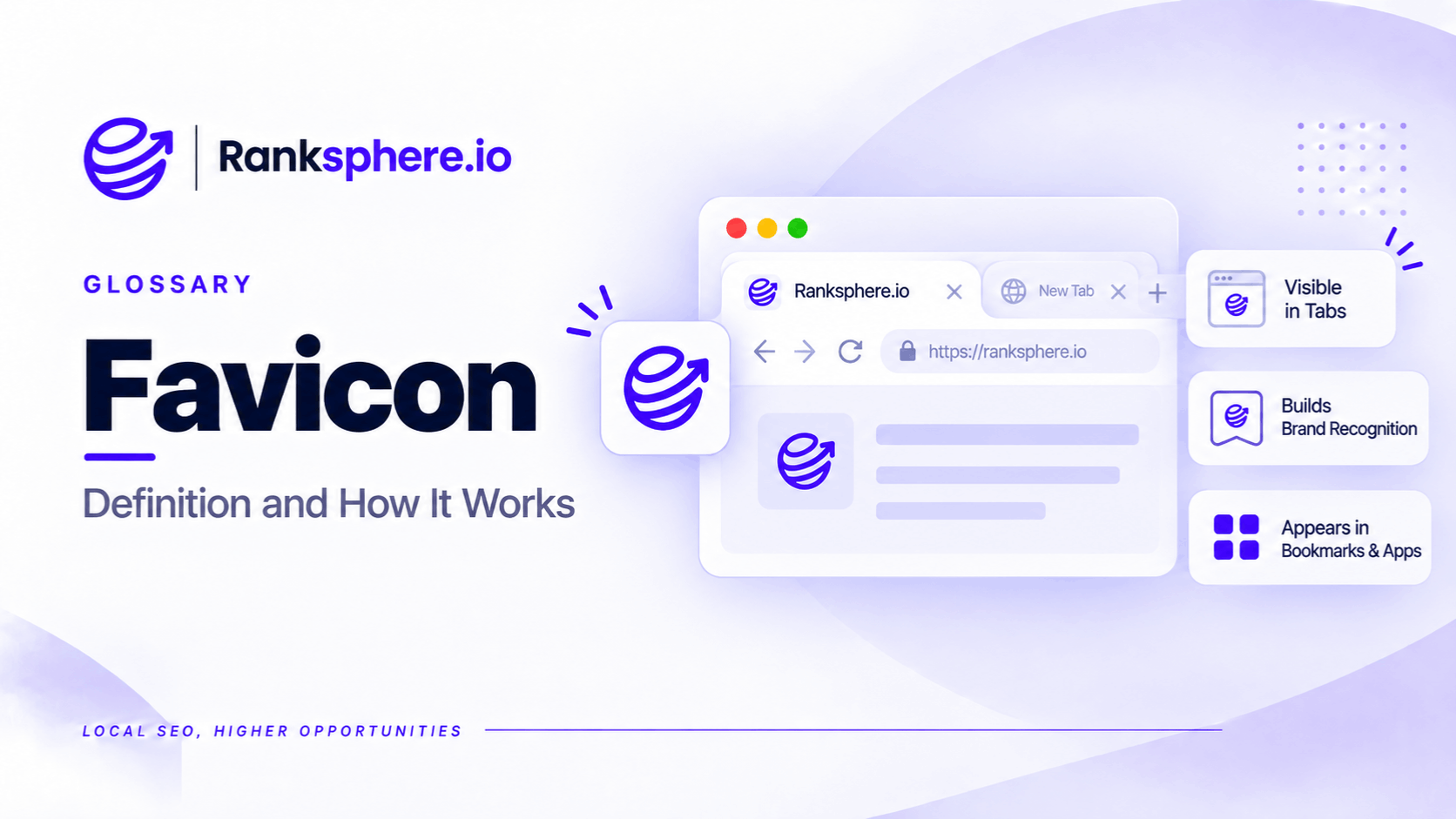
A favicon is the small icon used to represent a website in browser tabs, bookmarks, and Google Search results.
It usually features a simplified version of a company's logo, symbol, or initials.
For example, a roofing company's favicon might display its brand icon rather than its full business name.
A favicon is not an established direct Google ranking factor. However, it contributes to how a website is presented in search results.
A clear, recognisable favicon helps people identify your website when comparing search results.
For local businesses, this is a small branding detail worth getting right, particularly when potential customers are comparing several businesses.
Where Does a Favicon Appear?
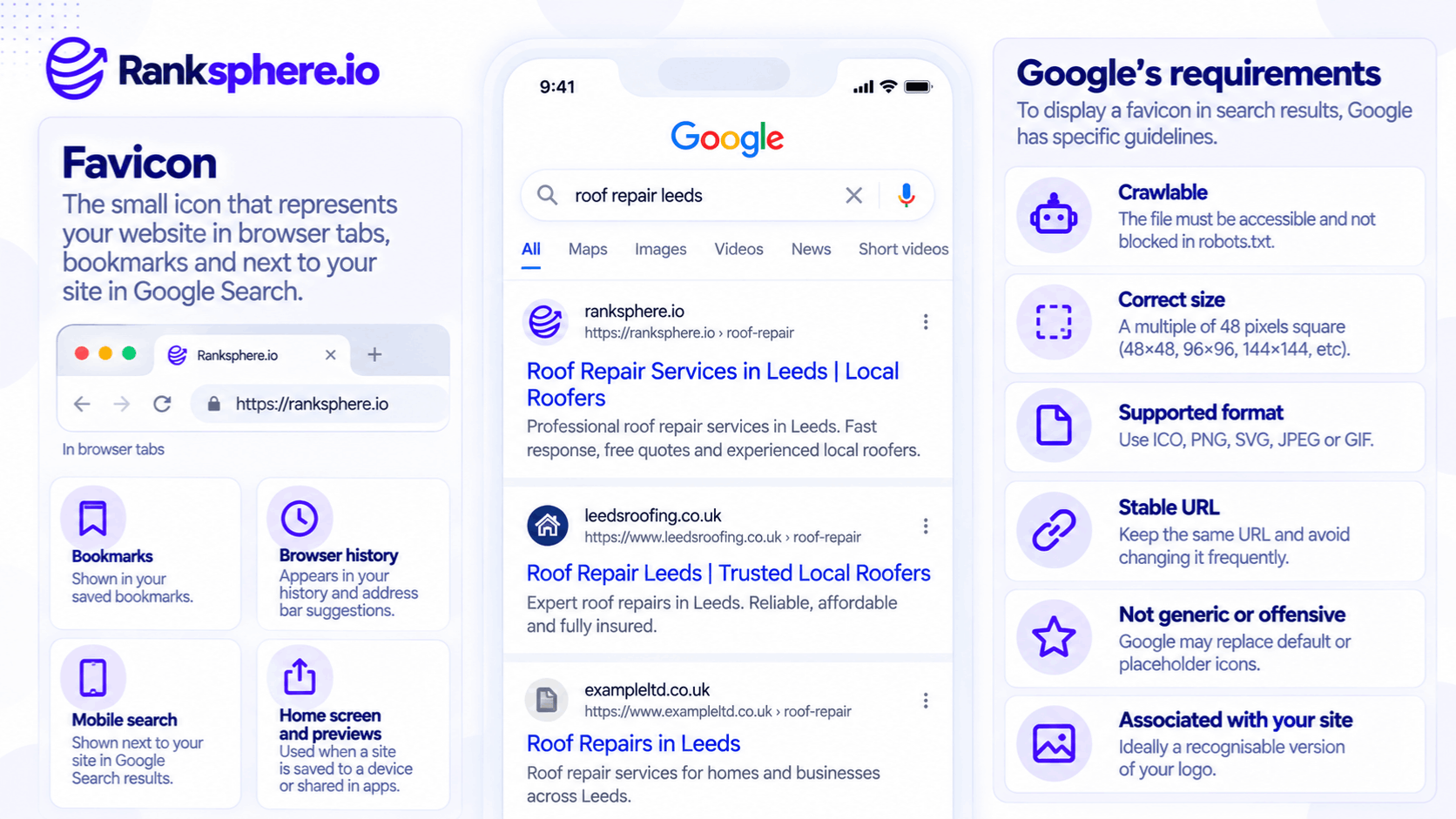
Favicons appear in several places, including:
- Google Search results where favicons are displayed
- Browser tabs and bookmarks
- Browser history
- Some address bar suggestions
- Other browser interfaces
Related website icons can also be used when someone saves a website to their device's home screen, although these may require separate icon declarations.
Favicons shouldn't be confused with Open Graph tags, which help control how webpages appear when shared on supported social and messaging platforms.
Why Favicons Matter for SEO
A favicon doesn't directly improve rankings, but it can help people recognise a business in search results.
For example, imagine three barbershops appearing in Google Search.
Two display recognisable brand icons. The third displays a generic website icon.
The third business may still offer excellent services, but its search appearance is less distinctive.
A favicon alone won't determine which result someone clicks. Page titles, descriptions, reputation, relevance, and other factors also matter.
However, consistent branding helps present the business professionally.
Google's Favicon Requirements
Google provides specific guidelines for making a favicon eligible to appear in Search results.
1. Use a Square Image
The favicon must have a 1:1 aspect ratio.
Google requires a minimum size of 8 × 8 pixels but recommends an image larger than 48 × 48 pixels for better display quality.
For example, a 96 × 96 pixel PNG is a practical option.
The image doesn't need to be a multiple of 48 pixels.
2. Use a Supported File Format
Google Search supports these favicon formats:
- PNG
- ICO
- GIF
- JPEG
- BMP
- PPM
- TIFF
Modern browsers may also support SVG favicons, but SVG is not currently included in Google's explicitly documented list of supported Search favicon formats.
If using SVG for browsers, provide a suitable supported fallback for Google Search.
3. Make the Favicon Crawlable
Googlebot-Image must be able to access the favicon file.
Googlebot must also be able to crawl the website's homepage.
For example, if the favicon is blocked by robots.txt, Google may be unable to retrieve it.
An icon that displays correctly in your browser isn't necessarily accessible to Google's crawlers.
4. Keep the Favicon URL Stable
Google recommends avoiding frequent changes to the favicon URL.
For example, continually renaming the icon file can make it harder for Google to process updates consistently.
Keep a stable URL wherever practical.
5. Use an Appropriate Brand Icon
Google recommends choosing a favicon that visually represents the website's brand.
For example, a veterinary practice could use a simplified version of its existing logo.
Google may replace icons it considers inappropriate with a default favicon.
6. Understand the One-Favicon-Per-Site Rule
Google supports one Search favicon per hostname.
For example, example.com and shop.example.com can have different favicons because they are separate hostnames.
However, pages within example.com/services/ cannot have a separate Google Search favicon from the rest of that hostname.
Even when all guidelines are met, Google doesn't guarantee that the favicon will appear.
How to Add a Favicon to Your Website
Favicons are generally declared in the HTML <head> section.
For example:
<link rel="icon" type="image/png" href="/favicon-96x96.png" sizes="96x96">
<link rel="apple-touch-icon" href="/apple-touch-icon.png">
The first line identifies the website favicon.
The second provides an icon for supported Apple home-screen experiences.
For Google Search, the relevant favicon declaration should be present on the site's homepage.
If you use WordPress or another CMS, favicon settings may be available through the website's appearance, branding, or site identity settings.
After adding the icon, check that its URL loads correctly and that it appears as expected in the browser.
Why Is My Favicon Not Showing in Google?
A favicon may work in a browser tab but still be missing from Google Search.
Common reasons include:
Google hasn't processed the update. Google may take several days or weeks to recrawl the homepage and favicon.
The icon is blocked. Robots.txt or security settings may prevent Googlebot-Image from accessing the file.
The homepage isn't crawlable. Google needs to access the homepage to identify the favicon.
The format or dimensions are unsuitable. Use a supported format and an appropriately sized square image.
The favicon declaration is incorrect. Check whether the HTML points to the right file.
Google chooses not to display it. Meeting the technical requirements establishes eligibility, not guaranteed appearance.
You can request indexing of your homepage through Google Search Console's URL Inspection tool after making changes.
Ranksphere's Website Audit Tool can help identify relevant technical issues, including crawlability and resource accessibility problems.
Favicon Design Best Practices
A favicon should remain recognisable when displayed at a small size.
For example, a detailed company logo containing a symbol, business name, and tagline may become unreadable when reduced.
A simplified brand mark usually works better.
When designing a favicon:
- Use an existing brand symbol or monogram.
- Avoid thin lines and excessive detail.
- Maintain contrast against light and dark backgrounds.
- Test it at small sizes.
- Keep it consistent with the company's visual identity.
The goal is recognition, not decoration.
Common Favicon Mistakes
- Keeping the default CMS icon. This represents the website platform rather than the business.
- Using a detailed full logo. Small text and complex graphics become difficult to recognise.
- Blocking Googlebot-Image. Google must be able to retrieve the icon.
- Using an unsupported Search format without a fallback. Browser support and Google Search support aren't identical.
- Changing the favicon URL repeatedly. Google recommends keeping the URL stable.
- Expecting immediate updates. Google may need several weeks to process changes.
- Assuming favicons improve rankings. They are primarily a branding and search appearance feature.
Favicon Best Practices
Use a square, brand-representative icon in a Google-supported format, preferably larger than 48 × 48 pixels.
Make sure the favicon URL is stable and crawlable, and declare it correctly on the homepage.
Where appropriate, add an Apple touch icon for home-screen use.
Check how the favicon looks in browser tabs and Google Search, particularly on mobile devices.
Example of a Favicon for a Local Barbershop
Consider a hypothetical barbershop called Ashcroft Barbers.
The business recently launched a new website using a popular CMS.
Its service pages, contact details, and branding are correct, but nobody replaced the platform's default favicon.
What the Business Notices
When the owner searches for the barbershop on Google, the website displays a generic icon rather than the shop's logo.
Competing barbershops have recognisable brand symbols beside their results.
This doesn't mean Ashcroft Barbers ranks lower because of its favicon.
However, the search result is missing an opportunity to reinforce the business's identity.
What the Business Changes
The website designer creates a simplified version of the shop's existing logo.
The icon is exported as a square PNG and added through the website's favicon settings.
The team verifies that the file is accessible and that Google can crawl the homepage.
An Apple touch icon is also configured for supported devices.
What Happens Next?
The favicon appears correctly in browser tabs.
Google may begin displaying the updated icon after recrawling and processing the changes.
The business doesn't expect its rankings to improve because of the update.
Instead, the improvement is measured by whether its search appearance reflects the company's branding correctly.
Example
“The original problem was small but visible.
The business had invested in a new website while overlooking an element that could appear beside its search results.
Correcting the favicon helped make its branding more consistent.
A favicon won't make a website rank higher, but it helps give the business a recognisable identity wherever the icon is displayed.
For local businesses, it's a relatively simple improvement that belongs on the website launch and technical SEO checklist.”
See Also
- Click-Through Rate — How often people click a search result after seeing it.
- Open Graph Tags — Controlling link previews on supported social platforms.
- Robots.txt — Crawling instructions that can affect favicon accessibility.
- Brand SERP — How a business appears when someone searches for its name.
- On-Page SEO — Optimising webpage content and technical elements.
- Mobile-First Indexing — Google's use of mobile website content for indexing.