Web accessibility is the practice of designing and developing websites so people with disabilities can access information, navigate pages, and use important features.
This includes people who use screen readers, keyboards, screen magnification, voice control, captions, or other assistive technologies.
For example, someone who cannot use a mouse should still be able to navigate a website, complete a contact form, and submit an enquiry using a keyboard.
Someone who uses a screen reader should be able to understand the page's headings, links, images, and other content.
Accessibility also overlaps with technical SEO. Both benefit from clearly structured pages, descriptive links, meaningful image descriptions, and correctly implemented HTML.
However, web accessibility is not a Google ranking factor in itself, and an accessible website is not automatically an SEO-optimised website.
Accessibility matters because people need to be able to use the website. The SEO benefits are secondary.
How Does Web Accessibility Relate to SEO?
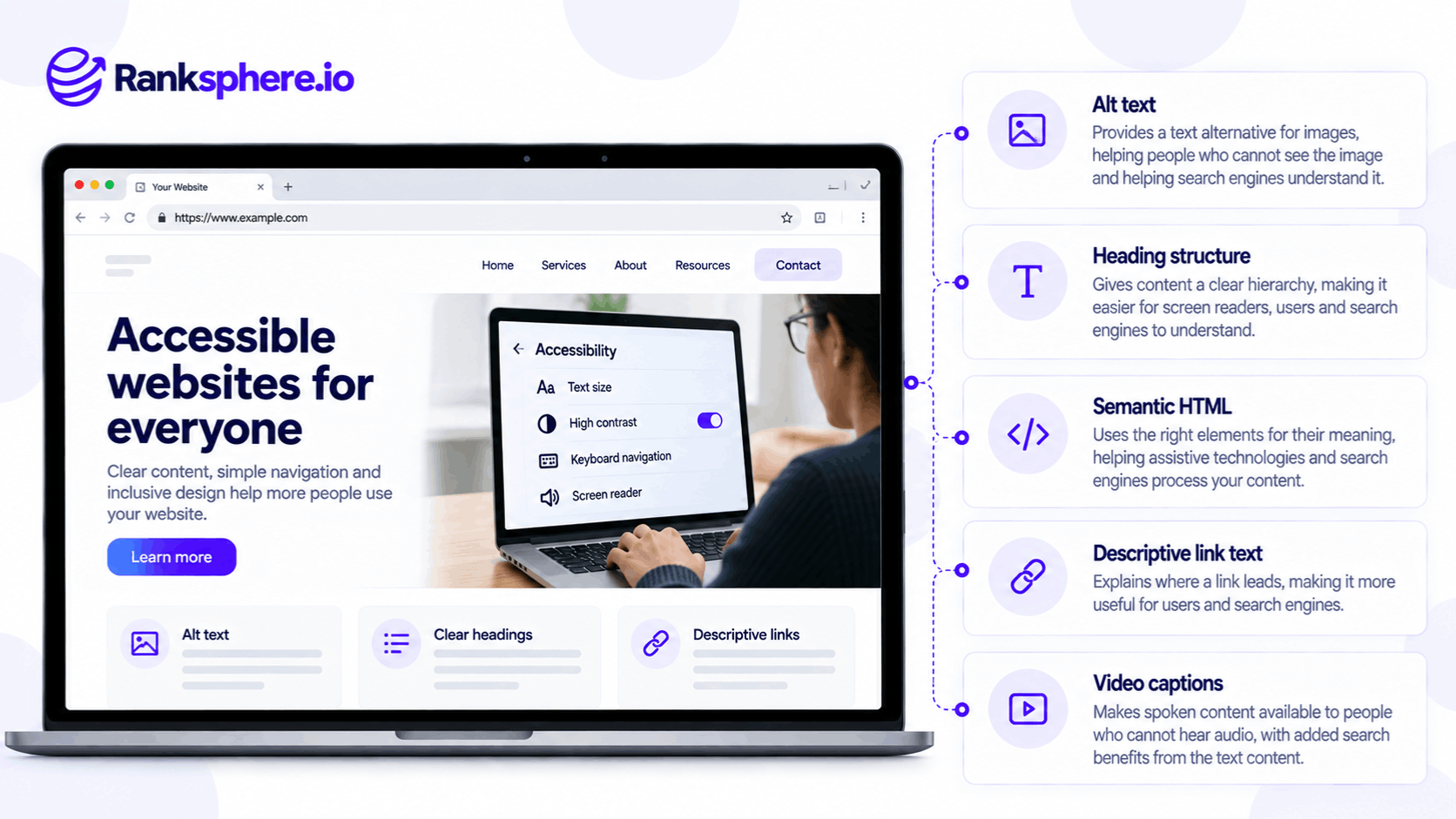
Search engines and assistive technologies interact with websites differently, but some of their requirements overlap.
Both benefit when the underlying code clearly identifies headings, links, images, and page structure.
For example, a heading created using a real HTML heading element provides more meaningful information than ordinary text that has simply been styled to look like a heading.
That structure helps screen reader users navigate the page and helps search engines interpret its content.
Alt Text
Alt text describes meaningful images for people who cannot see them.
For example, a roofing company might publish a photograph showing a newly installed slate roof.
Useful alt text could be:
"New slate roof installed on a detached house."
This communicates the image's content without forcing unnecessary keywords into the description.
Google also uses alt text alongside other information to understand images.
However, alt text should primarily describe the image's purpose and meaning.
Decorative images generally need an empty alt attribute so screen readers can skip them.
Heading Structure
Heading tags organise a page into sections.
For example, a dental implant service page might use:
- H1 — Dental Implants
- H2 — What Are Dental Implants?
- H2 — How Much Do Dental Implants Cost?
- H2 — What Happens During Treatment?
This gives readers and assistive technology users a clearer structure.
Search engines can also use headings to understand page content.
Headings should follow a logical hierarchy. Avoid skipping levels merely for visual styling, although an occasional skipped level isn't automatically an accessibility failure under every WCAG criterion.
Semantic HTML
Semantic HTML uses elements that describe the purpose of content.
For example:
- Headings identify sections.
- Lists group related items.
- Tables represent tabular data.
- Buttons perform actions.
- Links navigate to destinations.
These elements provide meaning beyond visual appearance.
A button created using a real HTML button element normally supports keyboard interaction and exposes its role to assistive technologies.
A generic container styled to resemble a button may not.
The same distinction matters when websites use custom components that look correct but don't behave correctly.
Descriptive Link Text
Good anchor text explains where a link leads.
For example:
"View our roof repair services"
is generally more useful than:
"Click here."
Screen reader users may navigate through a list of links without reading all the surrounding content.
Descriptive text helps them understand each destination.
It also gives search engines more information about the linked page.
Page Titles
A descriptive page title helps users understand which page they've opened.
It is particularly useful for people navigating between browser tabs or using screen readers.
Search engines also use page titles as an important source of information when generating search result titles.
However, Google may display a different title when its systems consider another description more appropriate.
Page Speed and Performance
Page speed affects how easily people can use a website.
Slow loading, shifting page elements, and delayed interactions can create problems for many users, including people using assistive technologies.
For example, an unstable layout may make a contact form harder to complete.
However, improving performance doesn't automatically make a website accessible.
A fast website can still have unusable forms, inaccessible menus, or missing keyboard support.
Video Captions and Transcripts
Captions help people who are deaf or hard of hearing understand spoken information in videos.
Transcripts can also make audio and video information easier to access in text form.
The exact accessibility requirements depend on the media type and context.
Search engines may also be able to process accessible text associated with media, but adding captions doesn't guarantee better rankings.
Where Web Accessibility and SEO Differ
Some accessibility requirements have little or no direct relationship with search rankings.
These include:
Colour Contrast
Text needs sufficient contrast against its background so people with low vision can read it.
For example, light grey text on a white background may be difficult to distinguish.
Colour contrast is an accessibility requirement, but Google doesn't identify WCAG contrast conformance as a direct ranking factor.
Keyboard Navigation
Visitors should be able to operate interactive website features without a mouse.
For example, someone should be able to reach a contact form, enter their details, and submit it using a keyboard.
This is essential for many users but isn't a documented direct Google ranking signal.
Visible Keyboard Focus
When someone navigates with a keyboard, the website should indicate which interactive element is currently selected.
For example, a visible outline may appear around a focused button or link.
Without that indication, users can struggle to understand where they are on the page.
ARIA Attributes
ARIA attributes can help assistive technologies understand custom interface components.
For example, an expandable menu may need appropriate information about whether it is open or closed.
However, ARIA should not replace native HTML when a suitable semantic element already exists.
It also shouldn't be treated as an SEO optimisation technique.
Form Labels and Error Messages
Accessible forms need clear labels and understandable error messages.
For example, an appointment form should explain which information is required and identify any errors that prevent submission.
These improvements can make the form easier to use and may help reduce unnecessary friction.
However, they aren't direct ranking factors.
What Are the WCAG Guidelines?
The Web Content Accessibility Guidelines (WCAG) are international recommendations developed by the World Wide Web Consortium (W3C).
They explain how to make web content more accessible to people with disabilities.
WCAG is organised around four principles.
Perceivable
People must be able to perceive the information presented.
Examples include image text alternatives, captions, and sufficient colour contrast.
Operable
People must be able to use the interface.
Examples include keyboard navigation, visible focus indicators, and avoiding interactions that require a mouse when a keyboard alternative is possible.
Understandable
Website content and interactions should be clear.
For example, navigation should behave consistently and forms should provide understandable instructions.
Robust
Content should work reliably with browsers and assistive technologies.
This includes using HTML and accessibility information correctly so assistive technologies can determine the purpose and state of interface components.
WCAG A, AA and AAA Explained
WCAG includes three conformance levels.
| Level | Meaning |
|---|---|
| A | Foundational accessibility requirements |
| AA | Additional requirements covering common accessibility barriers |
| AAA | More demanding requirements that may not be achievable for every type of content |
WCAG Level AA is commonly used as a legal or procurement benchmark, although the exact applicable standard depends on the jurisdiction.
WCAG 2.2 is a W3C Recommendation and includes additional criteria addressing issues such as keyboard focus, dragging movements, and accessible authentication.
Meeting Level AA means satisfying the applicable Level A and Level AA criteria, not simply passing a few automated checks.
The appropriate target should be determined by the website's legal obligations and user needs.
Is Web Accessibility a Legal Requirement?
Website accessibility laws differ by country, business type, and service.
For example:
- United Kingdom: The Equality Act 2010 creates obligations concerning discrimination and reasonable adjustments for disabled people. Public sector websites also have specific accessibility regulations.
- European Union: The European Accessibility Act introduced requirements applying from June 28, 2025, to covered products and services, including certain consumer-facing digital services. Exemptions and transitional provisions may apply.
- United States: The Americans with Disabilities Act can apply to business services and websites, but the legal position depends on the circumstances and relevant rules. Certain government entities also have specific digital accessibility requirements.
Not every private business is automatically subject to the same WCAG conformance requirement.
For example, the European Accessibility Act includes an exemption for qualifying microenterprises providing services.
Businesses should therefore avoid both extremes: assuming their website is exempt because they are small, or assuming every accessibility law applies identically to every website.
The correct approach is to understand the requirements that apply to the business and obtain appropriate legal advice where necessary.
How to Make a Website More Accessible
Accessibility improvements should be built into the website rather than treated as a final plugin installation.
For a local business, the following areas are a practical starting point.
1. Use Proper HTML Elements
Use actual headings, buttons, links, lists, and tables where appropriate.
Avoid building interactive elements from generic containers unless the required keyboard behaviour and accessibility information are properly implemented.
2. Write Meaningful Alt Text
Describe images that communicate useful information.
For example, a photograph of a completed roofing project should have text that explains what the photograph shows.
Decorative shapes and purely visual backgrounds generally shouldn't be announced unnecessarily.
3. Check Colour Contrast
Make sure text and important interface elements can be distinguished clearly.
WCAG 2.2 Level AA generally requires at least a 4.5:1 contrast ratio for ordinary text and 3:1 for large text, with defined exceptions.
4. Test Keyboard Navigation
Try using the website without a mouse.
For example, navigate through the menu, open any expandable sections, fill in a contact form, and submit it.
Interactive controls should be reachable and usable, with visible focus.
5. Label Form Fields
A field asking for a telephone number should have a programmatically associated label.
Placeholder text alone isn't a reliable replacement.
If the visitor submits incorrect information, the form should explain what needs to be corrected.
6. Review Responsive Layouts and Magnification
A website should remain usable when visitors zoom in or enlarge text.
For example, important buttons and form fields shouldn't disappear or become impossible to reach when the page is magnified.
7. Provide Accessible Media
Add appropriate captions to videos containing speech.
Provide other media alternatives when required by the applicable accessibility criteria.
8. Test With Assistive Technology
Automated tools can identify certain technical problems, but they cannot determine whether every interaction is accessible.
Manual keyboard testing and screen reader testing remain important.
Where possible, include people with disabilities in usability testing.
Can Accessibility Overlays Make a Website Compliant?
Accessibility overlays are third-party scripts or widgets that promise to improve accessibility by adding controls such as text resizing, contrast changes, or other interface adjustments.
Some may provide useful personalisation options.
However, installing an accessibility overlay doesn't automatically make a website WCAG-compliant or satisfy its legal obligations.
For example, an overlay cannot reliably repair every problem caused by incorrect underlying HTML.
It may not make a custom button fully keyboard-accessible or correct a form with improperly associated labels.
Accessibility professionals have also raised concerns about overlays interfering with assistive technology.
Businesses should assess such tools carefully rather than treating them as a substitute for proper development and testing.
The stronger approach is to correct accessibility barriers at their source.
How to Audit Website Accessibility
An accessibility review should combine automated checks with manual testing.
For example, an agency might begin by scanning important pages for:
- Images missing alt attributes
- Unlabelled form controls
- Incorrect heading structure
- Low colour contrast
- Missing accessible names
- Certain HTML and ARIA errors
The team should then manually test the website.
That includes checking menus, forms, keyboard navigation, focus indicators, screen reader output, and the behaviour of interactive components.
Ranksphere's Website Audit Tool can help identify technical and structural website issues that overlap with accessibility, such as missing alt text and page structure problems.
However, a general SEO website audit isn't a substitute for a comprehensive WCAG accessibility audit.
Automated checks can highlight potential issues, but they cannot verify complete conformance.
Common Web Accessibility Mistakes
- Treating accessibility only as an SEO tactic. Its primary purpose is to make websites usable.
- Assuming a plugin creates compliance. Accessibility often requires changes to the underlying website.
- Relying only on automated tools. Many barriers require manual assessment.
- Writing alt text for keywords rather than people. Image descriptions should communicate meaning.
- Using styled containers instead of semantic HTML. Visual appearance doesn't guarantee correct behaviour.
- Ignoring keyboard navigation. A website may work with a mouse but remain unusable for keyboard users.
- Using placeholder text as the only form label. Labels need to be accessible programmatically.
- Assuming small businesses have no obligations. Legal requirements depend on the jurisdiction and service.
- Testing only the homepage. Booking forms, contact pages, menus, and other important journeys also need review.
Web Accessibility Best Practices
- Build accessibility into the website from the beginning.
- Use semantic HTML wherever possible.
- Write useful alt text for meaningful images.
- Maintain logical headings and descriptive links.
- Check colour contrast.
- Make interactive features keyboard-accessible.
- Use visible focus indicators.
- Label forms and provide understandable errors.
- Include appropriate captions and media alternatives.
- Test with screen readers and keyboards.
- Review accessibility across mobile and desktop layouts.
- Combine automated testing with human evaluation.
- Understand the legal requirements that apply to the business.
- Recheck accessibility when templates, plugins, or important features change.
Accessibility is an ongoing quality requirement, not a one-time score.
Example of Web Accessibility and SEO
Consider a hypothetical financial services company called Calder Financial.
The business rebuilds its website using a visual page builder.
The new design looks professional, with large headings, comparison tables, and prominent enquiry buttons.
However, the development team has focused almost entirely on visual appearance.
What the Audit Finds
An accessibility review identifies several problems.
The page's apparent headings are ordinary containers with large fonts rather than actual heading elements.
The comparison table is built from positioned containers rather than meaningful table markup.
The enquiry form uses a custom control that doesn't work properly with keyboard navigation.
For someone using a screen reader, the page lacks useful structural information.
For someone navigating by keyboard, an important action is difficult or impossible to complete.
What the Developer Changes
The developer updates the underlying markup.
The page now uses:
- Proper heading elements
- A semantic HTML table with appropriate headers
- Native interactive controls
- Accessible form labels
- Logical keyboard navigation
The visible design remains largely the same.
What Improves?
Screen reader users can navigate the page structure more effectively.
Keyboard users can reach and operate the enquiry form.
The comparison information is represented as actual tabular content rather than a collection of visually arranged elements.
The changes also give search engines clearer structural information.
However, that doesn't guarantee the page will win a featured snippet or improve its organic rankings.
Any search visibility changes would need to be measured separately.
Example
“The website looked complete before the accessibility review.
The problem was that its appearance didn't match how the underlying components worked.
Correcting the markup improved accessibility without requiring a major visual redesign.
It also created cleaner page structure that could support search engine understanding.
Web accessibility and SEO share important technical foundations, but they serve different purposes.
Accessible websites allow more people to use information and complete essential tasks. Better search engine understanding can be an additional benefit, but it should never replace accessibility as the reason for doing the work.”
See Also
- Alt Text — Describing meaningful images for accessibility and search.
- Semantic HTML — Using meaningful HTML elements to structure pages and interfaces.
- Heading Tags — Organising page sections for readers and assistive technologies.
- Anchor Text — Writing descriptive links that explain their destinations.
- Page Speed — Improving website loading and usability.
- On-Page SEO — Optimising website content, HTML structure, and page elements for search.