Booking links are appointment or reservation options that allow customers to book a service directly from a Google Business Profile or through an external scheduling page.
For example, someone searching for a hair salon on Google Maps may find a booking option on the business's profile. Depending on the setup, they can either book through a supported Google integration or follow a link to the salon's own booking system.
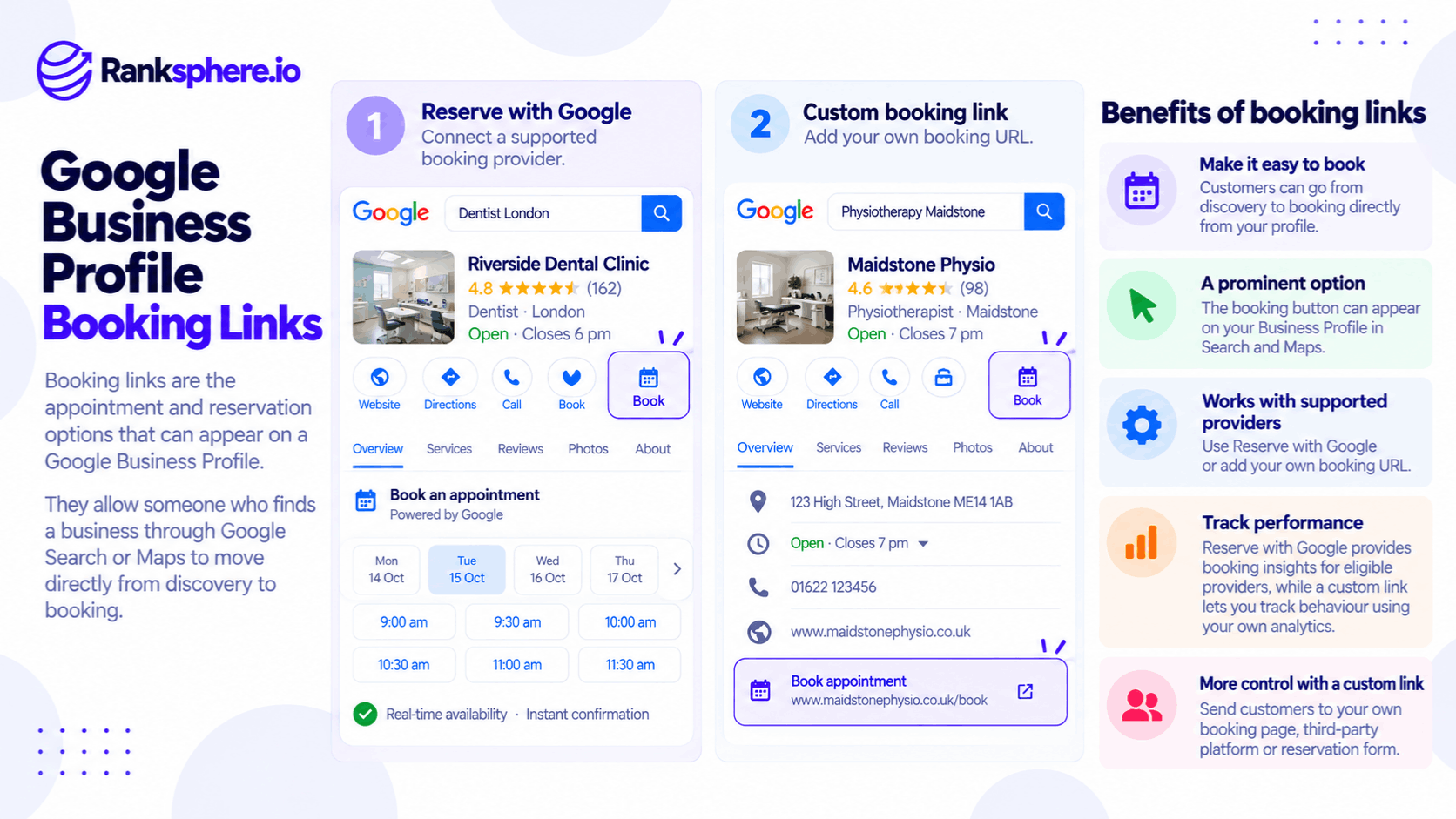
Google Business Profile supports two main approaches:
- Reserve with Google — Booking through a supported scheduling provider integrated with Google.
- Custom booking links — URLs added to a Business Profile that direct customers to an external booking page.
Both help customers take action, but they work differently.
Reserve with Google can support integrated booking experiences and provides eligible booking performance information. Custom links offer more control over the destination page and can be tracked through website analytics when configured correctly.
For local businesses, the best option depends on their scheduling platform, business category, location, and how they want customers to book.
How Do Google Business Profile Booking Links Work?
Booking links allow eligible businesses to offer appointments, reservations, or other supported booking actions from their Google Business Profile.
The booking experience depends on the method used.
A customer might select a time through an integrated scheduling provider or be redirected to an external website to complete the appointment.
Booking features are not available to every business.
Google considers factors such as business category, country, available integrations, and the type of service offered.
1. Reserve with Google
Reserve with Google is Google's booking integration for eligible businesses that use supported scheduling providers.
It allows customers to discover and book certain services through Google Search or Google Maps.
For example, a salon using a supported provider may allow customers to choose a service and an available appointment time through a Google booking experience.
Depending on the provider and booking type, customers may be able to complete the reservation through Google without navigating to the business's website.
However, the exact experience varies by provider, service, and region.
How Reserve with Google Works
To use Reserve with Google, a business needs access to an eligible scheduling provider.
The general process involves:
- Opening the Business Profile's booking management options.
- Checking the available scheduling providers.
- Selecting an eligible provider.
- Connecting or configuring the booking service.
- Checking that the booking option appears and works correctly.
Google states that booking providers may take up to a week to appear on the Business Profile after setup.
Some providers may also charge fees for their services.
Benefits of Reserve with Google
Depending on the integration, benefits may include:
- Allowing customers to book through Google's booking experience.
- Showing available appointment times or services.
- Synchronising eligible bookings with the scheduling provider.
- Providing booking-related performance information.
- Supporting booking confirmations and reminders.
However, businesses should check the exact capabilities of their provider.
Not every integration supports the same booking experience or additional features.
2. Custom Booking Links
A custom booking link is a URL that a business adds to its Google Business Profile.
Instead of booking through an integrated Google experience, customers follow the link to another website.
For example, a physiotherapy clinic might direct customers to:
https://example.com/book-appointment
That page could allow customers to choose a practitioner, select a treatment, and book an appointment.
The destination may be the business's own website or an appropriate third-party scheduling platform.
Benefits of Custom Booking Links
Custom links are useful because businesses can:
- Direct customers to an existing booking system.
- Provide additional information before an appointment.
- Display available practitioners or services.
- Explain pricing and preparation requirements.
- Track website visits and booking actions where analytics are configured.
- Maintain control over their booking experience.
A custom link doesn't require the scheduling system to be a Reserve with Google partner.
However, the link still needs to meet Google's business link requirements, and the booking link feature must be available to the business.
Reserve with Google vs Custom Booking Links
Both options can make booking easier, but their features and measurement methods differ.
| Feature | Reserve with Google | Custom booking link |
|---|---|---|
| Booking destination | Supported Google booking experience | External website or booking platform |
| Supported provider required | Yes | No Reserve with Google partnership required |
| Booking interface | Depends on the integration | Controlled by the destination platform |
| Google booking performance data | Available for supported integrations | Not available as equivalent custom-link booking data |
| Website analytics | Depends on whether users visit the website | Can measure visits when properly configured |
| Appointment reminders | Supported in eligible booking experiences | Depends on the booking platform |
| Availability | Limited by region, category, and provider | Limited by Business Profile link eligibility |
| Booking fees | Provider-dependent | Depends on the external platform |
The choice isn't simply about which option displays the most prominent button.
Businesses should consider the booking experience, available reporting, and the information customers need before making an appointment.
Which Booking Option Should Your Business Use?
The most suitable booking method depends on the type of business and how customers typically make appointments.
When Reserve with Google May Be Better
Reserve with Google may be suitable when a business wants to make appointment scheduling convenient within Google's supported booking experience.
For example, a hair salon may offer straightforward appointment types with predefined durations.
Customers may prefer to select a service and available time without completing several additional steps.
Reserve with Google can be useful when:
- The business uses a supported scheduling provider.
- Eligible booking options are available in its region.
- The appointment process is relatively straightforward.
- The business wants supported Google booking performance reporting.
- The provider's fees and features meet the business's needs.
However, an integrated booking option doesn't guarantee more appointments.
The actual benefit depends on customer preferences and the quality of the scheduling experience.
When a Custom Booking Link May Be Better
A custom link may be more appropriate when customers need information before completing a booking.
For example, a dental practice may offer several treatments that require different appointment types.
Its booking page might explain:
- Available treatments
- Practitioner selection
- Consultation fees
- Appointment durations
- Preparation instructions
- Eligibility or booking requirements
A custom booking page can support that information within the business's own website or scheduling platform.
It can also be useful when the business's existing booking provider doesn't support Reserve with Google.
Can You Use Both?
Eligible businesses may be able to use both supported provider integrations and manually added booking links.
Google also allows businesses to manage multiple local business links and select a preferred link in supported interfaces.
However, the options displayed to customers can depend on the business category, location, and available features.
Don't assume that Google will always prioritise one particular booking method.
Check the public Business Profile after making changes to confirm what customers actually see.
How to Add a Booking Link to Google Business Profile
Google allows eligible businesses to manage booking links through their Business Profile.
The available controls may vary by business and device.
Add a Custom Booking Link
To add a booking URL:
- Open your Google Business Profile.
- Find the Booking option, if available.
- Select the option to add a link.
- Enter the URL of your booking page.
- Save the change.
- Check the public profile to confirm the link works.
Google's local business link guidance allows eligible profiles to add multiple links within supported categories.
Businesses can also designate a preferred link where the option is available.
Make sure the destination page works on mobile and provides the booking experience customers expect.
Connect a Reserve with Google Provider
To set up a supported booking integration:
- Open your Google Business Profile.
- Select Bookings.
- Choose the option to get started with a scheduling provider.
- Select an available provider.
- Complete the setup instructions.
- Check that the integration appears and works.
If you already use a scheduling platform, confirm whether it supports Reserve with Google in your country.
If the provider isn't available, you may still be able to add a custom booking URL.
Google's official instructions are available in its booking provider setup guide.
How to Track Custom Booking Links With UTM Parameters
When a customer clicks a custom booking link that leads to your website, you may be able to measure that visit using analytics.
However, you need appropriate tracking.
Without campaign parameters, the visit may be attributed according to the available referral and channel information.
For example, it might be classified within organic search or another channel, depending on how the visitor arrived and how analytics processes the visit.
Adding UTM parameters can help distinguish traffic from your Google Business Profile booking link.
Example of a UTM-Tagged Booking URL
A custom booking link might look like this:
https://example.com/book?utm_source=google&utm_medium=organic&utm_campaign=gbp_booking
The parameters help identify the source of visits in supported analytics reports.
For example:
- utm_source=google identifies Google as the source.
- utm_medium=organic classifies the traffic using the chosen medium.
- utm_campaign=gbp_booking identifies the specific booking link.
Use a consistent naming convention across your business's tracking setup.
This makes reports easier to compare over time.
Measure Completed Bookings, Not Just Clicks
A click on a booking link doesn't necessarily mean an appointment was completed.
For example, someone may open the booking page, review available times, and leave without confirming.
To measure actual appointments, the booking system needs to provide a reliable completion event or another suitable measurement method.
In Google Analytics 4, businesses can configure relevant key events for confirmed bookings when the required information is available.
However, some third-party platforms don't provide complete analytics integration.
If the booking happens on another website, additional tracking arrangements may be necessary.
Does Google Business Profile Report Booking Link Performance?
Google provides booking performance information for supported Reserve with Google experiences.
However, equivalent booking performance data isn't available in Google Business Profile for manually added custom links.
This distinction matters when comparing booking methods.
For example, a business using Reserve with Google may have access to supported booking metrics.
A business using a custom link needs to rely on its website analytics, booking platform, or other available reporting to measure visits and confirmed appointments.
See Google Business Profile performance for more information about profile metrics.
Booking Link Clicks vs Confirmed Appointments
These are different actions.
A booking link click means someone opened the booking destination.
A confirmed appointment means the booking was successfully completed.
Businesses should distinguish between them when evaluating results.
For example, a booking page that receives 100 visits and generates 20 confirmed appointments has a different outcome from one that receives 100 visits but records no completed bookings.
The appropriate conversion calculation depends on how the website and booking platform measure those actions.
Compare Booking Methods Carefully
If a business uses both Reserve with Google and a custom booking link, the reporting sources may not be directly comparable.
For example, one system may report completed bookings while another reports website sessions or booking page visits.
Avoid combining different metrics without understanding what each measures.
The objective is to understand how customers book and whether the process works effectively.
Do Google Booking Links Help You Get More Reviews?
Booking links can make it easier for customers to arrange appointments.
However, adding a booking link isn't a confirmed direct Google ranking factor, and it doesn't automatically increase customer reviews.
Some booking platforms offer post-appointment follow-up messages or review request features.
These features depend on the provider and aren't guaranteed with every Reserve with Google integration.
Booking Reminders
Google's supported booking experiences can provide reminders to help customers remember upcoming appointments.
The exact reminder process may depend on the booking provider and service.
Post-Appointment Review Requests
Businesses should check whether their scheduling platform supports review requests after completed appointments.
For example, some providers may offer automated follow-up messages.
However, a business shouldn't assume that connecting Reserve with Google automatically activates review requests.
For review collection, follow Google's policies.
Ask for genuine feedback without incentives or selective solicitation of positive reviews.
A consistent, compliant review request process may support review velocity, but no particular number of reviews is guaranteed.
Why Is the Booking Option Missing From Google Business Profile?
Not every business is eligible for booking links.
If you can't find the booking feature, check the following.
Business Category
Google Business Profile features vary by business category.
For example, appointment booking may be available to certain service businesses, while restaurant-specific reservation options are available to eligible hospitality businesses.
If the feature is missing, review your Google Business Profile categories.
However, don't change your primary category simply to unlock a feature unless that category accurately represents the business.
Country and Regional Availability
Some booking features aren't available in every country.
A provider may support Reserve with Google in one region but not another.
Check Google's current eligibility requirements and the provider's availability.
Scheduling Provider Compatibility
A business may use a booking platform that doesn't support Reserve with Google.
In that situation, the business may still qualify for a custom booking link.
Check with the provider before assuming an integration exists.
Profile Eligibility and Link Requirements
Google also applies rules to business links.
For example, the booking URL needs to be valid and comply with Google's relevant policies.
A malformed URL or ineligible destination can prevent the link from being added.
See Google's business links policies and guidelines.
How to Remove an Unwanted Third-Party Booking Link
Some businesses discover booking links on their Google Business Profile that they didn't manually add.
These may come from third-party scheduling providers or other supported sources.
For example, a restaurant might find a reservation provider associated with its listing even though the business now uses a different platform.
An outdated provider link can send customers to the wrong booking system.
Check Which Provider Supplies the Link
Open the Business Profile's booking management section.
Review the available providers and destinations.
Google provides a removal process for eligible third-party links.
Request Removal
Google's current guidance describes a Remove Provider option through the Business Profile booking interface.
The removal request is handled by the relevant provider.
Google states that providers must remove third-party booking links within five days of receiving the request.
If the provider doesn't process the request, businesses can report a violation.
Check the Profile Again
After submitting the request, confirm that the unwanted link has been removed.
Also verify that the correct booking option remains available.
Businesses with multiple locations should check each relevant profile because booking destinations may differ.
Common Google Business Profile Booking Link Mistakes
Several mistakes can make booking links less effective or difficult to measure.
Not Tracking Custom Booking Links
Without a consistent UTM tagging strategy, businesses may struggle to distinguish booking page visits originating from Google Business Profile.
Add appropriate campaign parameters when the link leads to a website where tracking is supported.
Treating Booking Clicks as Confirmed Appointments
Opening a booking page isn't the same as completing a reservation.
Track successful bookings separately where possible.
Assuming Reserve with Google Works With Every Platform
Only supported providers can offer eligible Reserve with Google integrations.
Check compatibility before planning the booking experience.
Using an Outdated Booking URL
A booking link may stop working after a website redesign or scheduling platform change.
For example, a clinic may move its booking system to a new domain while the Business Profile still points to the old one.
Test links regularly.
Ignoring Business Category Requirements
Some features depend on the business category.
Make sure the profile accurately represents the business rather than selecting categories solely to access a feature.
Assuming Review Requests Are Automatic
Post-appointment review messages depend on the scheduling platform and available features.
Don't assume every Reserve with Google integration includes automated review solicitation.
Leaving Unwanted Third-Party Links in Place
An outdated provider may continue appearing on the profile.
Review booking providers periodically and follow the official removal process when necessary.
Booking Link Best Practices
To make Google Business Profile booking options more useful:
- Check which booking features are available for your business category and country.
- Confirm whether your scheduling platform supports Reserve with Google.
- Decide whether customers should book through Google or an external page.
- Use a custom booking link when you need additional control over the booking experience.
- Add appropriate UTM parameters to links leading to your website.
- Track completed bookings separately from link clicks.
- Keep booking URLs accurate and functional.
- Test the booking experience on mobile.
- Provide clear pricing and service information where appropriate.
- Review unwanted third-party providers.
- Verify the displayed booking option after making changes.
- Check booking provider fees and terms.
- Review booking performance using comparable metrics.
- Confirm whether your scheduling platform supports reminders or compliant review requests.
Ranksphere's GBP Management helps businesses manage profile information across locations. Booking link availability and provider-specific controls should be verified directly through the relevant Google Business Profile and booking platform.
Example of Booking Links for a Local Hair Salon
Consider a hypothetical hair salon that uses an external scheduling platform.
The salon adds a custom booking URL to its Google Business Profile.
Customers can follow the link to choose a treatment and appointment time.
However, the owner doesn't know how many bookings originate from Google.
What the Salon Discovers
The booking page is receiving visits, but the link doesn't contain UTM parameters.
As a result, the salon cannot easily distinguish visits from its Google Business Profile booking link in its existing analytics reports.
The owner assumes that few customers use the link.
However, there isn't enough reliable data to support that conclusion.
How the Salon Improves Tracking
The salon reviews its scheduling platform and discovers that it supports Reserve with Google in its market.
It considers enabling the integration.
The team also adds appropriate UTM parameters to its custom booking URL.
The salon then reviews whether its website and scheduling platform can report confirmed bookings from that source.
Comparing the Booking Options
With both booking methods available, the salon can investigate:
- Whether customers use the supported Google booking experience
- How many visitors open the external booking page
- How many appointments are completed
- Whether particular services generate more bookings
- Whether the booking experience creates unnecessary steps
The business should avoid treating website visits and completed appointments as identical metrics.
It should also check whether the scheduling provider offers reminders or optional review request features.
Example Shows
“The original problem wasn't necessarily a lack of customer interest.
The salon simply didn't have enough information to understand how customers were booking.
By reviewing its integration options and improving tracking, it can make more informed decisions about its booking experience.
However, no particular increase in bookings or reviews is guaranteed.
Booking links help customers take the next step from Google Business Profile, but the right setup depends on the booking experience and how the business needs to measure results.
For local businesses, the priority should be a reliable booking process, accurate links, and reporting that distinguishes interest from completed appointments.”
See Also
- Google Business Profile — Managing how a business appears on Google Search and Maps.
- Google Business Profile Performance — Understanding customer interactions and supported booking metrics.
- UTM Parameters — Tracking visits from custom booking links.
- Google Business Profile Categories — Choosing categories that accurately represent a business.
- Review Velocity — Understanding the frequency of new customer reviews.
- Conversion Rate — Measuring how often visitors complete important actions.